Scheduler allows you to trigger your Konnectify connectors at specific times or intervals, enabling time-based automations that run automatically without requiring external events. This powerful feature lets you build scheduled workflows for recurring tasks and routine operations.
Time to complete: 10-15 minutes
Difficulty: Beginner
Prerequisites: Basic understanding of connector creation
What You'll Need
Before you begin, ensure you have:
An active Konnectify account
Understanding of when you want your connector to run (specific times, intervals, or frequencies)
Knowledge of your timezone for accurate scheduling
Planned actions that should execute on the schedule
Understanding Scheduler
Scheduler in Konnectify is a time-based trigger that runs your connectors automatically at defined intervals or specific times. This tool enables you to:
Run connectors on a regular schedule (hourly, daily, weekly, etc.)
Automate recurring tasks without manual intervention
Execute workflows at optimal times for your business
Perform routine data syncs and updates
Generate reports at scheduled intervals
Send periodic notifications or reminders
Key Components of Scheduler
Set Occurrence – How frequently the connector should run
Time Offset – Fine-tune the exact minute within the hour/day the connector runs
Timezone – Ensure the schedule runs according to your local time
First Execution – When the scheduled connector will run for the first time
Weekend Exclusion – Option to skip weekend executions
When to Use Scheduler
Scheduler is ideal for scenarios such as:
Daily reports: Generate and send reports every morning
Regular data syncs: Sync data between systems every hour or daily
Periodic backups: Back up data at scheduled intervals
Reminder notifications: Send weekly or monthly reminders
Routine maintenance: Perform cleanup tasks on a regular schedule
Time-based updates: Update records at specific times
Batch processing: Process accumulated data at set intervals
Step 1: Create a New Connector with Scheduler
Navigate to Connector Creation
Log in to your Konnectify account
Click the + New button to create a new connector
The connector creation interface opens
Select Scheduler as Your Trigger
In the "Configure your Trigger" modal, click on the Tools tab
You'll see the available Konnectify tools, including:
Scheduler – Configure your scheduler
Click on Scheduler to select it as your trigger
Step 2: Configure Schedule Occurrence
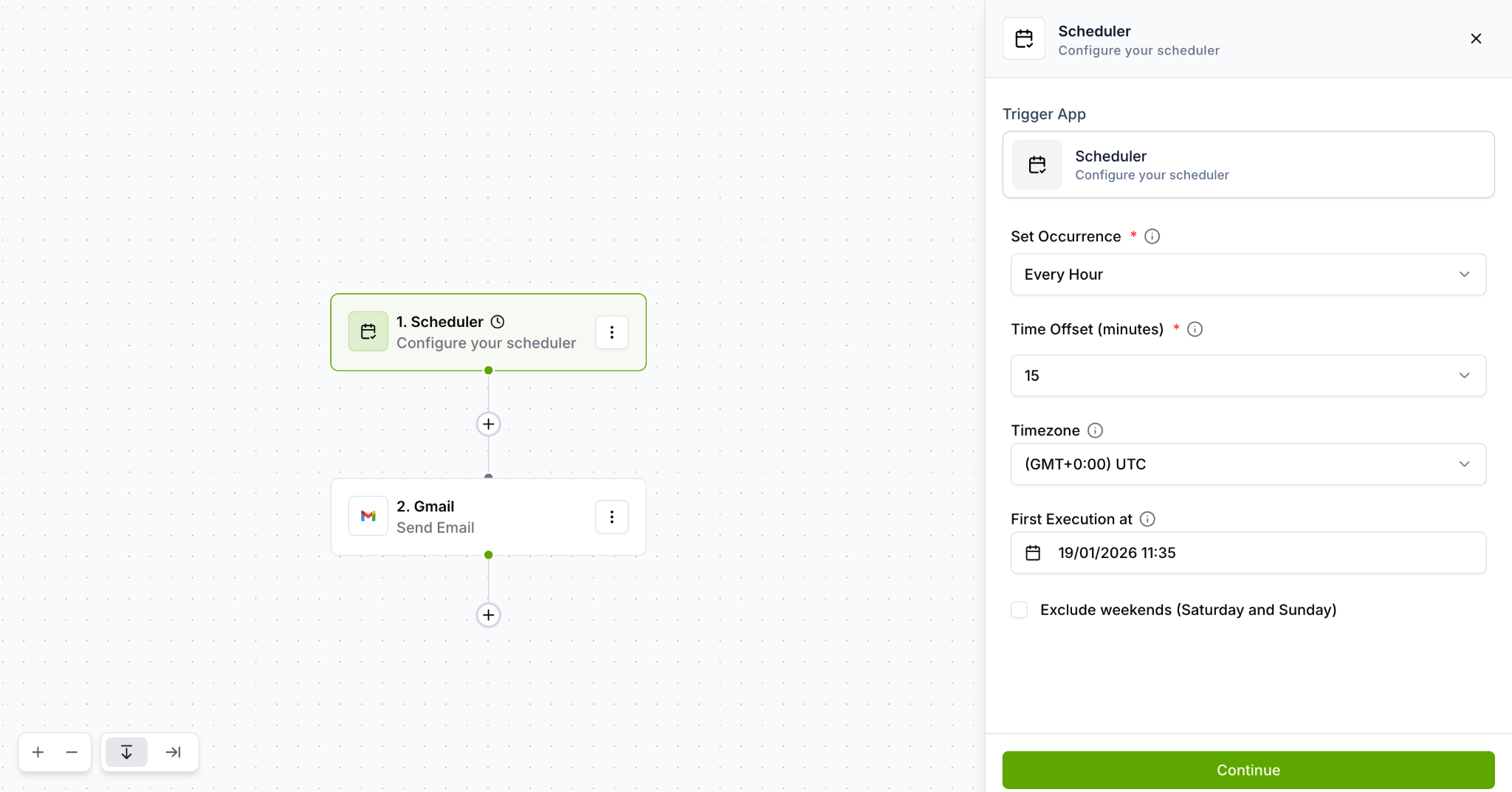
After selecting Scheduler, the configuration panel opens on the right side.
Access the Configuration Panel
The panel displays:
Trigger App: Scheduler
Set Occurrence: Dropdown to select frequency
Time Offset: Fine-tune the execution time
Timezone: Set your timezone
First Execution at: When the schedule starts
Exclude weekends: Optional weekend exclusion
Select Your Schedule Frequency
Under Set Occurrence (marked with *), click the dropdown menu
Choose how often your connector should run:
Every Hour – Runs once per hour
Every Day – Runs once per day
Every Week – Runs once per week
Every Month – Runs once per month
Custom – Define a custom schedule (if available)
In the screenshot example, Every Hour is selected
Step 3: Set Time Offset
The Time Offset allows you to specify the exact minute within the hour or time of day when the connector should run.
Configure Time Offset
Under Time Offset (minutes) (marked with *), click the dropdown or input field
Select or enter the minute offset:
For hourly schedules: Choose the minute past the hour (0-59)
For daily schedules: This might represent time of day
In the screenshot example: 15 is selected (runs 15 minutes past each hour)
Understanding Time Offset
For "Every Hour" schedules:
Time Offset: 0 → Runs at the top of each hour (1:00, 2:00, 3:00, etc.)
Time Offset: 15 → Runs at quarter past each hour (1:15, 2:15, 3:15, etc.)
Time Offset: 30 → Runs at half past each hour (1:30, 2:30, 3:30, etc.)
For "Every Day" schedules:
The time offset determines what time of day the connector runs
Example: Offset might represent hours and minutes (e.g., 9:30 AM)
Step 4: Set Your Timezone
Timezone ensures your connector runs at the correct local time, especially important for businesses operating across multiple time zones.
Configure Timezone
Under Timezone, click the dropdown menu
Select your timezone from the list:
The list includes all standard timezone options
Format typically shows offset and timezone name
In the screenshot example: (GMT+0:00) UTC is selected
Common timezone examples:
(GMT-8:00) Pacific Time (US & Canada)
(GMT-5:00) Eastern Time (US & Canada)
(GMT+0:00) UTC
(GMT+1:00) Central European Time
(GMT+5:30) India Standard Time
Why Timezone Matters
Ensures schedules run at intended local times
Critical for time-sensitive operations
Accounts for daylight saving time changes
Allows coordination across distributed teams
Step 5: Review First Execution Time
The First Execution timestamp shows when your scheduled connector will run for the first time.
Understanding First Execution
Under First Execution at, you'll see a date and time display
This shows when the connector will make its initial scheduled run
In the screenshot example: 19/01/2026 11:35
This is calculated automatically based on:
Your selected occurrence frequency
The time offset you configured
Your chosen timezone
The current date and time
What This Means
The connector will start running on the displayed date/time
Subsequent runs follow your configured schedule
You can activate the connector now, and it will wait until this time
If this time has already passed, it will run at the next scheduled interval
Step 6: Configure Weekend Exclusion (Optional)
Weekend exclusion allows you to skip connector executions on Saturdays and Sundays, useful for business-hours-only automations.
Enable Weekend Exclusion
Locate the Exclude weekends (Saturday and Sunday) checkbox
Check the box if you want to skip weekend executions
When enabled:
The connector will not run on Saturdays
The connector will not run on Sundays
Normal schedule resumes on Monday
When to Use Weekend Exclusion
Business reports that aren't needed on weekends
Data syncs for office operations
Notifications to team members during work days only
Any automation relevant only during business hours
Note: Leave unchecked if you need 7-day-a-week operation
Step 7: Add Actions to Your Scheduled Connector
With the Scheduler configured, you can now add actions that will execute on your defined schedule.
Visual Workflow Structure
Your workflow canvas shows:
Node 1: Scheduler - Configure your scheduler (your trigger)
Node 2: Gmail - Send Email (example action)
Show Image
Add Your Actions
Click the + button below the Scheduler node
The "Configure action" interface appears
Select the app and action you want to perform on schedule
Configure the action as needed:
For data fetching: Set parameters for what data to retrieve
For notifications: Configure recipients and message content
For updates: Define what changes to make
For reports: Set up report generation parameters
Step 8: Save and Activate Your Scheduled Connector
Review Your Configuration
Before saving, verify:
✓ Schedule frequency is set correctly (Every Hour, Every Day, etc.)
✓ Time offset is configured for desired execution time
✓ Timezone matches your location
✓ First execution time is appropriate
✓ Weekend exclusion is set according to your needs
✓ Actions are properly configured
Save Your Configuration
Click the Continue button in the Scheduler configuration panel
Your Scheduler trigger is now configured
Complete your action configurations
Click Save in the top-right corner to save the entire connector
Give your connector a descriptive name (e.g., "Daily Sales Report - 8AM", "Hourly CRM Sync")
Activate the Connector
Toggle the connector status from Inactive to Active
Or click View and activate from the connector details page
Once activated:
Your connector will wait until the First Execution time
It will then run automatically according to your schedule
No manual triggering is required
All executions are logged for monitoring
Was this article helpful?
That’s Great!
Thank you for your feedback
Sorry! We couldn't be helpful
Thank you for your feedback
Feedback sent
We appreciate your effort and will try to fix the article