
Paths - How to Use Paths in Konnectify
Paths allow you to create conditional workflows in Konnectify, enabling your konnector to take different actions based on specific criteria. This powerful feature lets you build intelligent automations that respond dynamically to your data.
Time to complete: 10-15 minutes
Difficulty: Intermediate
Prerequisites: Understanding of basic konnector creation
What You'll Need
Before you begin, ensure you have:
An active Konnectify account with an existing konnector
A konnector with at least one trigger configured
Understanding of the data conditions you want to evaluate
Knowledge of which actions should happen for each path
Understanding Paths
Paths in Konnectify enable you to create branching logic in your workflows. Instead of performing the same action for every trigger event, paths allow you to:
Route data to different apps based on specific conditions
Perform different actions depending on field values
Create complex, multi-branch workflows that adapt to your data
Filter and transform data before sending it to destination apps
Key Components of Paths
Path Filter – A node that evaluates conditions and routes data accordingly
Filter Rules – The conditions that determine which path the data follows
Branches – Multiple paths stemming from a single filter, each leading to different actions
Conditions – Specific criteria (field values, operators, match rules) that data must meet
When to Use Paths
Paths are ideal for scenarios such as:
Priority routing: Send high-value leads to your sales team, standard leads to marketing
Category-based actions: Route support tickets to different teams based on category or priority
Regional distribution: Direct customers to region-specific systems or teams
Status-based workflows: Trigger different actions based on deal stages or ticket statuses
Data validation: Only process records that meet specific quality criteria
Step 1: Add a Path Filter to Your konnector
Open your existing konnector in the Konnectify editor
In the workflow canvas, locate the point where you want to add conditional logic
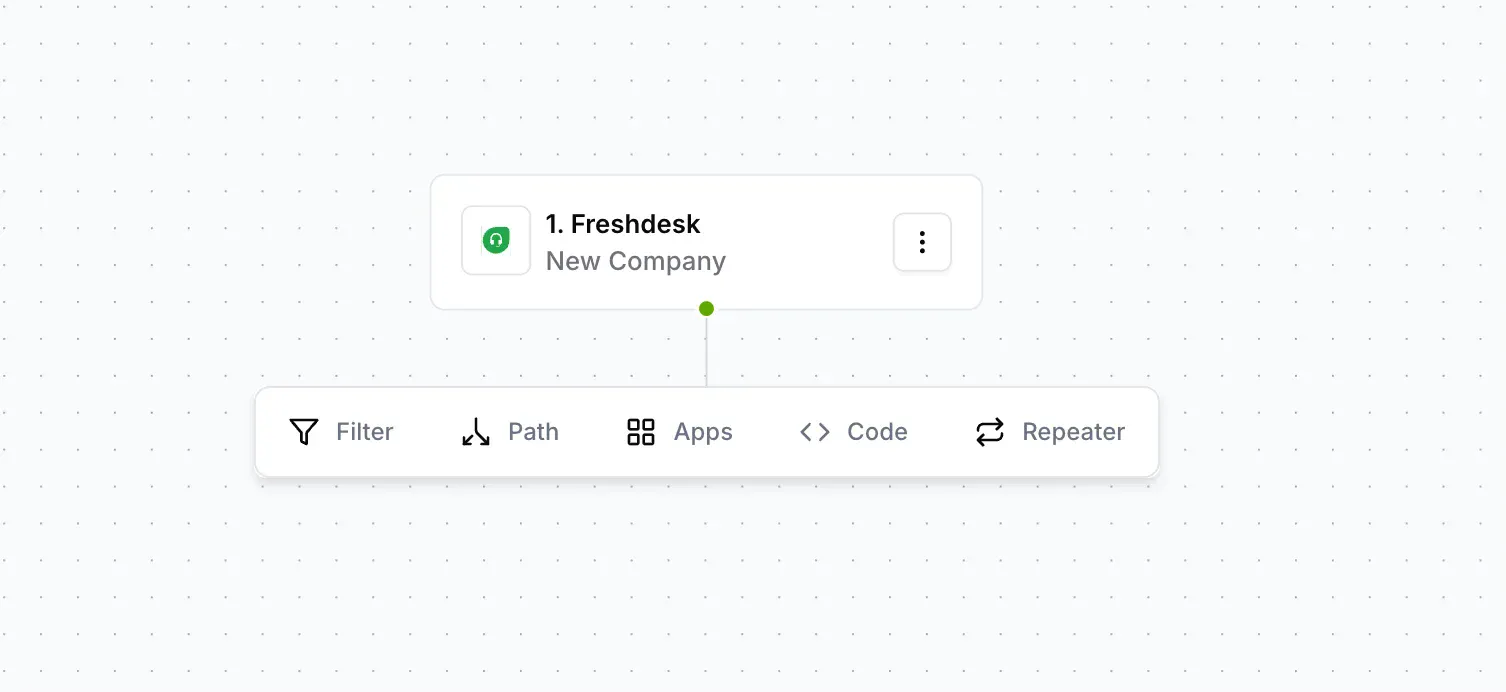
Click the + button below the node where you want to create branches
From the configuration options, select Paths
A Path Filter node is added to your workflow, showing:
The filter icon
"No conditions" status (initially)
Multiple branch options
Step 2: Configure Filter Rules
Filter rules determine which data flows through each path. You can create simple or complex conditions based on your needs.
Access the Configuration Panel
Click on the Path Filter node you just created
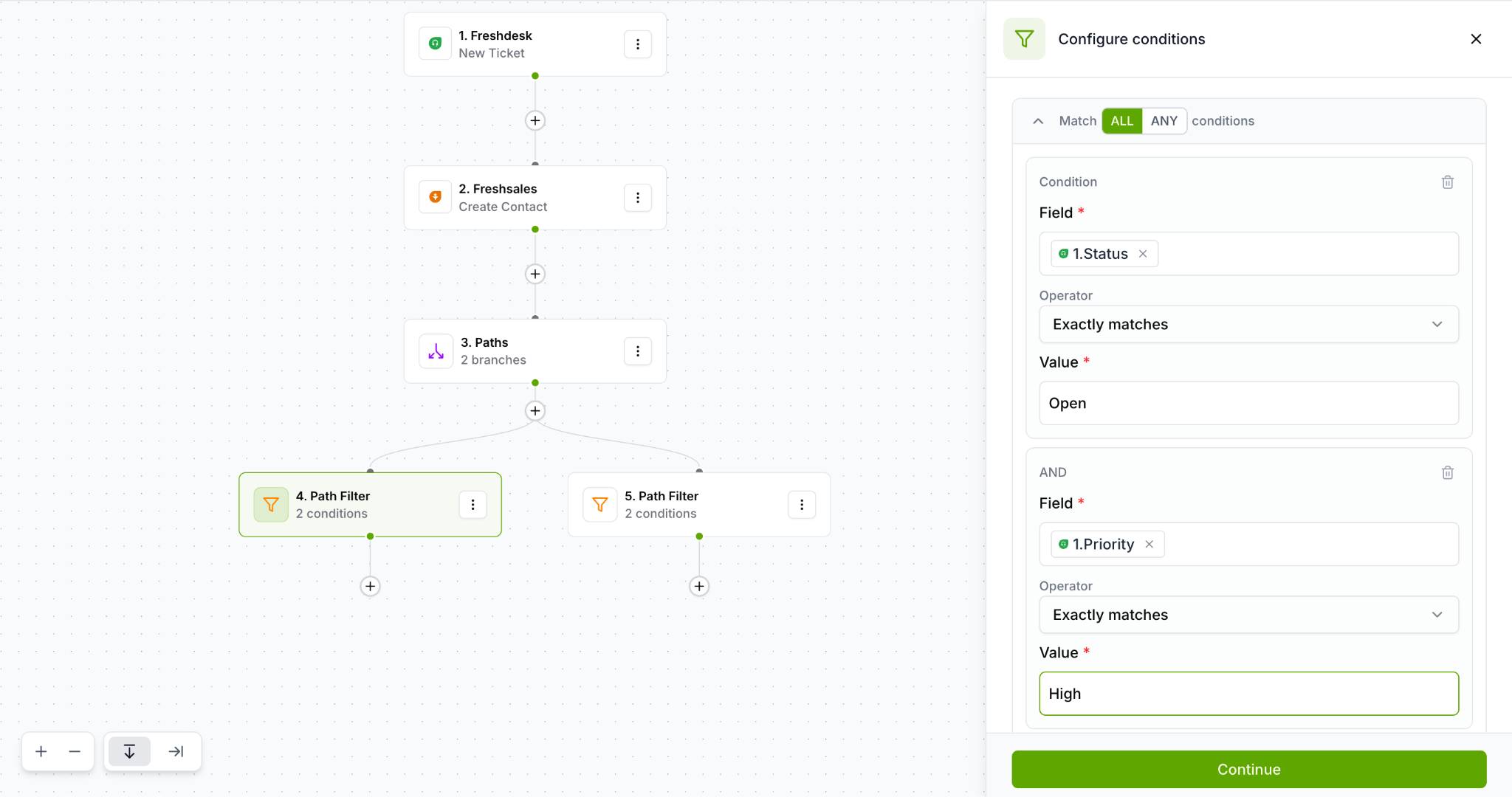
The "Configure conditions" panel opens on the right side
You'll see the Filter Rules section with options to define your conditions
Set the Match Logic
At the top of the Filter Rules section, choose how conditions should be evaluated:
ALL – Data must match ALL conditions (AND logic)
ANY – Data must match ANY condition (OR logic)
This determines whether all conditions must be true or just one condition needs to be true for data to flow through this path.
Step 3: Create Your First Condition
Define the Condition
Under Condition, locate the Field input (marked with *)
Click "Enter text or insert fields"
Choose the field from your trigger data that you want to evaluate
Under Operator, select how you want to compare the field:
Exactly matches – Field must equal the exact value
Contains – Field includes the specified text
Does not contain – Field excludes the specified text
Starts with – Field begins with the specified text
Ends with – Field concludes with the specified text
Greater than – Numeric field exceeds the value
Less than – Numeric field is below the value
Is empty – Field has no value
Is not empty – Field contains any value
Under Value (marked with *), enter or select the value to compare against
You can enter static text
Or insert dynamic fields from your trigger data
Step 4: Add Multiple Conditions (Optional)
You can create complex filtering logic by adding multiple conditions to a single path.
Click the ⊕ Condition button at the bottom of the conditions panel
Define additional conditions using the same process:
Select a Field
Choose an Operator
Enter a Value
Remember your match logic (ALL or ANY) determines how these conditions work together
Step 5: Create Multiple Paths
One of the most powerful features is creating multiple branching paths, each with its own conditions and actions.
Add Additional Path Filters
In the workflow canvas, you'll see your first Path Filter node
To create additional branches, click the + Filter button
A new Path Filter node appears as a parallel branch
Configure conditions for this new path following Steps 2-4
Repeat to create as many paths as needed (3 branches, 4 branches, etc.)
Step 6: Configure Actions for Each Path
Each path can lead to different actions, creating truly dynamic workflows.
Below each Path Filter node, click the + button
Add the appropriate action for that specific path:
Different apps
Different actions in the same app
Different field mappings
Configure each action independently based on the path's purpose
Step 7: Save and Test Your Paths
Before activating your konnector with paths, thorough testing ensures data flows correctly.
Review Your Configuration
Click the Continue button in the Configure conditions panel
Review the visual workflow to ensure:
All path filters have conditions configured
Each path leads to appropriate actions
The logic matches your intended workflow
Save Your Changes
Click the Save button in the top-right corner
Your konnector now includes conditional path logic
Test Each Path
Testing is crucial for paths since you need to verify each branch works correctly:
Create test data that matches each path's conditions
Run your konnector manually or wait for real trigger events
Verify that data routes to the correct path based on your conditions
Check execution logs to confirm which paths were triggered
Best Practices for Using Paths
Keep Conditions Clear and Simple
Use descriptive field names in your conditions
Avoid overly complex nested logic when possible
Document your path logic for future reference
Create a "Catch-All" Path
Include a final path with no conditions or very broad conditions
This ensures data that doesn't match other paths still gets processed
Prevents data from being lost due to unexpected values
Test with Real Data
Use actual data from your trigger app when testing
Verify edge cases and unusual values
Check that all required fields are available for your conditions
Monitor Path Usage
Review execution logs regularly to see which paths are used most
Identify paths that never trigger (may indicate configuration issues)
Optimize conditions based on actual data patterns
Consider Performance
More paths and conditions can increase execution time
Keep the number of paths reasonable (typically 3-5 paths)
For complex routing, consider using multiple konnectors instead
Troubleshooting Paths
Data Not Following Expected Path
Check condition syntax: Ensure field names match exactly (case-sensitive)
Verify operator choice: "Exactly matches" vs "Contains" can make a big difference
Review match logic: Confirm ALL vs ANY is set correctly
Check data format: Numbers, dates, and text must match the expected format
Multiple Paths Triggering
Review condition overlap: Ensure paths have mutually exclusive conditions
Check match logic: ALL vs ANY can cause unexpected overlaps
Use more specific conditions: Add additional criteria to narrow each path
No Path Triggering
Verify field availability: Confirm the trigger provides the fields you're evaluating
Check for null values: Ensure fields have data when the trigger fires
Review condition values: Make sure you're comparing against actual possible values
Add a catch-all path: Create a path with no conditions as a safety net
Was this article helpful?
That’s Great!
Thank you for your feedback
Sorry! We couldn't be helpful
Thank you for your feedback
Feedback sent
We appreciate your effort and will try to fix the article