
Repeater - How to Use Repeater in Konnectify
Repeater allows you to iterate over arrays of data in your Konnectify konnectors, enabling you to perform the same action multiple times for each item in a list. This powerful feature lets you process bulk data efficiently and automate repetitive tasks at scale.
Time to complete: 15-20 minutes
Difficulty: Intermediate
Prerequisites: Understanding of basic konnector creation and arrays/lists
What You'll Need
Before you begin, ensure you have:
An active Konnectify account with an existing konnector
A konnector with at least one trigger configured
Understanding of array data structures and how they appear in your workflow
Knowledge of which actions should be repeated for each array item
Understanding Repeater
Repeater in Konnectify enables you to loop through arrays of data and perform actions on each item. Instead of processing only single records, Repeater allows you to:
Iterate over lists of items from your trigger or previous actions
Perform the same action multiple times, once for each array element
Process bulk data efficiently within a single konnector
Create complex workflows that handle multiple records simultaneously
Update or transform collections of data systematically
Key Components of Repeater
Items Array – The array of data you want to iterate over
Maximum Iterations – A safety limit on how many times the loop will run
Loop Variables – Variables that can be updated within the loop and accessed outside
Nested Actions – Actions and logic that execute for each iteration
Loop Scope – The contained workflow that repeats for each array item
When to Use Repeater
Repeater is ideal for scenarios such as:
Bulk record processing: Create or update multiple records in a destination app
List operations: Send individual emails to a list of contacts
Multi-step processing: Perform complex operations on each item in a collection
Data transformation: Convert arrays of data from one format to another
Aggregation tasks: Collect information from multiple items and combine results
Batch operations: Process groups of related records together
Step 1: Add a Repeater to Your konnector
Open your existing konnector in the Konnectify editor
In the workflow canvas, locate the point where you want to add looping logic
Click the + button below the node where you want to process array data
From the configuration options, select Repeater under the Tools section
A Repeater node is added to your workflow, showing:
The repeater icon (circular arrows)
"Configure repeater" description
A contained area for nested actions
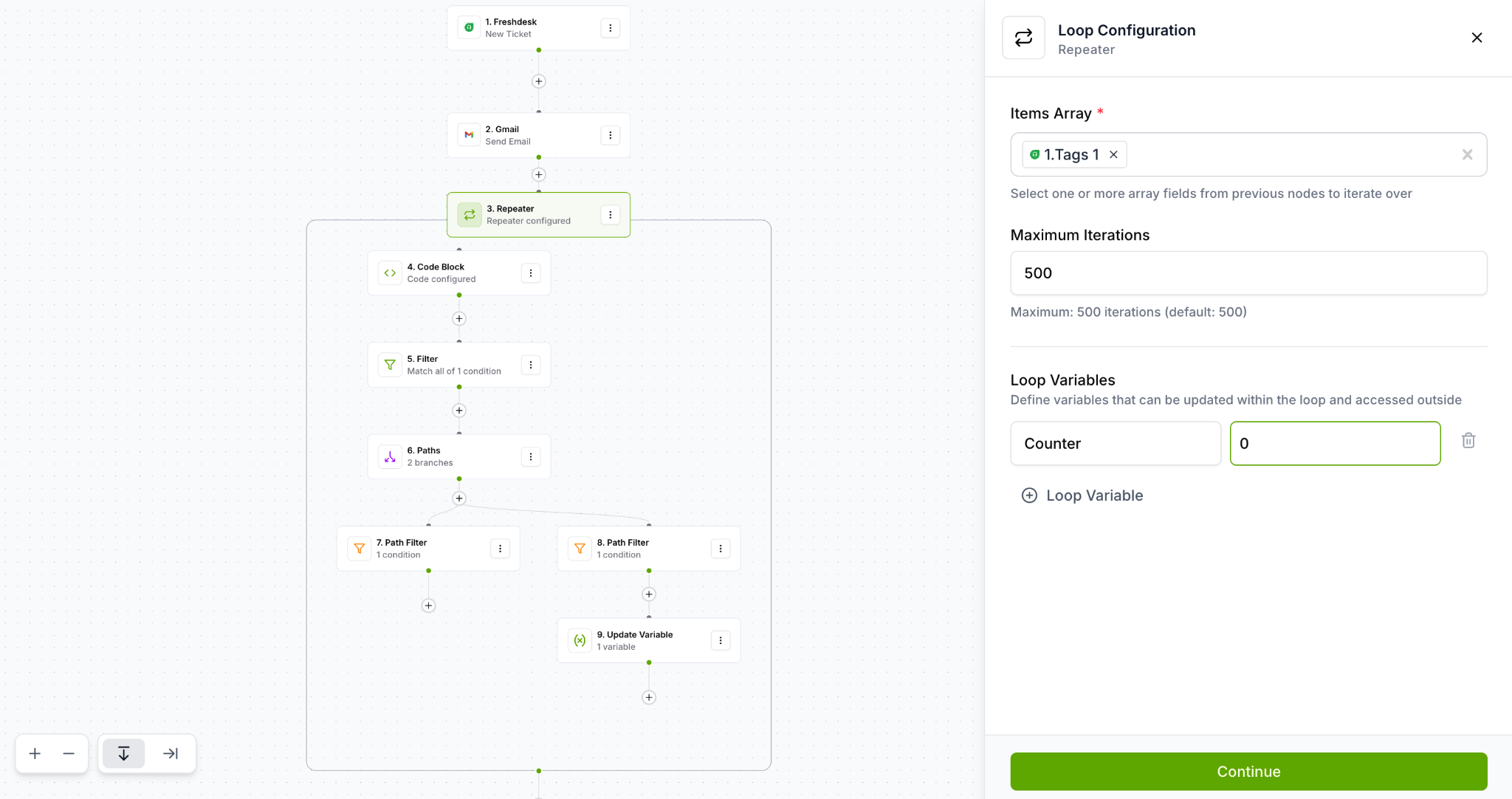
Step 2: Access the Loop Configuration Panel
Click on the Repeater node you just created
The "Loop Configuration" panel opens on the right side
You'll see several sections:
Items Array – Define which array to iterate over
Maximum Iterations – Set the loop limit
Loop Variables – Define variables for use within and outside the loop
Step 3: Configure the Items Array
The Items Array determines which collection of data the Repeater will iterate over.
Select Your Array Field
In the Items Array section (marked with *), click on the field
You'll see the prompt: "Select one or more array fields from previous nodes to iterate over"
Choose an array field from:
Your trigger data (if it contains arrays)
Previous action nodes that return arrays
Previous Code Block outputs that include arrays
The selected array will be displayed, for example: 1.Tags 1
Understanding Array Data
Arrays are collections of items, often represented as lists in your data
Common examples: tags, line items, contact lists, file attachments, email recipients
Each item in the array will be processed once during the loop
The Repeater automatically iterates through all items in the selected array
Example: If your trigger returns a ticket with 5 tags, selecting the tags array will cause the Repeater to execute 5 times, once for each tag.
Step 4: Set Maximum Iterations
Maximum Iterations is a safety feature that prevents infinite loops and controls resource usage.
Configure the Limit
In the Maximum Iterations field, enter or keep the default value: 500
This setting means:
The loop will stop after processing 500 items, even if the array is larger
Default value is 500 iterations
You can adjust this based on your needs
Best Practices for Maximum Iterations
Keep it reasonable: Higher limits consume more execution time
Consider your data: Set the limit based on typical array sizes in your workflow
Monitor performance: Large iteration counts may impact konnector speed
Use for safety: Prevents runaway loops from consuming excessive resources
Note: The display shows "Maximum: 500 iterations (default: 500)" to indicate the current setting.
Step 5: Define Loop Variables (Optional)
Loop Variables allow you to track information across iterations and access it after the loop completes.
Understanding Loop Variables
Loop Variables are useful for:
Counting iterations or tracking progress
Accumulating values across multiple iterations
Storing results that need to be accessed after the loop
Maintaining state between loop iterations
Add Loop Variables
In the Loop Variables section, you'll see the description: "Define variables that can be updated within the loop and accessed outside"
For each variable you want to create:
Variable Name: Enter a descriptive name (e.g., "count", "totalAmount", "processedItems")
Value: Set the initial value for the variable
Click the ⊕ Loop Variable button to add additional variables
You can delete any variable by clicking the trash icon on the right
Example Loop Variables
Counting iterations:
Variable name: counter
Value: 0
Tracking totals:
Variable name: totalAmount
Value: 0
Collecting results:
Variable name: processedIds
Value: `` (empty array)
Note: The screenshot shows placeholder text "Variable name (e.g., count)" and "Value" fields with example entries including "Konnectify" as a variable name.
Step 6: Build Actions Inside the Repeater
The real power of Repeater comes from the actions you place inside the loop, which execute for each array item.
Add Actions to the Loop
Inside the Repeater container on the workflow canvas, you'll see a + button
Click the + button to add an action that should repeat
Configure the action as you normally would:
Select the app
Choose the action event
Set up field mapping
Access Current Item Data
When mapping fields inside a Repeater:
You can access the current item from the array being iterated
The current item's fields are available in the field mapper
Each iteration automatically processes the next item in the array
Add Multiple Actions in the Loop
You can create complex workflows within the Repeater:
Add your first action (e.g., Code Block to process data)
Click the + button below it to add another action
Add conditional logic with Filters
Create branching paths with Paths
Chain multiple actions together
The screenshot shows a complex nested structure:
Node 3: Repeater - Configure repeater
Node 4: Code Block - Write custom JavaScript
Node 5: Filter - Configure filter conditions
Node 6: Paths - 2 branches
Node 7: Path Filter - No conditions
Node 8: Path Filter - No conditions
Step 7: Update Loop Variables (Optional)
If you defined Loop Variables, you can update them within your Repeater actions.
Updating Variables in Code Block
If using a Code Block inside your Repeater:
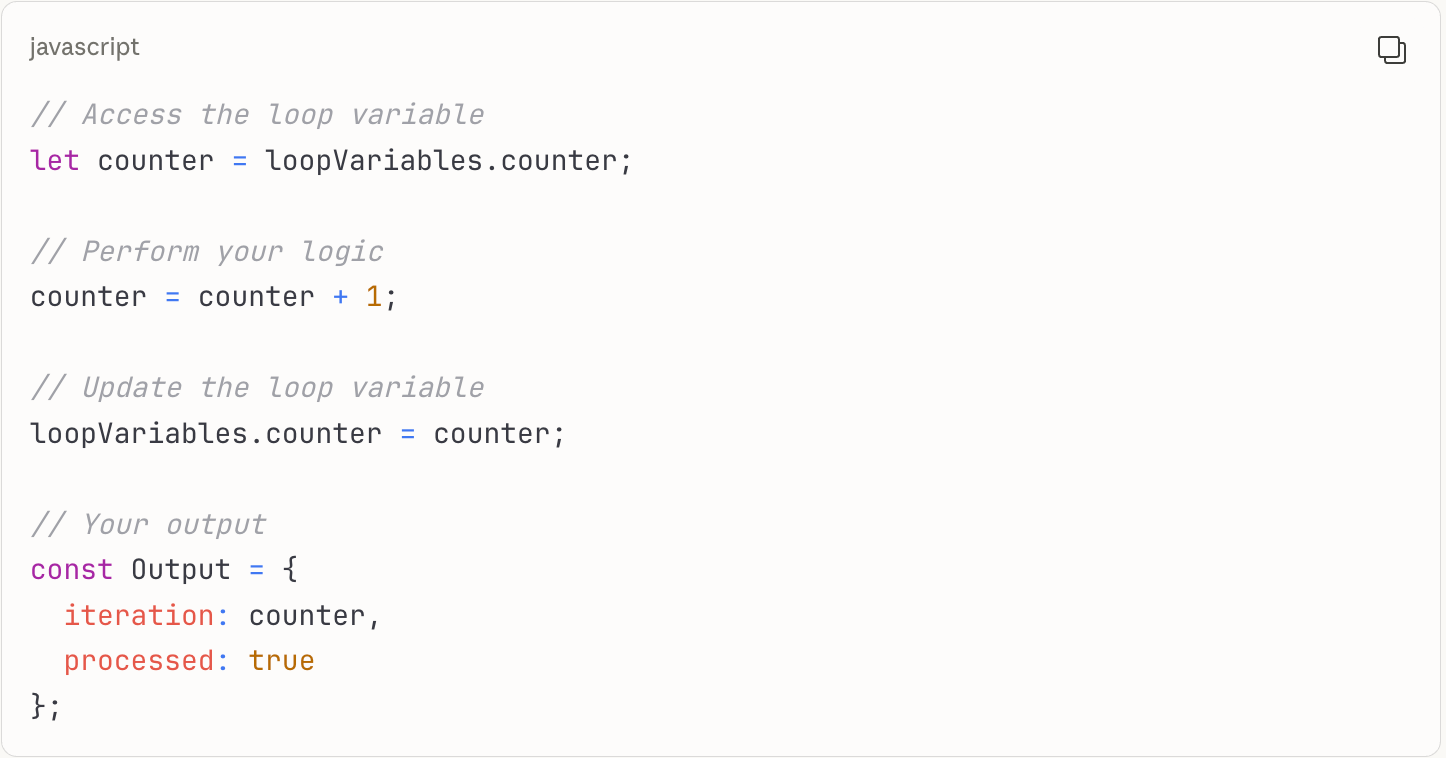
Common Variable Update Patterns
Increment counters:
javascript
loopVariables.counter = loopVariables.counter + 1;
Accumulate values:
javascript
loopVariables.totalAmount = loopVariables.totalAmount + currentItem.amount;
Collect results:
javascript
loopVariables.processedIds.push(currentItem.id);
Step 8: Save and Test Your Repeater
Before activating your konnector with a Repeater, thorough testing ensures the loop works correctly.
Review Your Configuration
Click the Continue button in the Loop Configuration panel
Review the visual workflow to ensure:
Items Array is correctly mapped
Maximum Iterations is set appropriately
Loop Variables are defined if needed
Actions inside the Repeater are properly configured
Save Your Changes
Click the Save button in the top-right corner
Your konnector now includes Repeater logic
Test the Repeater
Testing is crucial for Repeaters to verify the loop processes data correctly:
Use test data with a small array (3-5 items) for initial testing
Run your konnector manually or wait for a real trigger event
Verify in the execution logs:
The Repeater executed the correct number of times
Each iteration processed the expected array item
Actions within the loop completed successfully
Loop Variables updated as expected
Check that subsequent actions (after the Repeater) can access Loop Variables if needed
Was this article helpful?
That’s Great!
Thank you for your feedback
Sorry! We couldn't be helpful
Thank you for your feedback
Feedback sent
We appreciate your effort and will try to fix the article