
Using Konnectors on Konnectify:
This guide will help you understand what Konnectors are, how to use them, and how to create and edit them to automate your workflows efficiently.
What are Konnectors?
Konnectors are the building blocks of automation on the Konnectify platform. They allow you to connect various apps and automate workflows without writing any code. Each Konnector consists of a trigger (an event that starts the workflow) and one or more actions (tasks performed when the trigger occurs).
Creating a Konnector
Step 1: Start a New Konnector
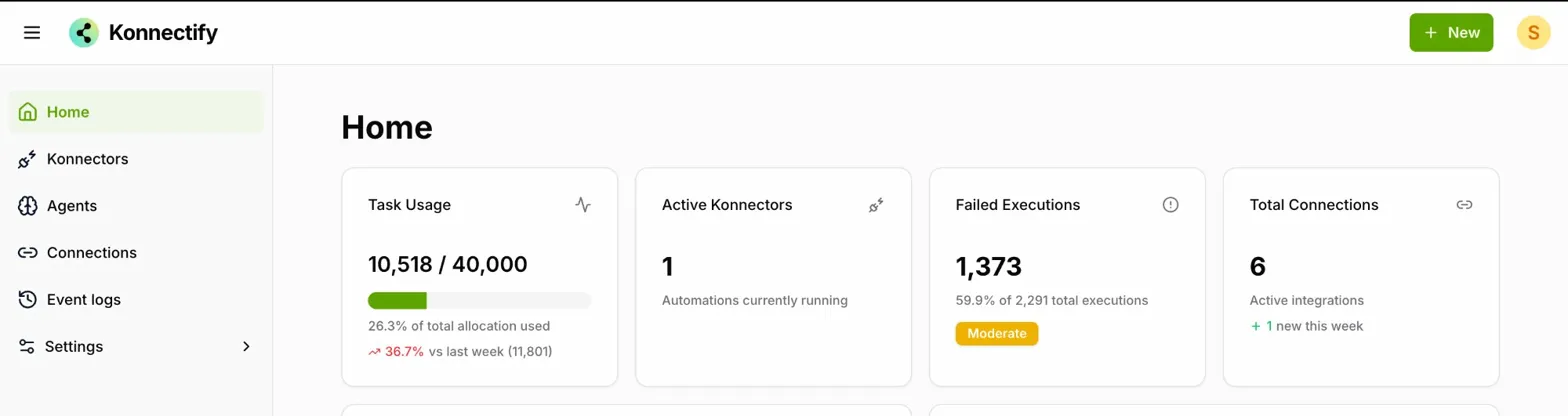
Click the green + New button in the top-right corner and select Konnectors from the dropdown. This opens the workflow builder canvas with two default steps: a Trigger and an Action.
Step 2: Set Up the Trigger
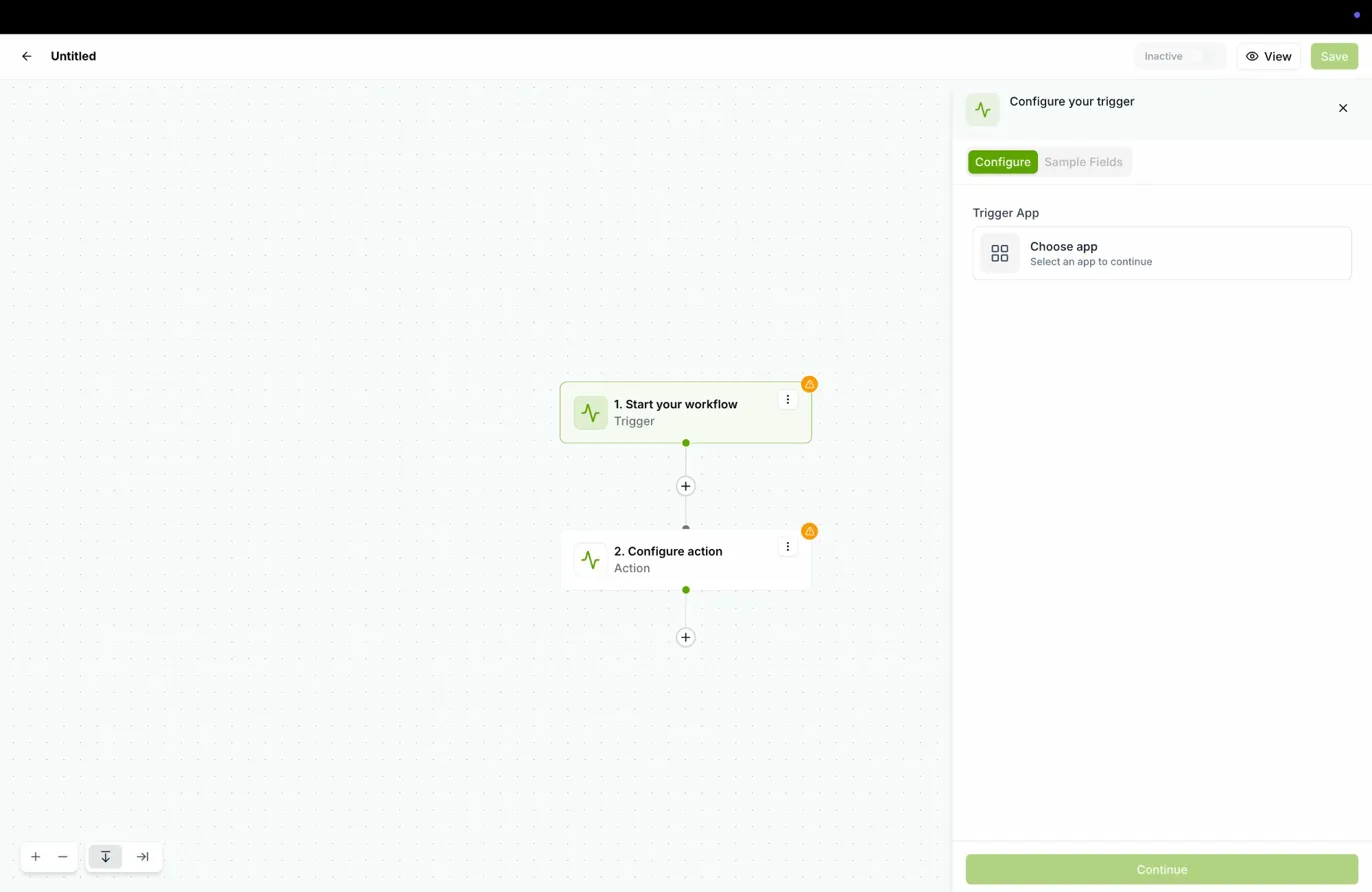
Click the "1. Start your workflow" node. The right panel opens with Configure your trigger. Click Choose app to open the trigger modal. Browse or search for your trigger source from:
Connected apps — e.g., Google Sheets, HubSpot, Slack, Gmail, GoHighLevel, Freshdesk, and more.
Built-in tools — e.g., Catch Hooks, Scheduler, Sync Hook.
Select your app, choose the trigger event, and configure any filters or conditions. Click Continue.
Step 3: Configure an Action
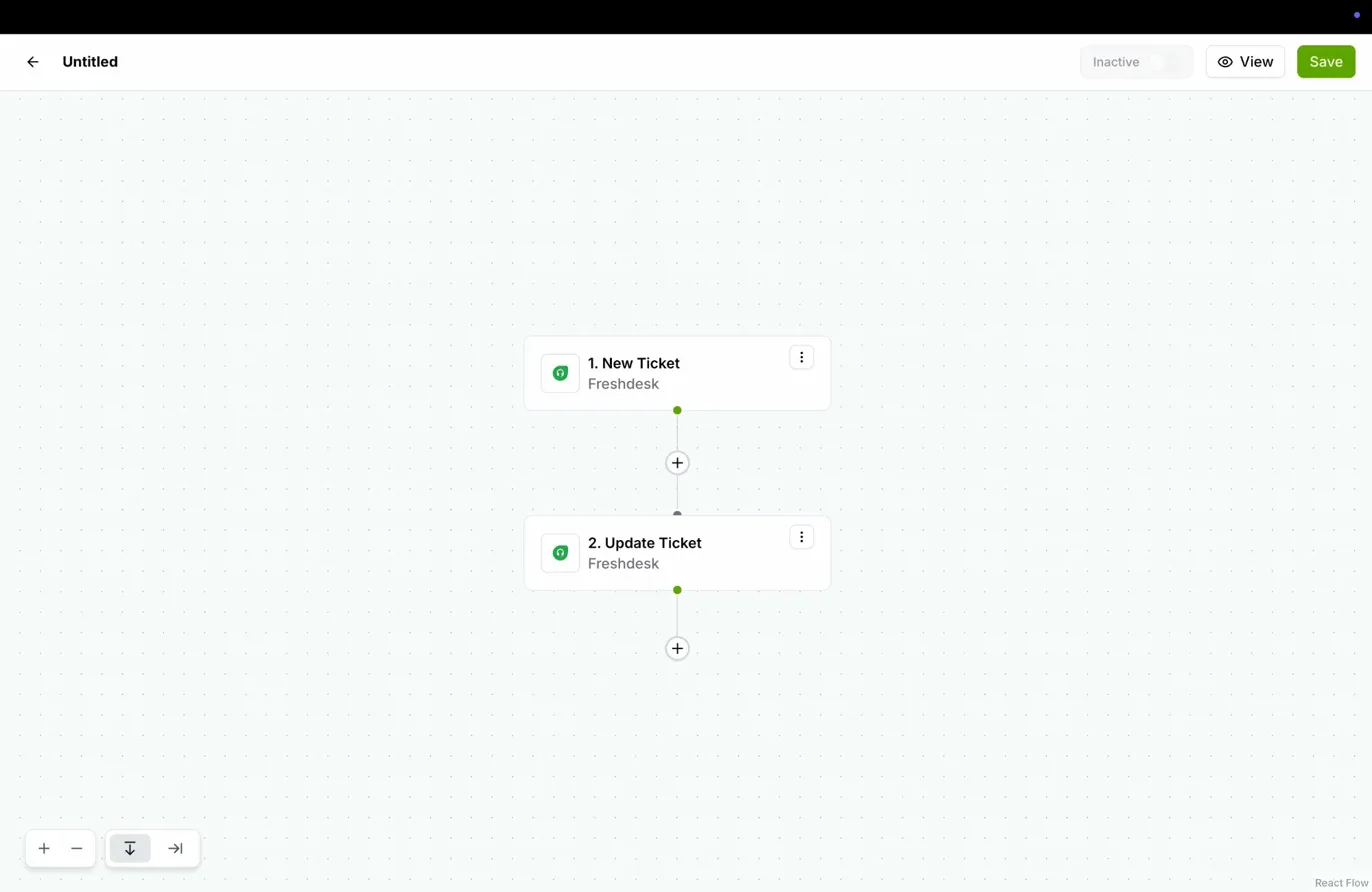
Click the "2. Configure action" node. Select the app where the action will occur, choose the specific action (e.g., Update Ticket, Send Email), and fill in the required fields. Click Continue.
Step 4: Add More Steps
Click the + button between or below steps to chain additional actions and build a multi-step workflow.
Step 5: Save and Activate
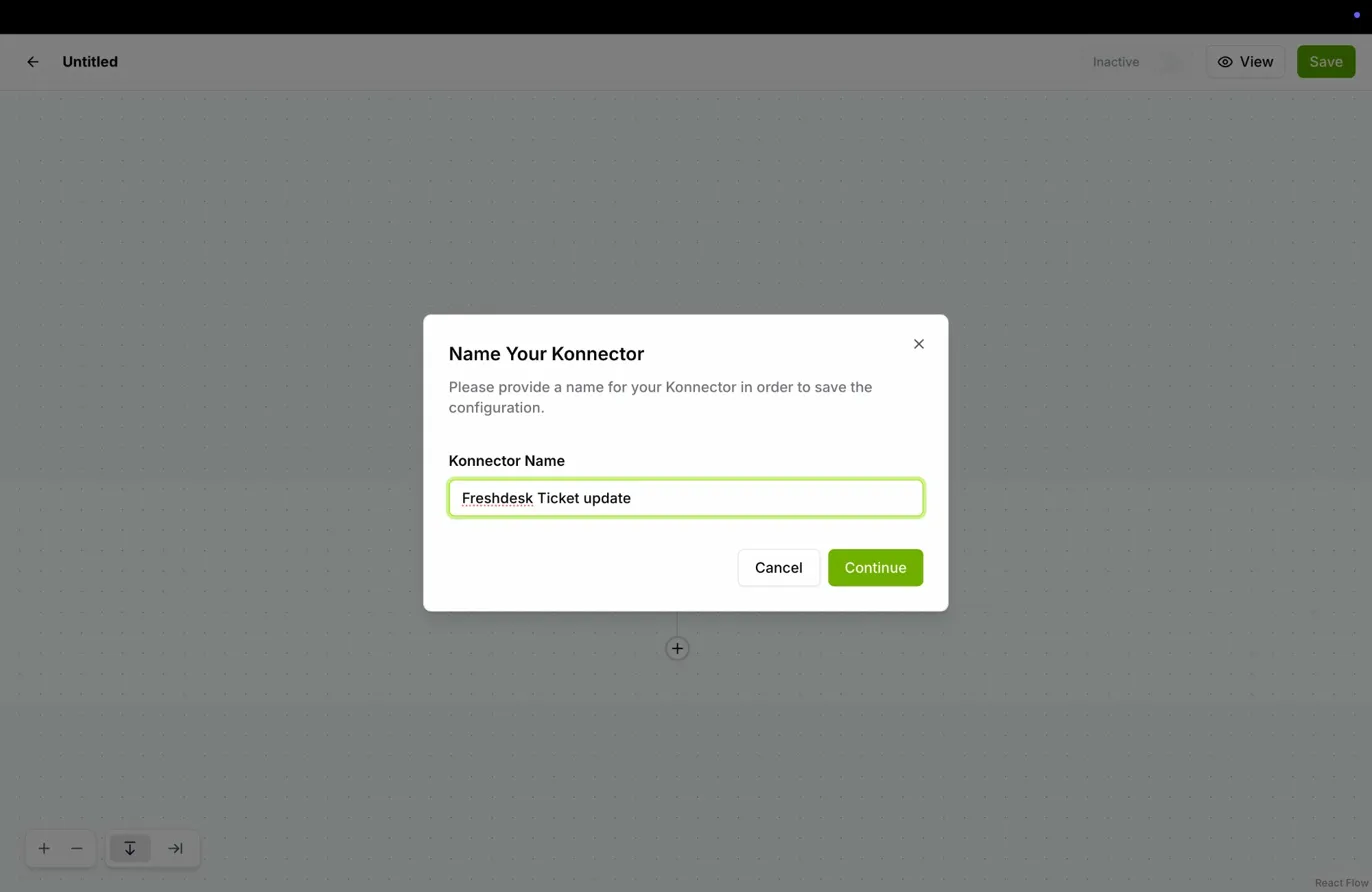
Click Save in the top-right corner. A "Name Your Konnector" dialog appears — enter a descriptive name and click Continue. The Konnector is saved and its status automatically switches to Active. A "Konnector activated!" confirmation appears at the bottom of the screen.
Editing a Konnector
Accessing Your Konnectors
Go to Konnectors in the left sidebar. The list shows each Konnector's name, connected apps, last run time, status toggle, and an actions menu (⋮).
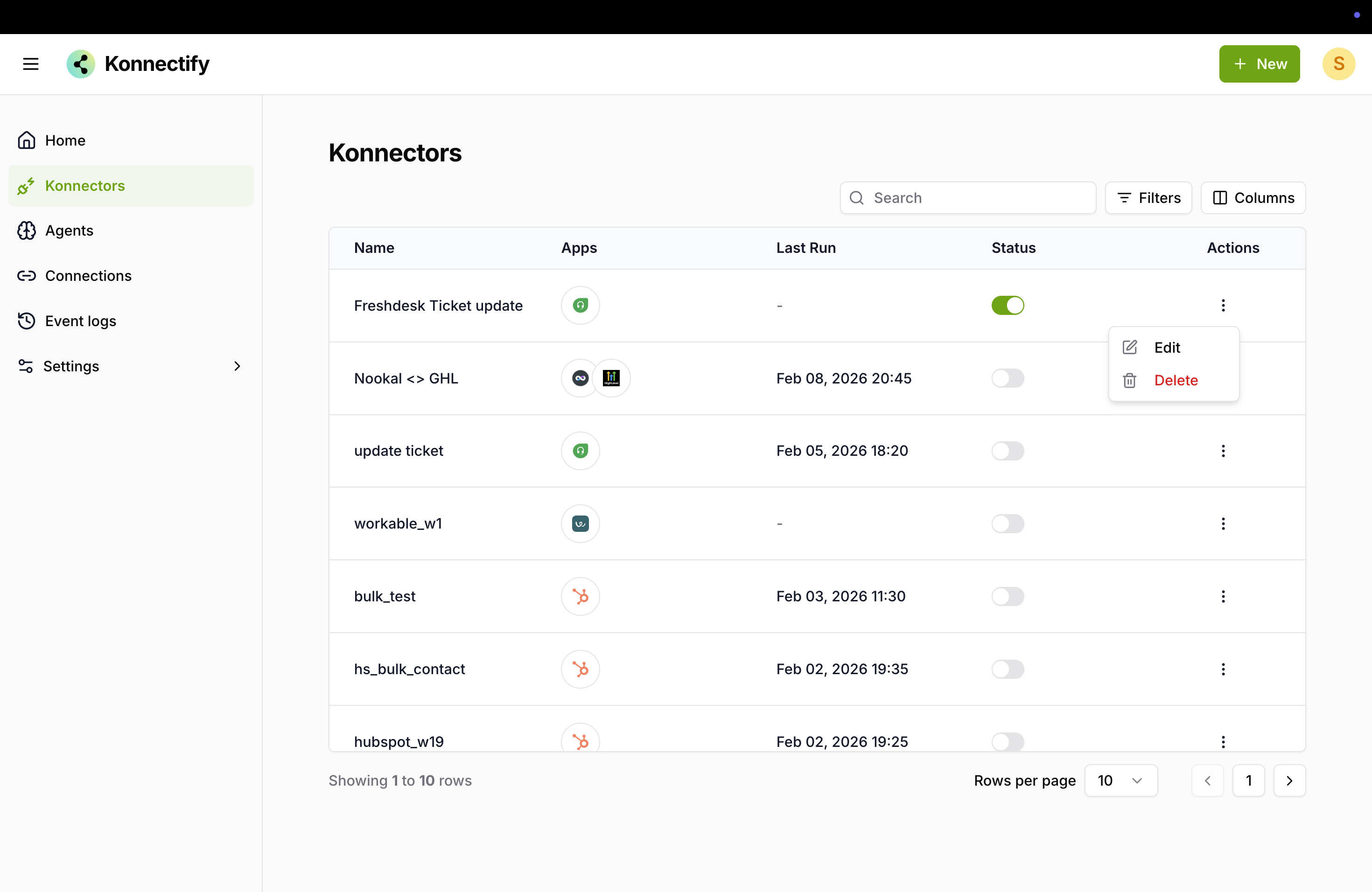
Making Changes
Click on the Konnector you want to edit to open it in view mode. Click the Edit button (pencil icon) in the top-right to enter edit mode. Update the trigger, actions, or any configurations as needed, then click Save.
Reactivating Your Konnector
After saving, toggle the status switch to Active to resume the automation.
Tips for Using Konnectors Effectively
Use Filters
Apply trigger filters so actions only run under the right conditions.Build Multi-step Workflows
Chain multiple actions in one Konnector for end-to-end automation.Monitor Performance
Regularly check the Event Logs for execution history and failed runs.Use Built-in Tools
Use Catch Hooks for external webhooks, Scheduler for timed runs, and Sync Hook for synchronous workflows.Name Clearly
Give Konnectors descriptive names so they're easy to find and manage in the list.
By following this guide, you can effectively use, create, and edit Konnectors on Konnectify to automate your tasks and improve your productivity. Happy automating!
Was this article helpful?
That’s Great!
Thank you for your feedback
Sorry! We couldn't be helpful
Thank you for your feedback
Feedback sent
We appreciate your effort and will try to fix the article