
How To Filter A Konnector
How to Filter Konnectors
Use the filter options in the Konnectors list to narrow down and find exactly the automations you need.
Filtering Konnectors
Once logged in, click on Konnectors in the left sidebar. This opens the Konnectors list showing all your existing automations.
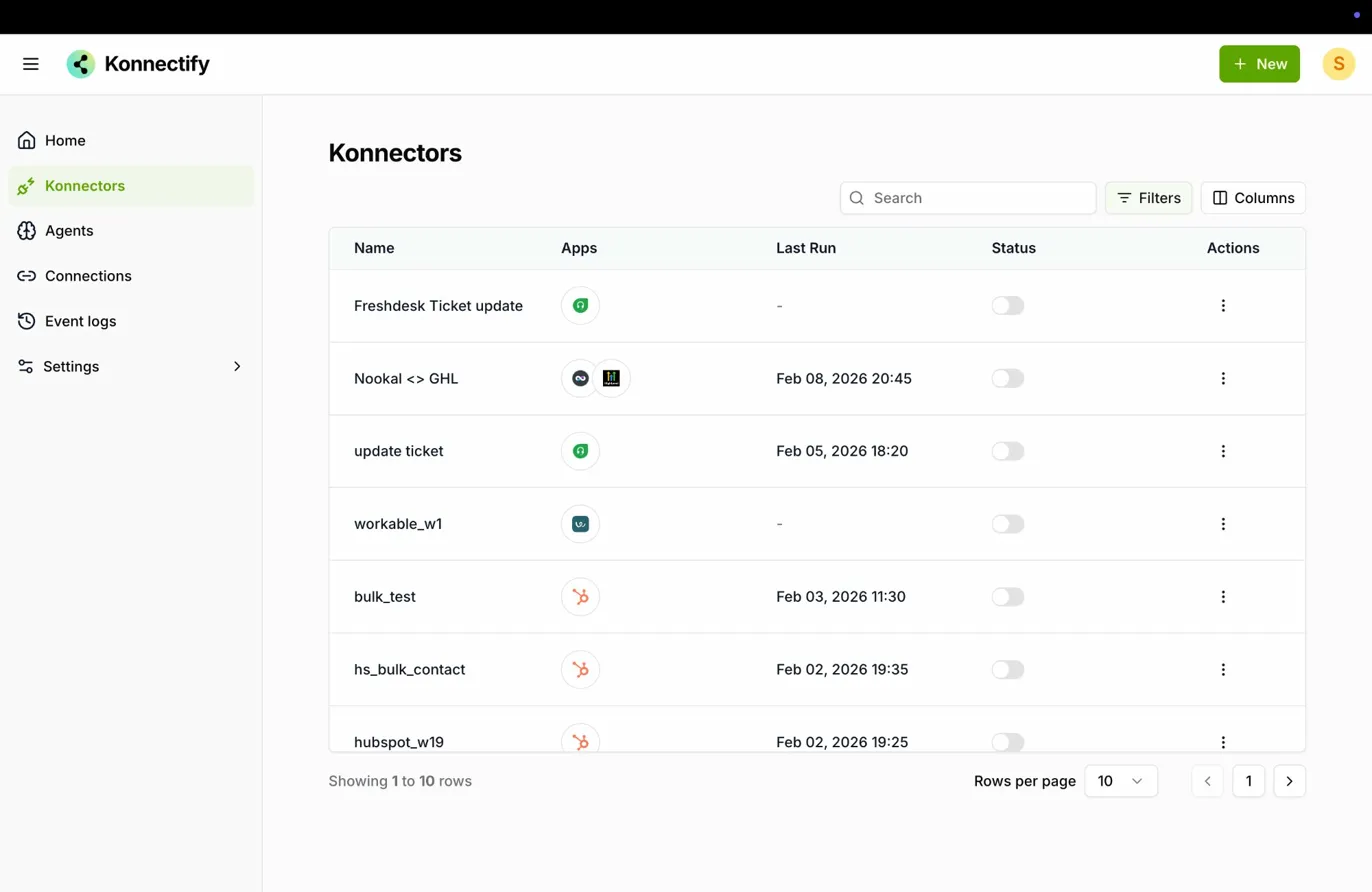
At the top right of the Konnectors list, click the Filters button. A filter panel will slide open from the right side of the screen.
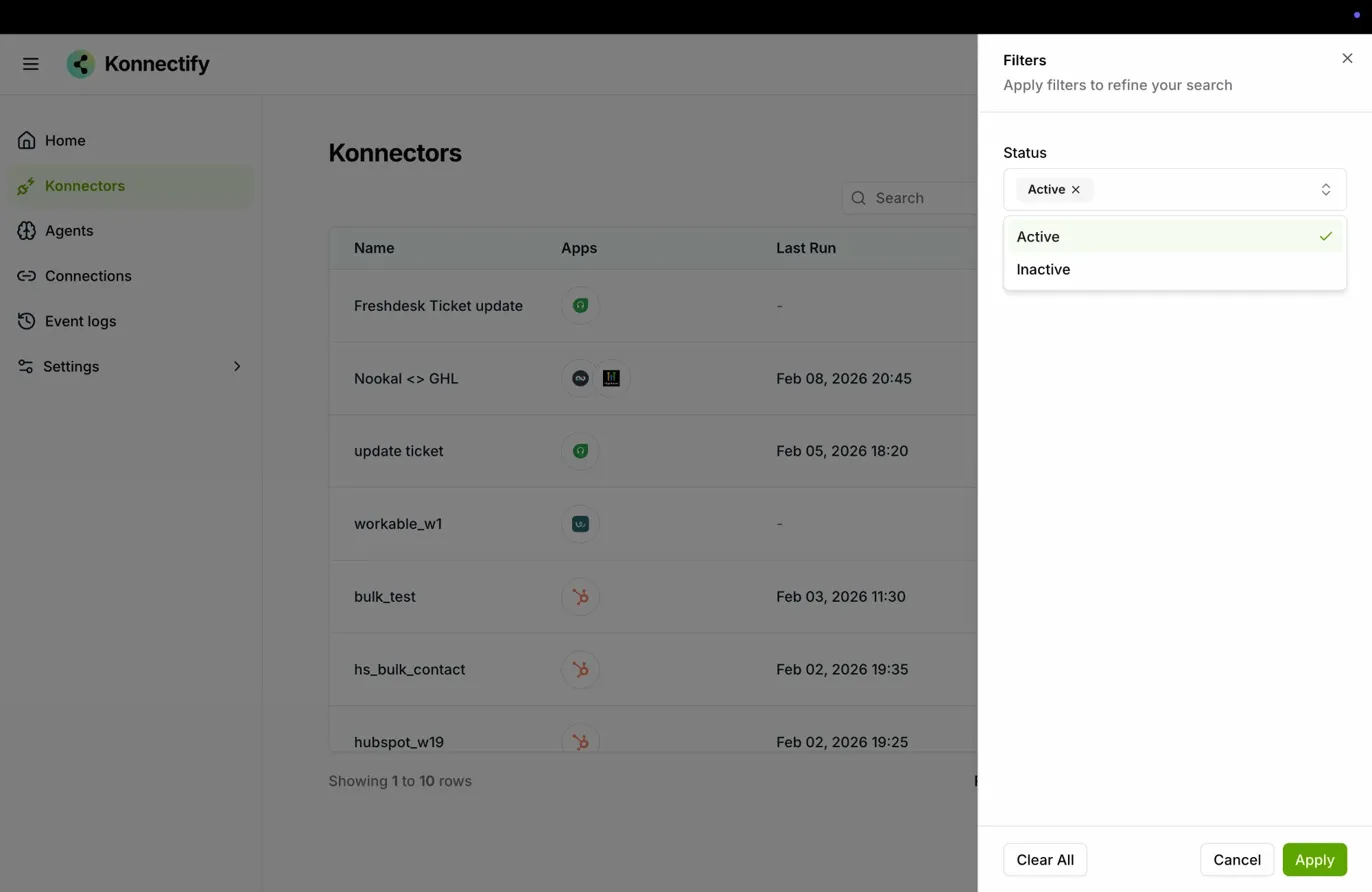
The filter panel lets you refine your list using the following options:
| Filter | Description |
| Status | Filter by Active or Inactive to view only running or paused Konnectors |
| Last Run | Select a date range using the calendar picker to find Konnectors that ran within a specific time period |
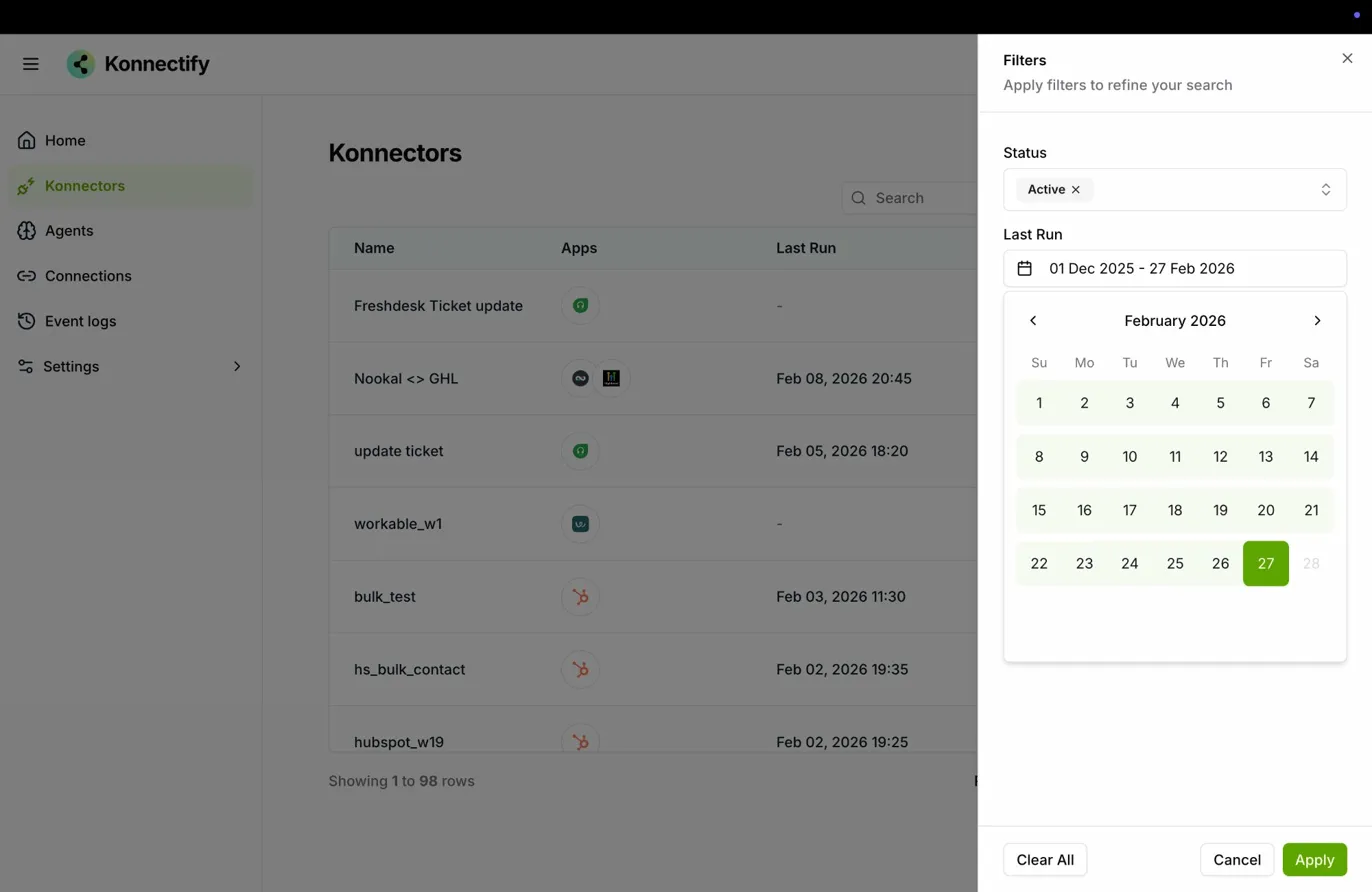
Once you have selected your criteria, click the Apply button at the bottom of the filter panel. The Konnectors list will refresh and display only results that match your filters.
To remove all applied filters and return to the full list, click Clear All in the filter panel, then click Apply.
Was this article helpful?
That’s Great!
Thank you for your feedback
Sorry! We couldn't be helpful
Thank you for your feedback
Feedback sent
We appreciate your effort and will try to fix the article