
Paths
Paths
Creates multiple conditional branches in a workflow. Each branch has its own conditions — the first branch whose conditions match is the one that executes.
What is the Path node?
The Path node creates multiple conditional branches in a workflow. Unlike a Filter which is a single pass/fail gate, a Path splits the workflow into 2 or more branches, each with its own set of conditions.
During execution, branches are evaluated in order. The first branch whose conditions match is the one that executes. Subsequent branches are not evaluated once a match is found.
Each branch is represented by a PathRule node, which uses the same condition system as Filters — groups, conditions, and operators work identically.
- Route a workflow into 2 or more independent branches
- Evaluate each branch in sequence — first match wins
- Apply different downstream actions for different data scenarios
- Nest paths up to 3 levels deep for complex routing logic
- Add up to 10 branches per Path node
- Combine with Filters, Repeaters, and other nodes inside each branch
Prerequisites
- An existing workflow in Konnectify with at least one upstream node that produces data.
- Knowledge of the field names and value types you want to branch on.
- Familiarity with Filter conditions — PathRule uses the same condition builder.
- An understanding of your branching logic before you build (sketch it out first for complex flows).
Understanding Path Rules & Logic
Path uses the same group-based condition system as Filters. Each branch (PathRule) is independently configured with its own groups and conditions.
Branch evaluation order
| Rule | Behavior |
| Sequential evaluation | Branches are checked in order — Path 1, Path 2, Path 3, etc. |
| First match wins | The first branch whose conditions pass is executed. The rest are skipped. |
| No match | If no branch matches, execution stops (no downstream actions run). |
Condition system (same as Filter)
| Concept | How it works |
| ALL (match type) | Every condition in the group must be true |
| ANY (match type) | At least one condition in the group must be true |
| AND (group operator) | Both groups must pass |
| OR (group operator) | At least one group must pass |
Depth limits
| Constraint | Limit |
| Maximum path depth | 3 levels of nesting |
| Maximum branches per path | 10 branches |
| Minimum branches per path | 1 (last branch cannot be deleted) |
| Default branches on creation | 2 (Path 1 and Path 2) |
Depth is measured by counting PathRule nodes when tracing backwards through the workflow:
- A node directly after a trigger = depth 0
- A node inside the first level of branching (under a PathRule) = depth 1
- A node inside a nested path (PathRule inside PathRule) = depth 2
- At depth 3, no more Path nodes can be added
Key Components
The parent node that holds all branches. Created with 2 default branches (Path 1 and Path 2). Supports collapsing to hide all branches and their descendants. The subtitle shows the branch count (e.g. "3 branches"). When collapsed, the "+" button for adding new branches is hidden.
Each branch of a Path is a PathRule node. It uses the same condition builder as a Filter — groups, conditions, operators, and validation rules are identical. Key behaviours:
- Can contain child nodes (actions, Filters, Code Blocks, Repeaters, nested Paths).
- Supports collapsing to hide descendants (the PathRule itself stays visible).
- Shows a "No conditions" subtitle when unconfigured.
- When inside a Repeater, shows: "Stop the loop, if Path Rule fails" checkbox.
Branches represent the different execution paths your workflow can take. Each is numbered sequentially (Path 1, Path 2…). Up to 10 branches per Path node. The last branch cannot be deleted. Deleting a branch cascade-deletes all its child nodes and descendants.
Each PathRule uses the exact same condition builder as a Filter node: groups with ALL/ANY match types, conditions with Field / Operator / Value, group operators (AND/OR), and the same set of text, number, date, boolean, and generic operators. See the Filters documentation for the full operator reference.
A PathRule branch can contain another Path node, enabling nested routing logic. Nesting is limited to 3 levels deep. Each level of nesting consumes 1 depth unit. At depth 3, the Path option disappears from the add menu.
When to Use
Use a Path node when you need different actions to execute depending on which conditions the incoming data matches. The key distinction from a Filter is that Path doesn't stop the workflow — it routes it to the right branch.
- Different actions for different ticket types or statuses
- Routing to different teams based on a field value
- Handling multiple data scenarios in one workflow
- Replacing multiple separate workflows with one branched flow
- Progressive fallback logic (try A, then B, then C)
- Simply stopping a workflow on a condition (use a Filter)
- Iterating over a list of items (use a Repeater)
- Transforming or mapping data (use a Transform node)
- Running all branches simultaneously (Path runs only the first match)
Step-by-step Guide
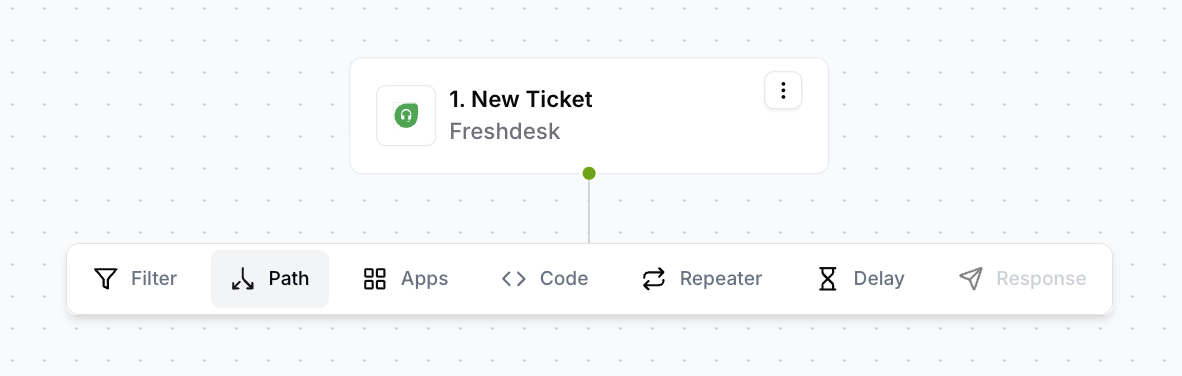
- Open your workflow on the canvas.
- Click the + button on any existing node.
- Select Path from the node type menu.
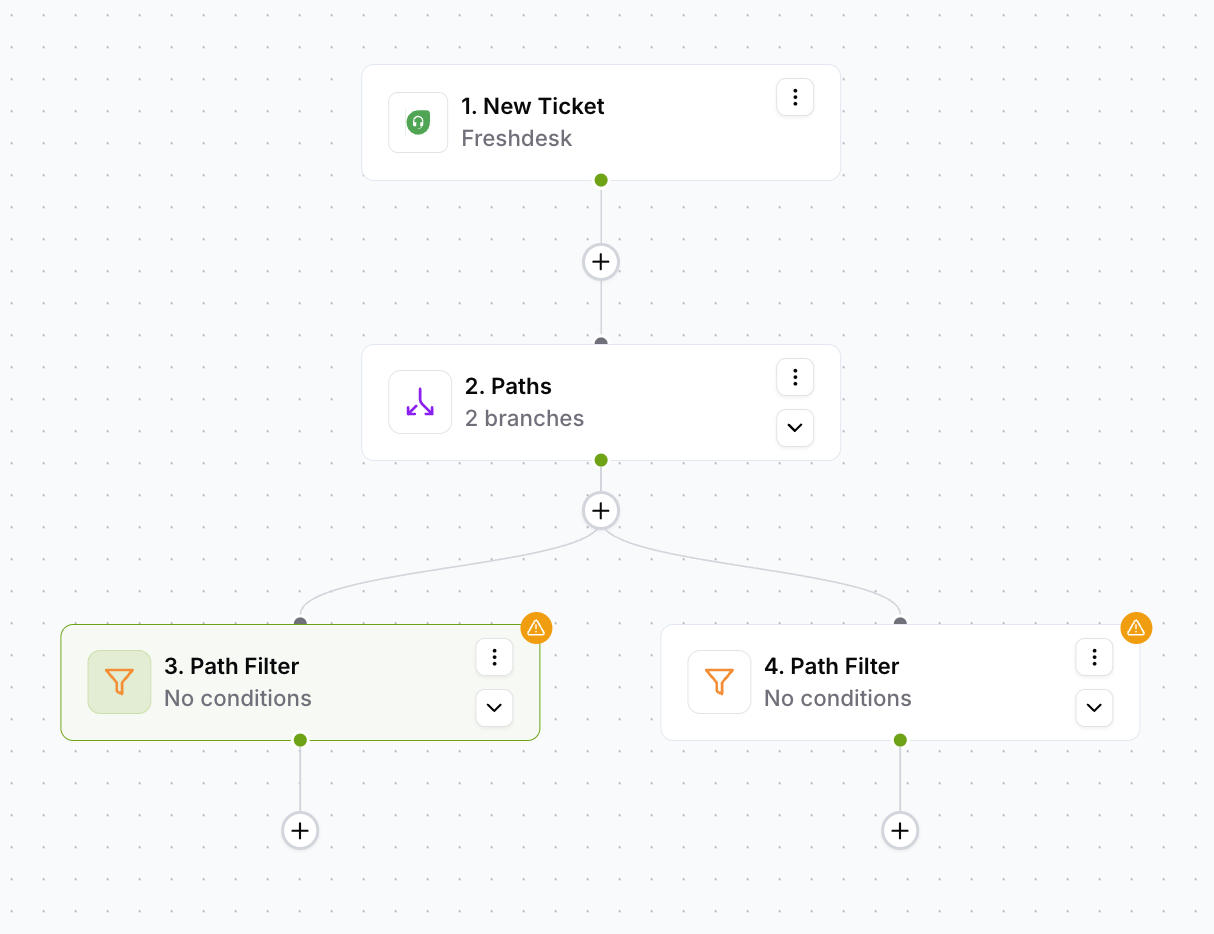
- The Path node is created with 2 default branches — Path 1 and Path 2.
- The sidebar automatically opens to Path 1 for condition configuration.
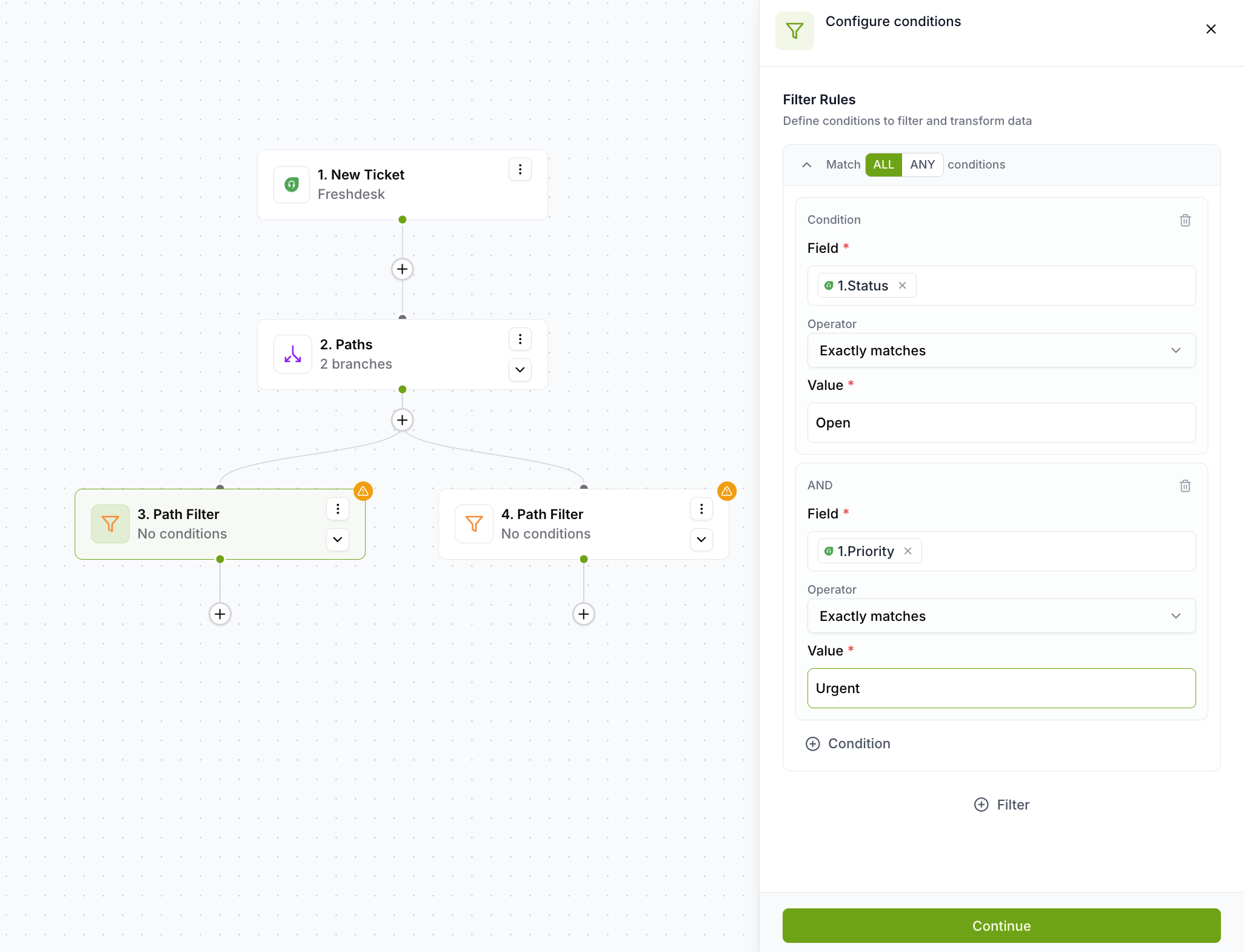
- Click on Path 1 in the canvas to open its sidebar.
- Set the group match type: ALL or ANY.
- Add conditions using Field / Operator / Value.
- Click Continue to save and move to the next node.
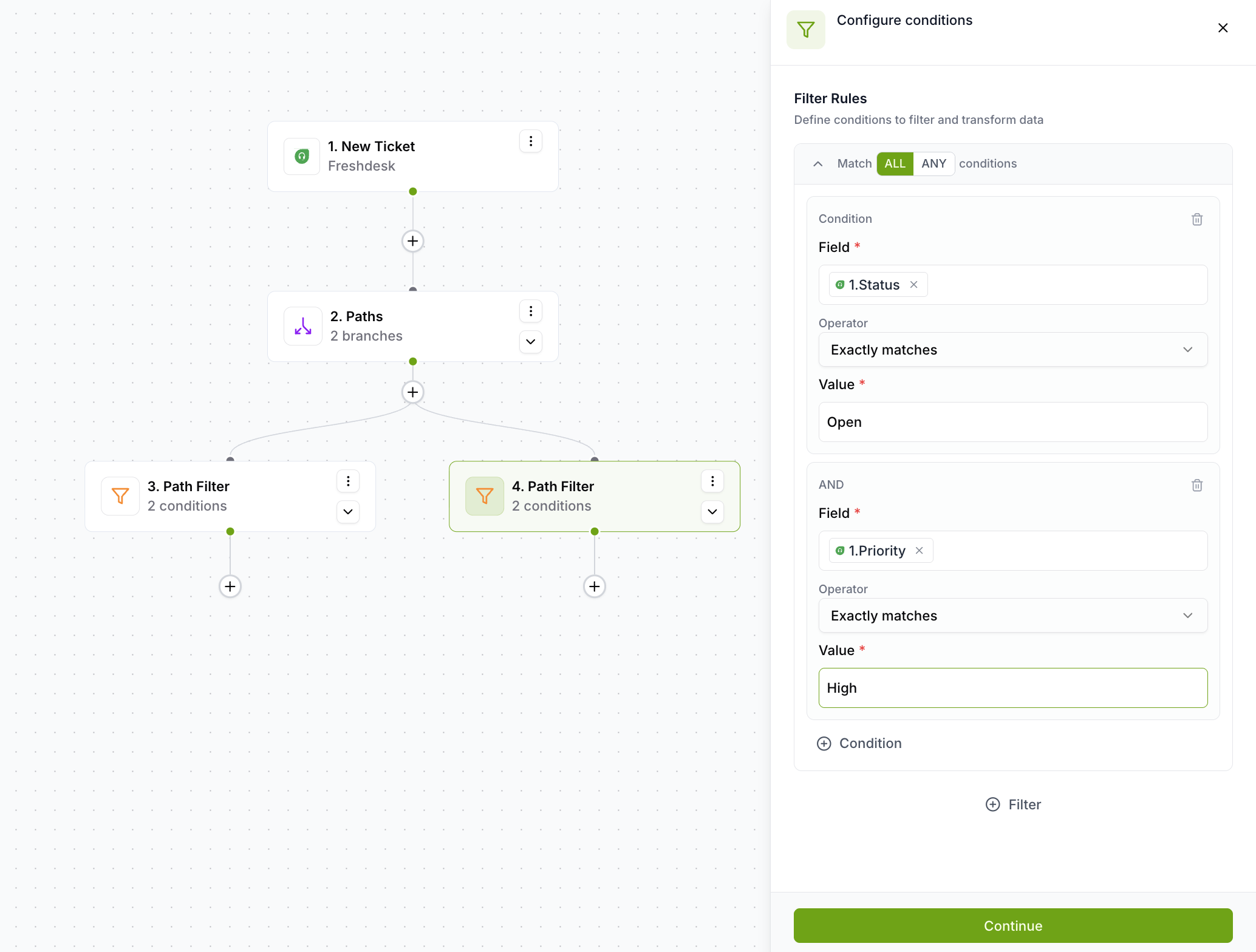
- Click on Path 2 in the canvas.
- Configure its conditions independently from Path 1.
- Click Continue to save.
- Click the + button on a PathRule node.
- Select the node type to add (App, Filter, Code Block, Repeater, etc.).
- The new node becomes a child of that branch and executes when the branch matches.
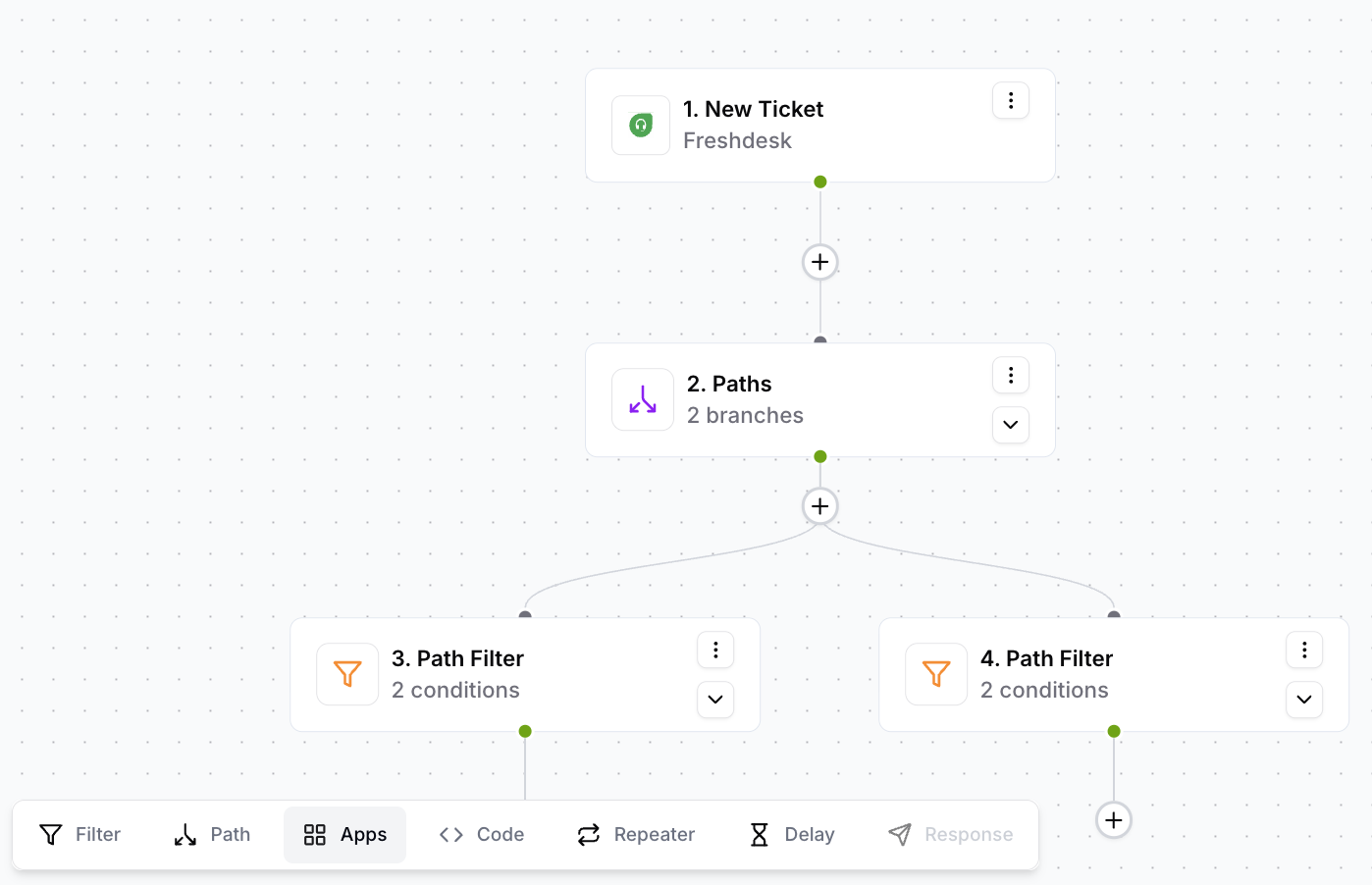
- Click the + button shown below the Path node on the canvas.
- A new PathRule branch is added and the sidebar opens to configure it.
- Repeat until all your routing scenarios are covered (up to 10 branches).
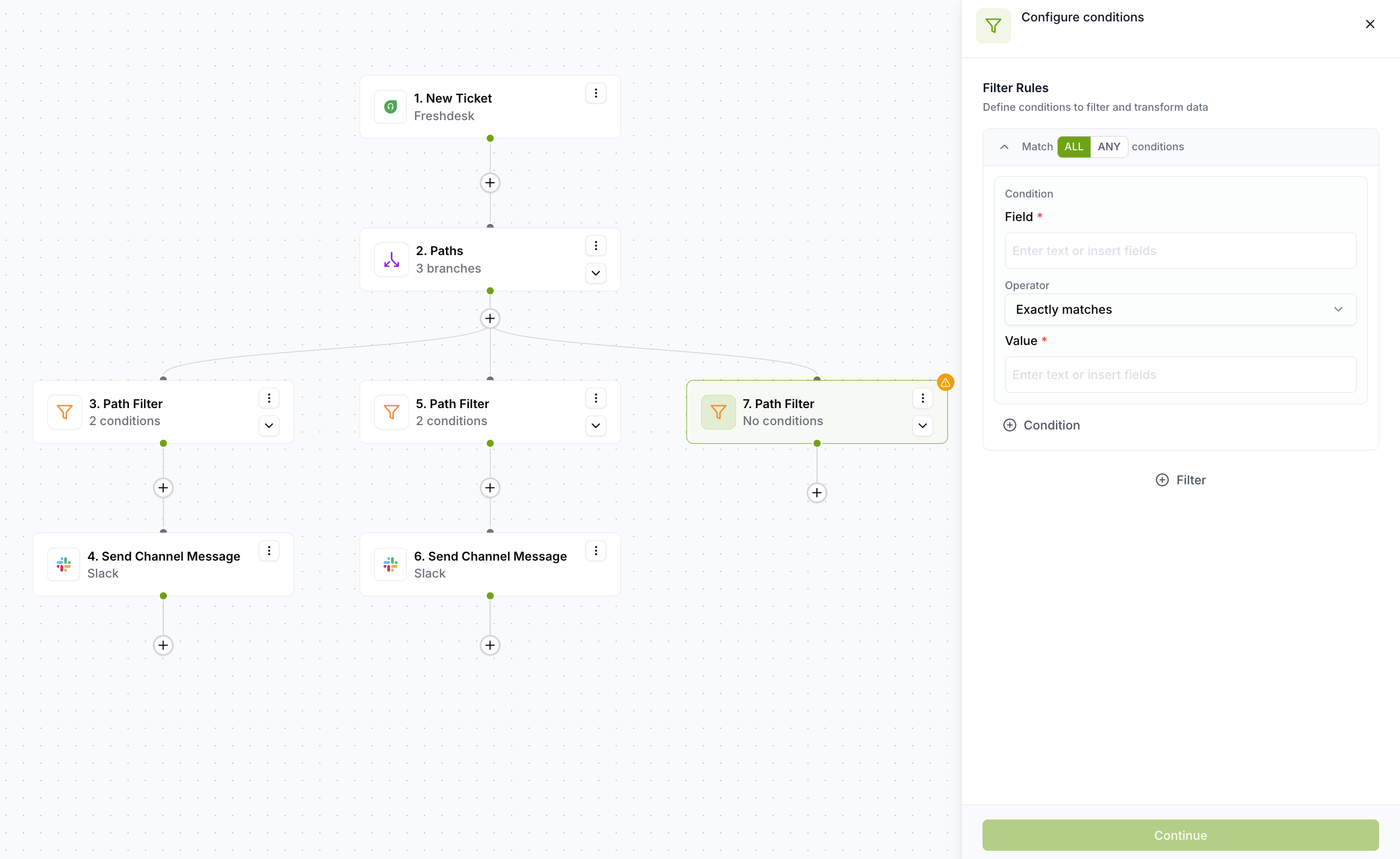
- Click the + on a connection between two existing nodes.
- Select Path from the menu.
- A confirmation dialog appears: "This will create a new path here. All existing child nodes will be moved under the first path."
- Confirm to insert — existing downstream nodes are reparented to Path A (branch index 0). Path B starts empty.
- Each PathRule must pass validation before the workflow can be saved.
- Unconfigured PathRules show a warning state with "No conditions" subtitle.
- Resolve any red validation errors on conditions (field, operator, or value missing).
- Once all branches are valid, the Path node is active in your workflow.
Things to Know
Edge cases and platform behaviours worth knowing before you build.
| Scenario | Behavior |
| No branch matches | Execution stops silently — no downstream actions run |
| All branches unconfigured | Path node shows warning state; each PathRule shows "No conditions" subtitle |
| Inserting Path between nodes | All existing downstream nodes are reparented to the first branch (Path A); second branch starts empty |
| Collapsing the Path node | All branches and descendants are hidden; "+" to add branches is also hidden |
| Adding a branch while collapsed | Not possible — you must expand the Path node first |
| Deleting a PathRule | Cascade-deletes all descendant nodes (child actions, nested paths, etc.); the deleted branch's path ID is removed from the parent Path's paths array |
| Deleting the Path node | Cascade-deletes ALL branches and ALL descendants; incoming/outgoing edges are reconnected |
| Deleting the last branch | Not possible — delete button is hidden when only 1 branch remains |
| Path inside a Repeater | Allowed; depth constraints still apply; PathRule shows "Stop the loop" checkbox |
| Repeater after a Path | Blocked if a Repeater already exists in the backward trace. Message: "Cannot add path after repeater" |
| Reaching 10 branches | "+" button is disabled with: "Maximum branches of 10 reached" |
| Reaching depth 3 | Path option disappears from the add node menu entirely |
| Read-only mode | All branch addition, deletion, and condition editing are disabled |
Restrictions summary
| Restriction | Detail |
| Maximum path depth | 3 levels of nesting |
| Maximum branches per path | 10 |
| Minimum branches per path | 1 |
| Default branches on creation | 2 (Path 1 and Path 2) |
| Branch execution order | Sequential — first match executes |
| Insertion behavior | Existing downstream nodes always reparented to first branch (Path A) |
| Condition system | Identical to Filter — same groups, conditions, operators, and validation rules |
| Cannot add Path after Repeater | Unless the node is inside the Repeater; enforced by backward trace check |
| Read-only mode | All branch addition, deletion, and condition editing disabled |
Examples
Workflow Diagrams
Branches are evaluated top-to-bottom. First match executes. Only one branch runs per record.
Each branch can have any number of child nodes and its own independent action chain.
Path 1 contains a nested Path at depth 2. One more level of nesting is possible (depth 3) before the limit is reached.
Testing Your Path
Before activating a workflow, confirm your branching logic routes data to the right paths.
Use the Test button on your trigger node and supply a record that should match each branch. Verify the correct PathRule activates and its child nodes fire as expected.
If a record could match multiple branches, confirm the first matching branch is the intended one. Re-order branches if the priority is wrong.
Use a record that matches none of your branches. Confirm the workflow stops silently as expected and no unintended actions fire.
If a pill turns red in any PathRule, the upstream node it references is disconnected. Fix the connection before testing.
Each PathRule must pass validation. Resolve any red errors — the workflow cannot be saved while any branch has incomplete conditions.
Frequently Asked Questions
Branching & Execution
What happens if more than one branch matches?+
Only the first matching branch executes. Branches are evaluated in order and evaluation stops as soon as one matches. If you want both to run, you need two separate workflows or two separate Filter nodes.
To control which branch runs when multiple could match, order branches by priority (most specific first).
What happens if no branch matches?+
Execution stops silently — no error is logged, no retry is triggered, and no downstream actions run.
To handle unmatched records, add a final catch-all branch with a condition that is always true (e.g. using the Exists operator on a required field).
What is the difference between a Path and a Filter?+
A Filter is a single pass/fail gate — it either lets the workflow continue or stops it. A Path routes the workflow into one of multiple branches, each with its own downstream actions.
Use a Filter when you want to stop the workflow on a condition. Use a Path when you want to take different actions for different data scenarios.
Can I reorder branches?+
Can I add nodes after the Path node that run regardless of which branch matched?+
Yes. Nodes placed downstream of the Path node (not inside a branch) run after whichever branch executed. This is useful for shared cleanup or logging actions that should always happen.
Keep in mind these nodes only run if a branch matched — if no branch matched, the workflow stopped before reaching them.
Structure & Limits
How many branches can a Path node have?+
Up to 10 branches per Path node. When you reach 10, the "+" button is disabled with the message: "Maximum branches of 10 reached".
Each branch starts with 2 by default. The last branch cannot be deleted.
How deep can I nest Path nodes?+
Up to 3 levels deep. Depth is measured by counting PathRule nodes when tracing backwards through the workflow. At depth 3, the Path option disappears from the add node menu.
When inserting between existing nodes, the system also checks forward depth to ensure the combined total stays within 3.
Can I delete a branch that has child nodes?+
Yes, but deleting a PathRule cascade-deletes all its descendant nodes — including nested paths, child actions, and any other nodes inside that branch.
This action cannot be undone, so confirm you no longer need those nodes before deleting the branch.
What happens when I insert a Path between two existing connected nodes?+
A confirmation dialog appears. If you confirm, the Path is inserted and all existing downstream nodes are moved under the first branch (Path A). The second branch starts empty.
If you cancel, no changes are made. The system also validates depth before insertion — if the combined depth would exceed 3, the Path option is disabled.
Repeater & Workflow Behaviour
Can I use a Path inside a Repeater?+
Yes. A Path inside a Repeater is allowed. Depth constraints still apply, and the PathRule shows a "Stop the loop, if Path Rule fails" checkbox — same as a Filter inside a Repeater.
The Repeater boundary is respected in depth calculations — the backward trace jumps from the Repeater's first child to the Repeater itself and continues backward.
Can I add a Path after a Repeater?+
No — if a Repeater already exists in the backward trace, adding a Path after it is blocked with the message: "Cannot add path after repeater".
The exception is when the node is placed inside the Repeater, which is allowed.
What does read-only mode mean on a Path node?+
All branch addition, deletion, and condition editing are disabled. This applies when you lack edit permissions or when the workflow is locked during execution.
Ensure you have the appropriate permissions and the workflow is not executing to make changes.
Do PathRule conditions work the same as Filter conditions?+
Yes. PathRule uses the identical condition system as Filter — same groups, same operators (boolean, generic, text, number, date), same ALL/ANY match types, same AND/OR group operators, and the same validation rules.
See the Filters documentation for the full operator reference.
Was this article helpful?
That’s Great!
Thank you for your feedback
Sorry! We couldn't be helpful
Thank you for your feedback
Feedback sent
We appreciate your effort and will try to fix the article