
Code Block
Code Block
Write and execute custom JavaScript code within a workflow. Map upstream data as input, implement any logic you need, and produce a structured output that downstream nodes can reference.
What is the Code Block node?
The Code Block node allows you to write and execute custom JavaScript code within a Konnectify workflow. It provides a full Monaco Editor, supports input variables mapped from upstream nodes, and produces an output object that downstream nodes can reference via field mapping.
Code is executed in a sandboxed server-side environment. You must define an Output variable in your code — this is what becomes available to the rest of the workflow.
- Transform and manipulate data beyond standard field mapping
- Perform complex calculations, date operations, and statistical logic
- Parse and restructure nested JSON objects
- Validate data, remove duplicates, or standardise formats
- Implement custom business rules requiring programming logic
- Combine multiple fields or data sources with custom logic
- Use pre-loaded utility libraries: lodash and moment
Prerequisites
- An active Konnectify account with an existing konnector.
- A konnector with at least one trigger configured.
- Basic JavaScript programming knowledge (ES6+).
- An understanding of the data transformations you want to perform.
- Knowledge of the input and output data structures for your workflow.
Understanding Code Block Logic
Understanding how inputs, the Output variable, and the output schema work together is essential for building reliable Code Blocks.
How data flows through a Code Block
The Output variable — rules
| Rule | Detail |
| Name | Must be named exactly Output (capital O — case-sensitive) |
| Type | Must be a plain JavaScript object — not a string, number, or array |
| Required | Required in every Code Block — missing Output means no output schema is generated |
| Schema generation | Output schema is automatically derived from the Output object after a successful test — cannot be manually defined |
Available libraries
| Library | Access as | Description |
| lodash | _ | Utility library for working with arrays, objects, and strings |
| moment | moment | Date and time parsing, validation, and formatting |
Execution environment
| Property | Detail |
| Language | JavaScript ES6+ only |
| Execution model | Synchronous only — no async/await, no Promises |
| Network access | Not available — cannot make HTTP requests or call external APIs |
| File system | Not available — cannot read/write files |
| Timeout | Server-enforced timeout (typically 30–60 seconds) |
| Memory | Server-enforced memory limit |
Key Components
Input variables pass data from upstream nodes into your code. Each variable has a Key (name) and a Value (a field reference or literal).
- Accessed in code as
input.variableNameorinput["variableName"] - Key must be a valid JavaScript identifier — letters, numbers,
$,_. Cannot start with a number, be empty, or contain spaces. - Keys must be unique — no duplicate variable names within the same Code Block.
- Values can be field references from upstream nodes (displayed as interactive pills) or literal values typed directly.
- Cannot reference the Code Block's own output (circular dependency not allowed).
- If no input variables are defined, the message appears: "No input variables defined."
The full Monaco Editor (the same editor powering VS Code) provides a professional coding environment inside the sidebar.
- JavaScript syntax highlighting and autocomplete
- Bracket matching and standard editor shortcuts
- Dark/light theme — auto-detects from system or app theme
- Changes are synced to state with a 300ms debounce
- Read-only when in read-only mode (no edit permissions or locked konnector)
The Output variable is the required return value of your code. It must be a plain JavaScript object, and its structure becomes available to downstream nodes.
// Simple
Output = {
  result: "success",
  count: 42
};

// Using input variables
Output = {
  fullName: `${input.firstName} ${input.lastName}`,
  isAdult: input.age >= 18
};
The output schema is automatically extracted after a successful test. Each top-level key of Output becomes a field downstream nodes can reference, with types inferred from the values.
// lodash — group, sort, filter arrays
const grouped = _.groupBy(input.items, 'category');
Output = { grouped };

// moment — parse and format dates
Output = {
  formatted: moment(input.date).format('YYYY-MM-DD'),
  daysAgo: moment().diff(moment(input.date), 'days')
};
The Test Code button validates and runs your code before you can save. This is mandatory — the Continue button is disabled until a test succeeds.
- Clicking Test Code opens a Test Input Modal — enter test values for each input variable.
- Click Run to execute the code on the server.
- Success: Shows the Output value, execution time, and memory usage. Output schema is automatically extracted.
- Error: Shows the error message and stack trace. Continue remains disabled.
- Validation checks before running: non-empty code, valid JS identifier keys, no duplicate keys, no empty keys or values.
- If you change code after a successful test, the schema from the previous test is preserved until the next test runs.
When to Use
Use a Code Block when standard field mapping cannot express the logic you need. It is an advanced node suited for developers comfortable with JavaScript.
- Complex data transformation or format conversion
- Mathematical or date calculations
- Parsing nested JSON structures
- Data validation, deduplication, or standardisation
- Conditional logic too complex for a Filter
- Combining or restructuring multiple fields
- Making HTTP requests to external APIs (not supported)
- Reading or writing files (not supported)
- Async operations (no async/await or Promises)
- Simple field mapping (use the standard field mapper)
- Logic already covered by Filter or Path nodes
Step-by-step Guide
- Open your konnector in the Konnectify editor.
- Click the + button on the node after which you want custom logic.
- Select Code Block from the node type menu.
- The Code Block node appears on the canvas and the configuration sidebar opens automatically.
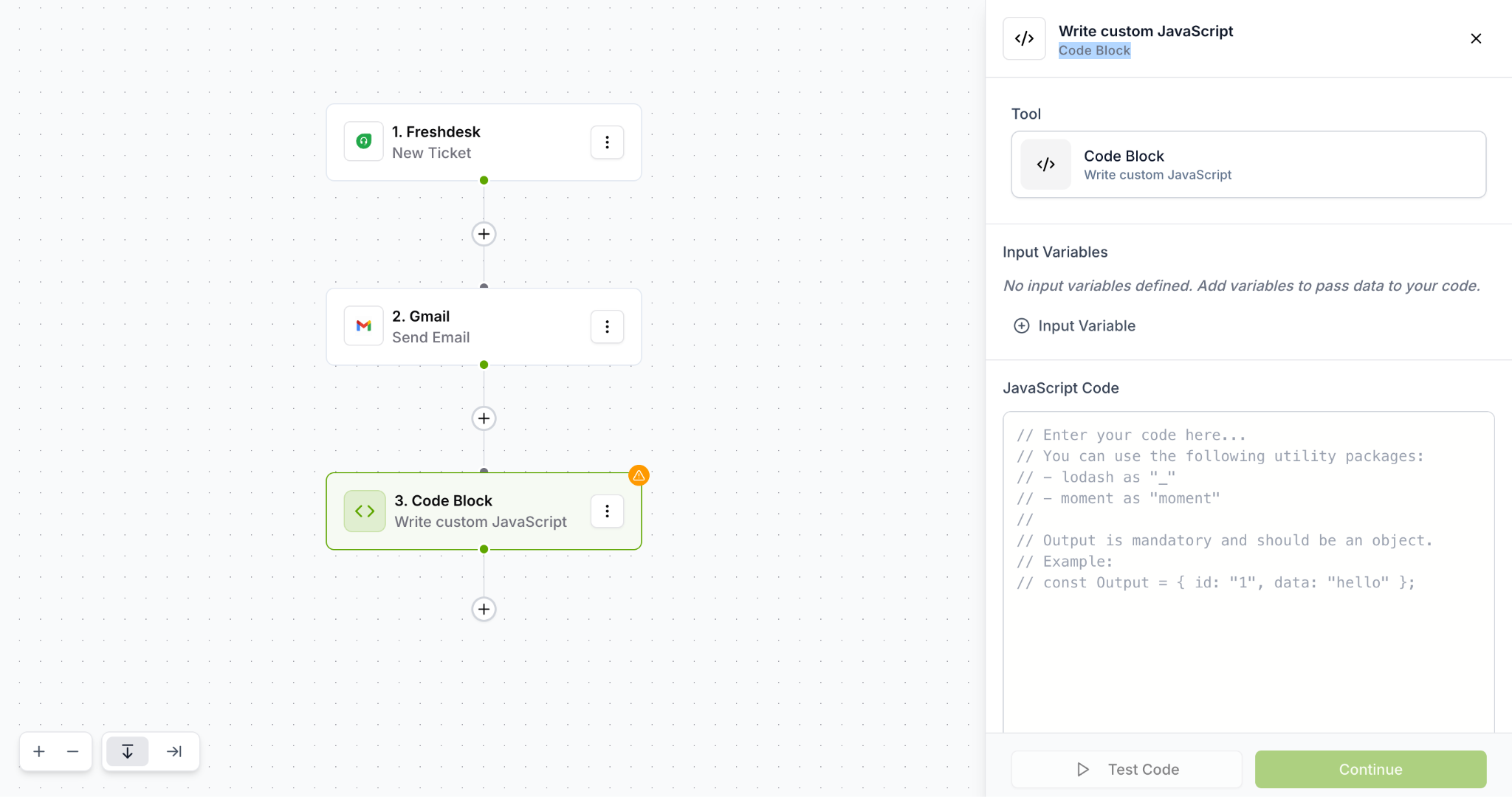
- In the Input Variables section, click Add Variable.
- Enter a Key — a descriptive JavaScript identifier (e.g.,
ticketData,customerEmail). - Click the Value field and use the field mapper to select a field from an upstream node, or type a literal value.
- Repeat for each piece of data your code needs.
ticketPriority instead of var1. Only create input variables for data you'll actually use.- In the code editor, access your input variables via
input.variableName. - Implement your logic using JavaScript ES6+.
- Use
_for lodash operations ormomentfor date operations if needed. - Assign your results to
Output = { ... }— this is mandatory.
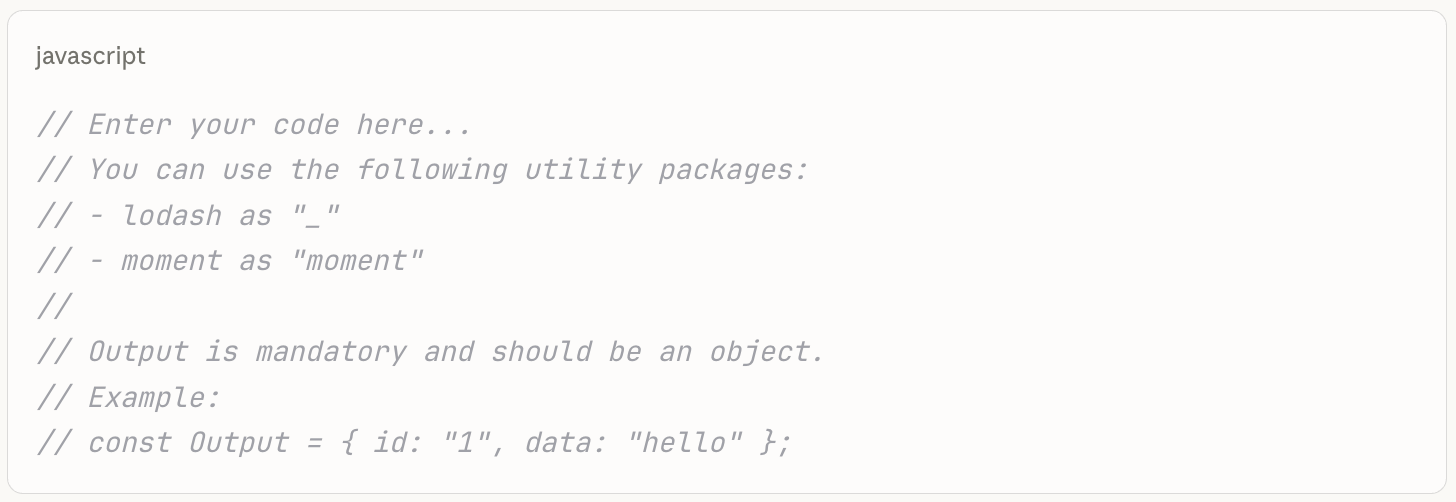
- Click the Test Code button at the bottom of the panel.
- The Test Input Modal opens — enter test values for each input variable.
- Click Run to execute the code on the server.
- Review the result: Success shows the Output value, execution time, and memory usage. Error shows the error message and stack trace.
- Fix any errors and re-test until the test passes.
- Once the test succeeds, the Continue button becomes enabled.
- Click Continue to save the code, input variable mappings, and the output schema.
- The output schema is now available for downstream nodes to reference via field mapping.
- Click the + button below your Code Block node.
- Add the next action node in your workflow.
- When configuring field mapping for the next action, the fields from your Code Block's
Outputobject appear as available fields — map them just like any other field.
Things to Know
Edge cases and platform behaviours to be aware of before building.
Edge cases
| Scenario | Behavior |
| Code with no Output variable | Test may succeed but no output schema is generated; downstream nodes won't have fields to reference |
| Empty code | Validation blocks test execution with an error |
| Duplicate input variable keys | Validation blocks test execution; duplicate keys highlighted with errors |
| Invalid JS identifier as key | Error shown: keys must follow JavaScript identifier rules |
| Empty input variable value | Validation blocks test execution |
| Code changes after test | Output schema from previous test is preserved until next test; Continue may still be enabled |
| Test failure | Error message and details displayed; Continue button remains disabled until a successful test |
| Read-only mode | Code editor is read-only; Add Variable button hidden; Test Code button disabled |
Restrictions summary
| Restriction | Detail |
| Language | JavaScript (ES6+) only |
| Output variable | Required — must define const Output = { ... } |
| Execution model | Synchronous only — no async/await, no Promises |
| Must test before saving | Continue button disabled until code is successfully tested |
| Input variable key format | Valid JavaScript identifiers only; cannot start with number; no duplicates |
| No network access | Cannot make HTTP requests or access external APIs from within code |
| Server-side execution | Code runs on the backend, not in the browser |
| Execution timeout | Server-enforced timeout (typically 30–60 seconds) |
| Output schema source | Only generated from successful test execution — cannot be manually defined |
| Field references | Input values can reference upstream nodes only; cannot reference the code block's own output |
| Available libraries | Only lodash (as _) and moment are available |
Examples
Workflow Diagrams
The most common pattern. Code Block transforms or enriches the trigger data, then passes clean structured output to an app action (Slack, Salesforce, etc.).
Code Block computes derived values (e.g., isUrgent), then a Filter gates the action on those computed values.
Code Block processes each item individually inside a Repeater, transforming or validating data before the per-item action executes. Access the current item via input.currentItem (mapped from iterationValue).
Break complex logic into two focused Code Blocks — e.g., Block 1 parses and validates, Block 2 formats for the destination. Each block's Output is available to the next.
Testing Your Code Block
Testing is mandatory before saving. A successful test is the only way to generate the output schema and enable the Continue button.
The Test Input Modal opens. Enter realistic test values for each input variable — values that represent what the workflow will actually receive at runtime.
Success shows the Output value, execution time, and memory usage. Error shows the error message and stack trace — use this to pinpoint the issue in your code.
Re-run the test with edge case inputs — null values, empty strings, unexpected types, or very large numbers. Make sure your code handles these gracefully, ideally with try-catch blocks.
After a successful test, review the Output object. Confirm it contains all the fields downstream nodes will need and that they have the correct types (string, number, boolean, object, array).
Once the test succeeds and you're happy with the Output structure, click Continue to save the code, variable mappings, and the generated output schema.
| Error | Fix |
| Output is not defined | Add const Output = { ... } at the end of your code |
| SyntaxError: Unexpected token | Check for missing brackets, semicolons, or unclosed strings |
| TypeError: Cannot read property of undefined | Check input variable names match your code; verify the field exists in test data |
| Duplicate variable key error | Each input variable must have a unique name |
| Downstream node has no fields to map | Code ran without an Output variable — re-test after adding Output |
Frequently Asked Questions
Code & Output
Why does my Output variable need to be a plain object?+
The system inspects the Output object's structure after a successful test to generate the output schema — the list of fields that downstream nodes can reference in the field mapper. Strings, numbers, or arrays don't have named keys, so no schema can be generated from them.
If you need to return an array, wrap it: const Output = { items: myArray };
Can I use async/await or Promises in my code?+
No. The execution model is synchronous only. async/await, Promises, setTimeout, and other asynchronous patterns are not supported.
If you need to call an external API, use a separate App node in your workflow instead.
Can I make HTTP requests from within a Code Block?+
No. Network access is not available. The code runs in a sandboxed VM and cannot make HTTP requests, call external APIs, or access any external services.
Use an App node in your workflow to call external APIs, then pass the response data into a Code Block via input variables if you need to process it.
What happens if I change the code after a successful test?+
The output schema from the previous test is preserved and the Continue button may still be enabled. However, if your code changes affect the Output structure, the schema will be outdated until you run a new test.
Always re-test after changing code, especially if you add, remove, or rename keys in the Output object — downstream nodes rely on that schema for field mapping.
Can the Code Block reference its own Output (circular dependency)?+
No. Input variable values can only reference upstream nodes. A Code Block cannot reference its own output as an input — this would create a circular dependency and is blocked by the system.
Input Variables
What naming rules apply to input variable keys?+
- Must be a valid JavaScript identifier
- Can contain letters, numbers,
$,_ - Cannot start with a number
- Cannot be empty or contain spaces
- Must be unique — no duplicate keys within the same Code Block
Can I pass an entire object or array as an input variable?+
Yes. Input variable values support field references from upstream nodes — these can be strings, numbers, booleans, objects, or arrays depending on what the upstream node provides.
When mapping an array, the full array is passed as the variable's value and you can work with it in your code using standard JavaScript array methods or lodash.
Do I need to define input variables if my code doesn't use upstream data?+
No. Input variables are optional. If your code only produces static output or performs calculations with no upstream data, you don't need to define any input variables. The "No input variables defined" message will appear in the sidebar, which is expected.
Execution & Restrictions
What libraries can I use in a Code Block?+
Only two libraries are pre-loaded: lodash (accessed as _) and moment (accessed as moment).
You cannot import or require other libraries. Built-in JavaScript globals (Math, Date, JSON, Array, Object, etc.) are available as usual.
Where does the Code Block actually run?+
Code Block executes on the backend server in a sandboxed VM — not in the browser. This means it has access to server-side capabilities but no access to browser APIs, the DOM, or client-side variables.
Execution is subject to server-enforced timeout (typically 30–60 seconds) and memory limits.
What does read-only mode mean on a Code Block?+
The code editor becomes read-only, the Add Variable button is hidden, and the Test Code button is disabled. This is applied when you lack edit permissions or the konnector is locked during execution.
My Code Block node is not executing at runtime. What should I check?+
- Konnector is inactive — inactive konnectors don't run. Activate it first.
- Workflow connection — verify the Code Block is properly connected in the flow (no broken edges).
- Trigger not firing — confirm the trigger is active and providing data.
- Previous node failed — check the execution logs for errors in upstream nodes.
Was this article helpful?
That’s Great!
Thank you for your feedback
Sorry! We couldn't be helpful
Thank you for your feedback
Feedback sent
We appreciate your effort and will try to fix the article