
Filters
Filters
A conditional gate that evaluates data against a set of rules. If conditions are met the workflow continues; if not, execution stops.
What is the Filter node?
The Filter node is a conditional gate in a Konnectify workflow that evaluates incoming data against a set of conditions. If the conditions are met, the workflow continues. If they fail, execution stops at that point.
Filters use a group-based condition system: conditions are organized into groups, each group can match ALL or ANY of its conditions, and groups are combined with AND or OR operators.
- Gate workflow execution based on field values
- Combine conditions with AND / OR logic
- Evaluate text, numbers, dates, and booleans
- Stop a Repeater loop when a condition fails
- Reference dynamic fields from upstream nodes
- Stack up to 50 groups with 50 conditions each
Prerequisites
- An existing workflow in Konnectify with at least one upstream node that produces data.
- Knowledge of the field names and value types (text, number, date, boolean) you want to evaluate.
- For Repeater integration: the Filter node must be placed inside a Repeater node.
Understanding Filter Rules & Logic
Every Filter is built from groups of conditions. Understanding how they interact is key to building accurate rules.
Match type within a group
| Match Type | Behavior |
| ALL | Every condition in the group must be true (logical AND) |
| ANY | At least one condition in the group must be true (logical OR) |
Operator between groups
| Operator | Behavior |
| AND | Both groups must pass |
| OR | At least one group must pass |
Key Components
Groups are the top-level containers for conditions. Each group has its own ALL / ANY match type. Up to 50 groups per Filter node; the last group cannot be deleted.
Each condition has three parts:
- Field — the data field to evaluate. Supports literal text or dynamic references using
{{nodeId:fieldName}}. - Operator — the comparison logic (text, number, date, boolean, or generic).
- Value — the comparison target. Hidden when the operator doesn't require one.
Boolean — no value required
| Operator | Description |
| Is true | Field value is true |
| Is false | Field value is false |
Generic — no value required
| Operator | Description |
| Exists | Field is present and not null/undefined |
| Does not exist | Field is absent, null, or undefined |
Text — value required
| Operator | Description |
| Contains | Field contains the value as a substring |
| Does not contain | Field does not contain the value |
| Starts with | Field starts with the value |
| Does not start with | Field does not start with the value |
| Ends with | Field ends with the value |
| Does not end with | Field does not end with the value |
| Exactly matches | Field equals the value exactly |
| Does not exactly match | Field does not equal the value |
Number — value required
| Operator | Description |
| Is equals to | Field equals the value |
| Is not equals to | Field does not equal the value |
| Is greater than | Field is greater than the value |
| Is lesser than | Field is less than the value |
| Is greater than or equal to | Field is ≥ the value |
| Is lesser than or equal to | Field is ≤ the value |
Date — value required
| Operator | Description |
| Before | Field date is before the value date |
| After | Field date is after the value date |
When a Filter node is placed inside a Repeater, an extra option appears: "Stop the loop, if Filter fails".
- Enabled: The entire Repeater loop stops immediately if the filter fails.
- Disabled (default): The failed iteration is skipped; the loop continues to the next item.
When to Use
Use a Filter node when you need to control whether a workflow should proceed based on the data it is processing.
- Only process records that meet specific criteria
- Stop a loop early when a sentinel value is found
- Route workflows based on field values
- Validate required fields before downstream steps
- Apply different logic for different statuses
- Transforming(code block)
- Branching into parallel paths (Branch/Path rule)
- Iterating over a list (Repeater)
- Introducing delays (Delay)
Step-by-step Guide
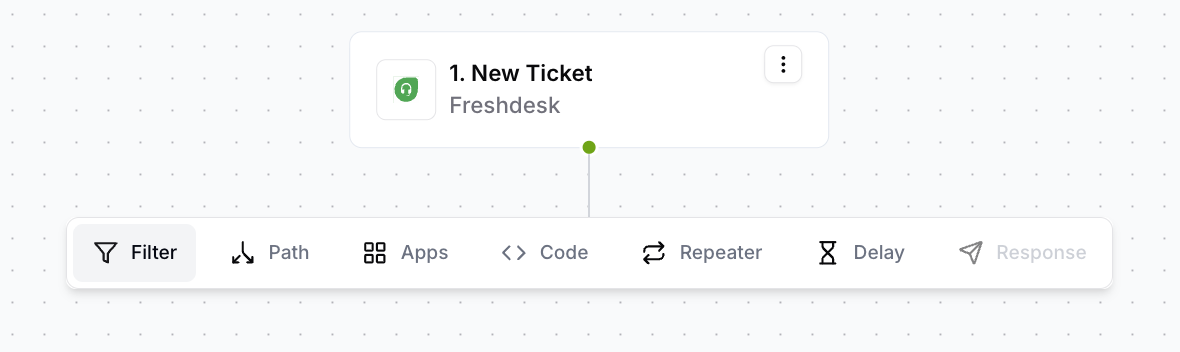
- Open your workflow on the canvas.
- Click the + button on any existing node.
- Select Filter from the node type menu.
- The sidebar opens automatically.
Choose ALL (every condition must pass) or ANY (at least one must pass) for the first group.
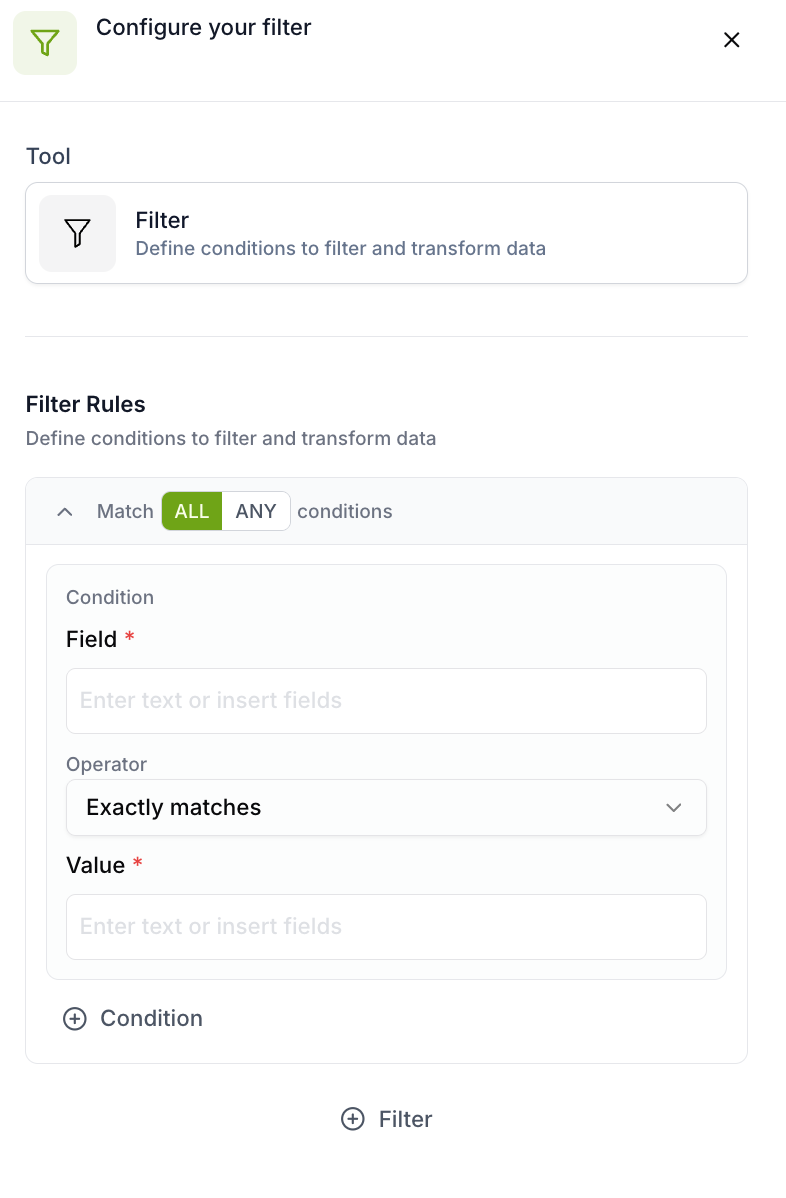
- Field: Select a field or type a literal value.
- Operator: Pick from the dropdown (grouped by type).
- Value: Enter a comparison value (hidden when not required).
- Click + Condition to add more.
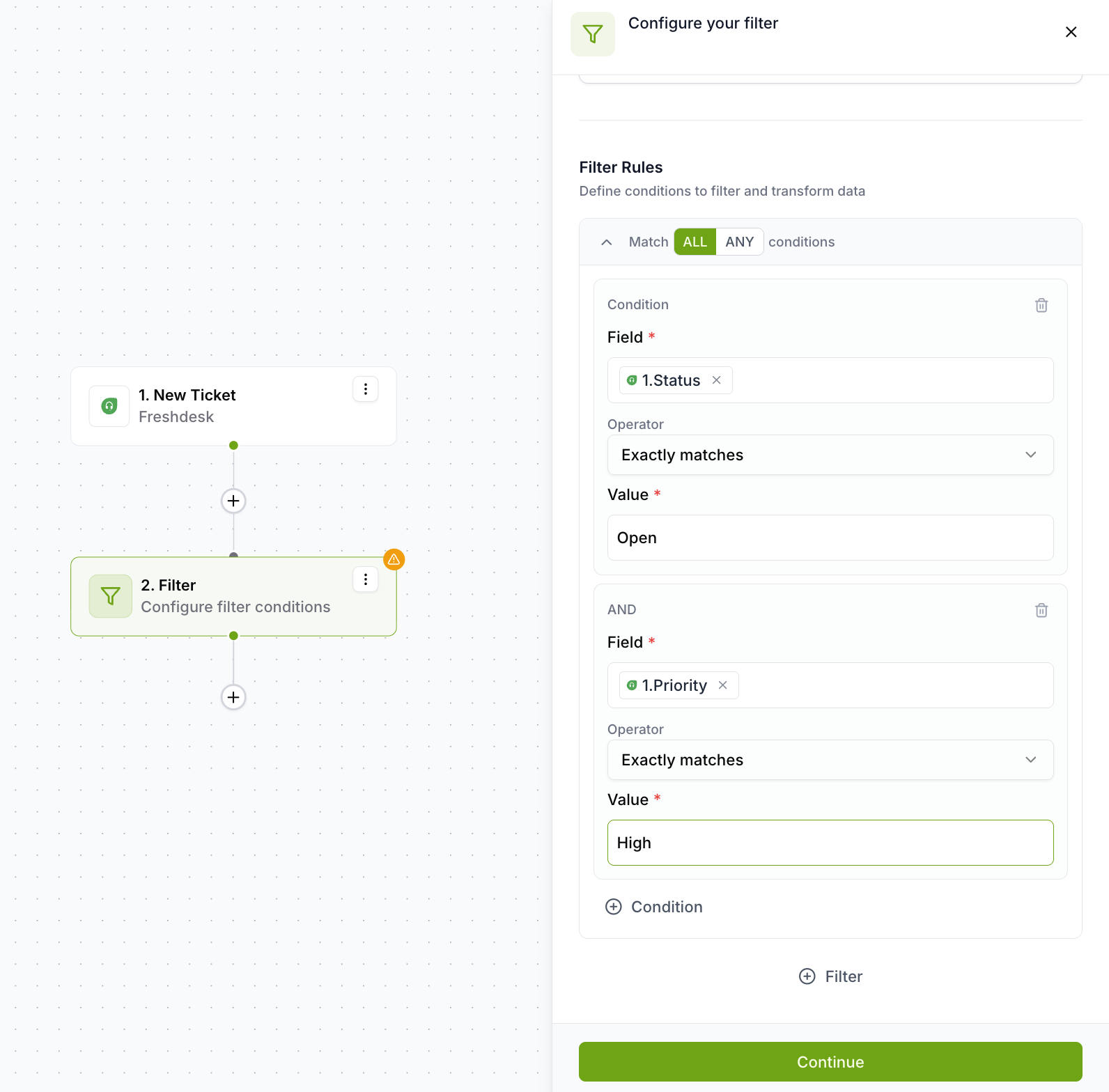
- Click + Filter to add another group.
- Toggle AND or OR between groups.
- Set match type independently for each group.
- If inside a Repeater, decide whether to check "Stop the loop, if Filter fails".
- Enabled = halt loop on first failure. Disabled = skip and continue.
- Click Continue to save.
- Resolve any red validation errors on invalid fields.
- Once saved, the Filter node is active in your workflow.
Things to Know
| Scenario | Behavior |
| No-value operator selected | Value field hidden; only field and operator shown |
| Single condition in a group | No logic label displayed; condition stands alone |
| Switching to no-value operator | Value hidden |
| Empty group | Shows "No conditions yet" placeholder |
| Deleting only condition | Delete button hidden — minimum 1 per group |
| Deleting only group | Delete button hidden — minimum 1 group required |
| Read-only mode | All inputs, buttons, and toggles are disabled |
Limits at a glance
| Restriction | Limit |
| Max filter groups per node | 50 |
| Max conditions per group | 50 |
| Minimum groups | 1 |
| Minimum conditions per group | 1 |
| Group operators | AND / OR |
| Match types | ALL / ANY |
Examples
Workflow Diagrams
Testing Your Filter
Use the Test button on your trigger node to pull a real sample. The Filter shows pass or fail for that record.
Use a record that should not pass — confirm the workflow stops and downstream actions don't fire.
If a pill turns red, the upstream node is disconnected — fix the connection before testing.
Click Continue and resolve red errors. The workflow cannot be saved with incomplete conditions.
Frequently Asked Questions
Logic & Conditions
What is the difference between ALL and ANY inside a group?+
ALL means every condition must be true. If one fails, the group fails.
ANY means at least one must be true. The group passes on the first match.
Use ALL to narrow records; ANY to catch a broader set.
What is the difference between AND and OR between groups?+
AND: every group must pass. OR: at least one group must pass.
You can mix match types — one group ALL, another ANY.
Can I use a field from an upstream node as the comparison value?+
Yes. Both Field and Value inputs support dynamic references using {{nodeId:fieldName}}.
If a referenced node is disconnected, the pill turns red and saving is blocked.
What happens if a field doesn't exist in the incoming data?+
Exists fails. Does not exist passes. All other operators evaluate to false.
Add an Exists check as the first condition in an ALL group to handle this gracefully.
Are text comparisons case-sensitive?+
Yes. Urgent will not match urgent.
Normalise values in a Transform node before the Filter if casing is inconsistent.
Can I compare two numbers from different upstream nodes?+
Yes. Set Field to a reference from one node and Value to another node's reference.
If either is missing or non-numeric at runtime, the operator evaluates to false.
Groups & Structure
How many groups and conditions can I add?+
Up to 50 groups per Filter node and 50 conditions per group.
For more than 5–6 conditions per group, consider chaining Filter nodes.
Can I delete a group or condition?+
Can I collapse groups to reduce visual clutter?+
Is there a way to copy or duplicate a group?+
Repeater & Workflow Behaviour
What happens when a filter fails — does it cause an error?+
No. A filter failure is a silent stop. No error, no retry, no downstream calls.
To act on failure, use a Branch/Router node instead.
What does "Stop the loop if Filter fails" do inside a Repeater?+
- Disabled (default): Failed iteration skipped; loop continues.
- Enabled: Entire loop halts on first failure.
Can I place a Filter node after another Filter node?+
Does the Filter node modify data passing through it?+
Validation & Troubleshooting
My filter isn't passing even though conditions look correct — what do I check?+
- Casing — text operators are case-sensitive.
- Field names — trailing spaces or wrong separators cause silent failure.
- Data types — Number operator on a string returns unexpected results.
- ALL vs ANY — confirm match type reflects your intent.
- Broken references — a red pill means the upstream node is disconnected.
- Test with a known record — use the Test button with real data.
Can I save a workflow with incomplete filter conditions?+
No. Saving is blocked until all conditions have a field and value (where required).
An incomplete condition would silently evaluate to false at runtime.
What does "read-only mode" mean on the Filter node?+
Applied when you lack edit permissions or the workflow is locked. All inputs and buttons are disabled.
Ensure you have the right permissions and the workflow is not currently executing to edit.
Was this article helpful?
That’s Great!
Thank you for your feedback
Sorry! We couldn't be helpful
Thank you for your feedback
Feedback sent
We appreciate your effort and will try to fix the article