
Scheduler
Scheduler
A time-based automation feature that controls when a workflow runs or when a polling trigger checks for new data — from simple recurring intervals to advanced cron-based schedules.
What is the Scheduler?
The Scheduler is a time-based automation feature in the workflow builder. It allows you to control when a workflow should run or when a polling trigger should check for new data. It supports simple recurring intervals — hourly, daily, weekly, and monthly, as well as flexible custom and advanced cron-based options.
Scheduler can be used in two ways:
- Standalone trigger — starts the workflow automatically on the configured time schedule
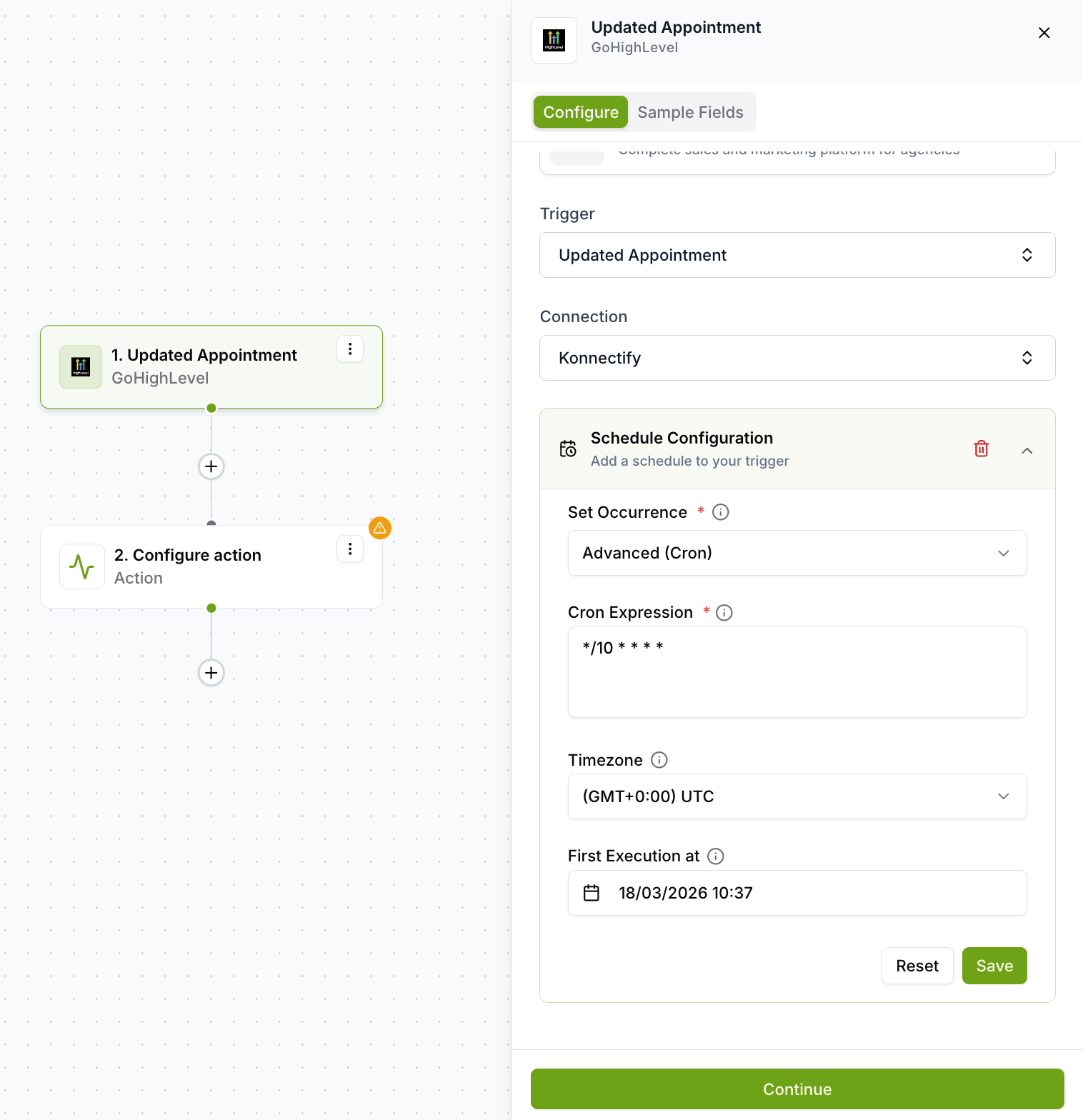
- Schedule on a polling trigger — when using an app-based trigger, you can attach a schedule event to control how often that app checks for new data, instead of polling continuously
Prerequisites
- For Advanced (Cron) mode: a valid standard 5-field cron expression.
- Knowledge of the timezone in which the workflow should execute.
Understanding Schedule Types
The Scheduler offers six schedule types. The fields visible in the sidebar change based on the type selected.
Schedule types overview
| Type | Description |
| Hourly | Runs every hour at a configured minute offset. Offset is limited to quarter-hour intervals: 0, 15, 30, or 45. |
| Daily | Runs once per day at a selected hour and minute. |
| Weekly | Runs on selected days of the week at a selected time. At least one weekday must be chosen. |
| Monthly | Runs on selected days of the month at a selected time. At least one day of the month must be chosen. |
| Custom | Defines a custom recurring pattern using one of four sub-frequencies: Hourly, Daily, Weekly, or Monthly. Runs are distributed evenly within the selected period based on a number of times value. |
| Advanced | Accepts a standard 5-field cron expression for complex, highly specific recurring schedules. Best suited for technical or power users. |
Configuration fields reference
| Field | Description |
| Schedule Type | Defines the overall recurring pattern: Hourly, Daily, Weekly, Monthly, Custom, or Advanced. |
| Hour of Day | The hour at which the workflow runs. Used for Daily, Weekly, Monthly, and some Custom schedules. |
| Minute of Hour | The minute at which the workflow runs within the selected hour. |
| Offset | Used for Hourly schedules. Defines the minute offset within the hour (0, 15, 30, or 45 only). |
| Day of Week | Used for Weekly schedules and Custom weekly schedules. At least one day is required. |
| Day of Month | Used for Monthly schedules and Custom monthly schedules. At least one day is required. |
| Custom Frequency | Defines whether a Custom schedule behaves like Hourly, Daily, Weekly, or Monthly. |
| Number of Times | Used in Custom Hourly and Custom Daily schedules to evenly spread executions across the period. |
| Timezone | The timezone used for all schedule execution. Required for every schedule type. |
| First Execution | Optional future date and time for the first run. If left blank, the schedule starts at the next valid run time after activation. |
| Exclude Weekends | Optional. When enabled, skips Saturday and Sunday for supported schedule types. |
| Cron Expression | Used in Advanced mode. Must be a valid standard 5-field cron expression. |
When to Use
Use the Scheduler when you need a workflow to run automatically at a defined time or interval rather than being triggered by an event.
- Sending daily or weekly reports automatically
- Polling an external service at controlled intervals
- Running data sync jobs every hour or every night
- Triggering reminders or follow-ups on a fixed schedule
- Complex recurring patterns with cron (Advanced mode)
- Workflows triggered by a real-time event (use an event trigger)
- Pausing mid-workflow for a time gap (use the Delay node)
- Sub-second or highly precise timing requirements
Step-by-step Guide
Create a new konnector or open an existing one.
In the first node, configure the trigger. There are two ways to add a Scheduler:
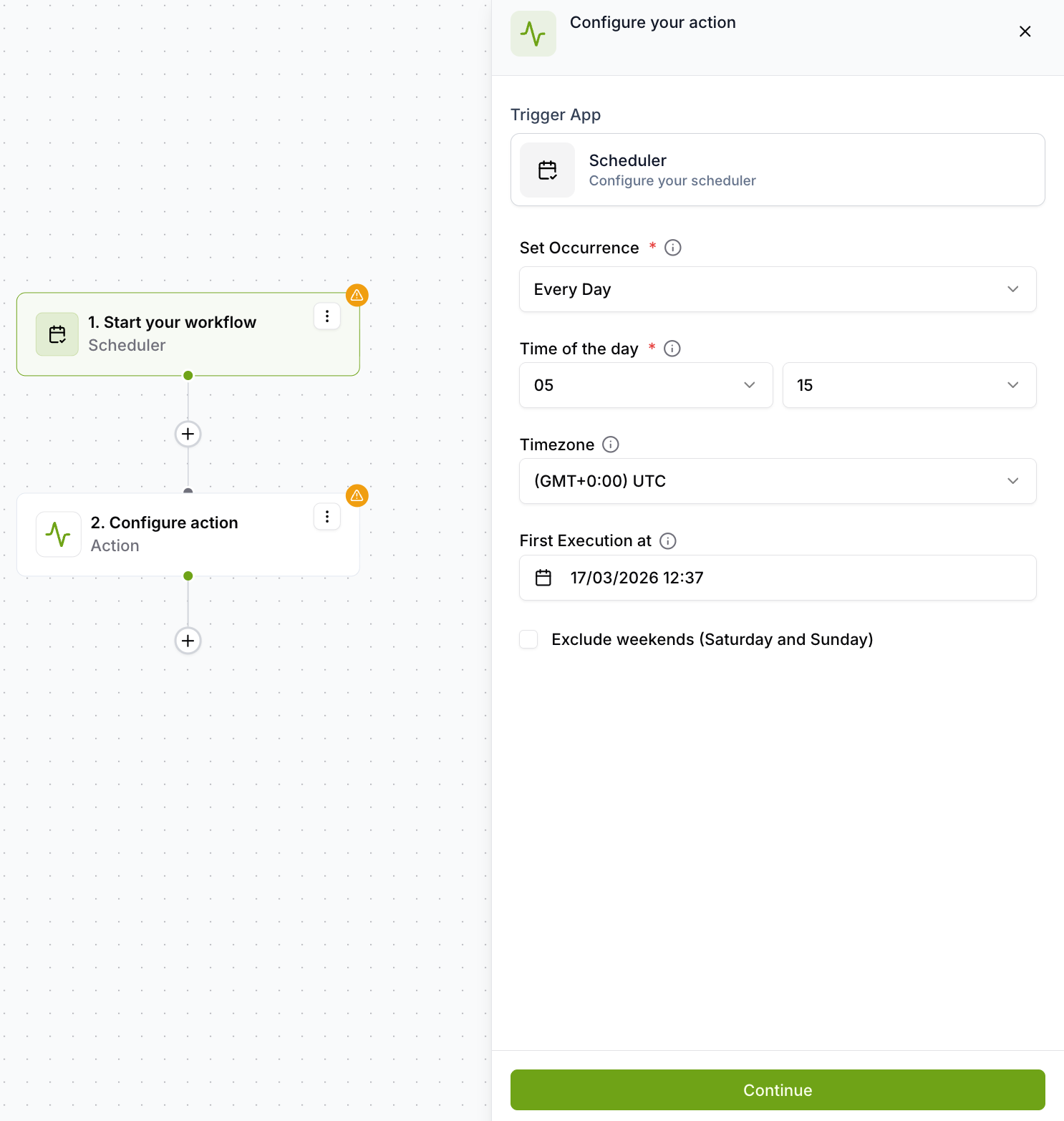
- Standalone: Select the built-in Scheduler trigger app when configuring the trigger node.
- On a polling trigger(App): Select a specific polling trigger app, then click Schedule event in the trigger configuration sidebar to control how often that app polls for new data.
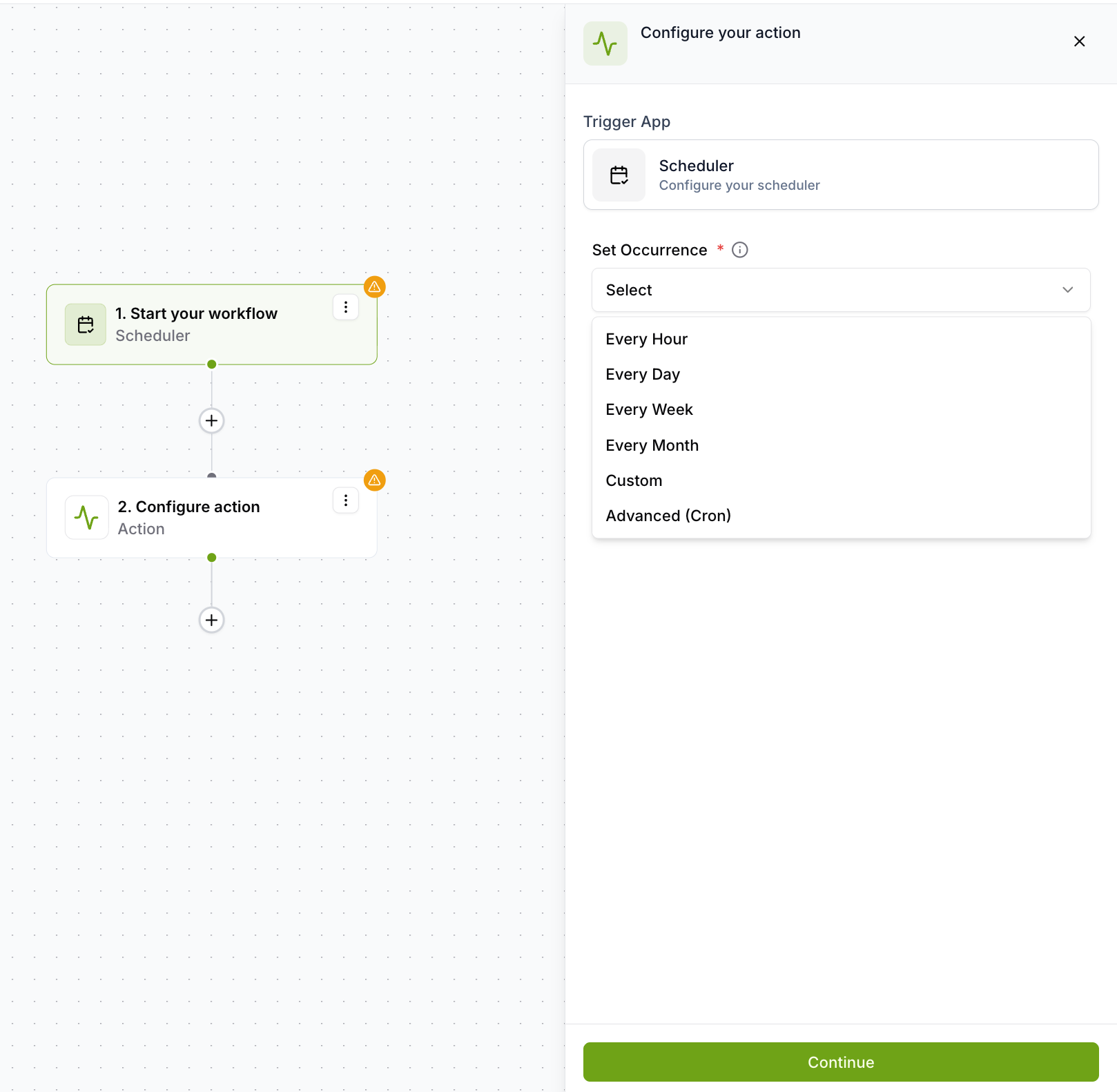
In Set Occurrence, choose one of the following schedule types:
- Every Hour
- Every Day
- Every Week
- Every Month
- Custom
- Advanced (Cron)
Fill in the fields specific to the selected occurrence type — time offset, time of execution, days, or cron expression as applicable.
- Select the Timezone in which the schedule should execute.
- Set a First Execution date and time if you want the schedule to begin at a specific future moment. If left blank, execution starts at the next valid run time after the workflow is activated.
- Enable Exclude Weekends if the schedule should skip Saturday and Sunday (supported schedule types only).
Click Continue to save the scheduler configuration. If validation fails, invalid fields are highlighted in the sidebar and the schedule is not saved.
Click the + icon below the scheduler node to add the next step. Configure the required actions or steps in the subsequent nodes.
Click Save to save the full workflow configuration. The schedule is stored but does not execute until the workflow is activated.
Activate the workflow to start execution based on the configured schedule. Once active, the scheduler begins running at the next valid occurrence.
Things to Know
| Scenario | Behavior |
| Standalone scheduler trigger | The workflow starts automatically based on the configured time schedule |
| Scheduler added to a polling trigger | The external trigger polls only on the configured schedule intervals |
| Future first execution is set | The schedule starts at that specific future date and time |
| First execution is left blank | Execution starts at the next valid run time after the workflow is activated |
| Exclude weekends enabled | Weekend executions are skipped for supported schedule types |
| Workflow saved but not activated | The schedule is stored in configuration but does not execute |
| Validation fails on save | Invalid fields are highlighted in the sidebar and the schedule is not saved |
Restrictions & limitations
| Restriction | Detail |
| Hourly offset values | Limited to quarter-hour intervals only: 0, 15, 30, and 45 |
| Monthly weekend exclusion | Not applied in a business-calendar-aware way for monthly day-of-month schedules |
| Advanced cron validation | UI validation currently expects a standard 5-field cron input only |
| Custom hourly scheduling | Runs distributed evenly within the hour — manual selection of each run time is not supported |
| Custom daily scheduling | Runs distributed evenly across the day — manual selection of each run time is not supported |
Workflow Diagrams
The Scheduler fires on the configured schedule and starts the workflow automatically each time.
Polling only occurs at the scheduled intervals instead of running continuously — reduces unnecessary API calls.
Workflow is activated now but the first execution only begins on the specified future date, then recurs daily from that point.
Frequently Asked Questions
Configuration & Modes
What is the difference between the Scheduler trigger and adding a schedule to a polling trigger?+
The Scheduler trigger is a standalone trigger that starts the entire workflow on a defined time schedule with no external service involved. Adding a schedule to a polling trigger controls how often an existing polling trigger checks an external service for new data — instead of polling continuously, it polls only at the configured intervals.
When should I use Advanced (Cron) mode?+
Use Advanced mode when you need a recurring schedule that cannot be expressed through the standard UI controls — for example, every 10 minutes, on the last weekday of the month, or at multiple specific times per day. It requires a valid standard 5-field cron expression and is best suited for technical or power users.
What happens if I leave First Execution blank?+
The schedule starts at the next valid run time calculated from when the workflow is activated. For example, a daily schedule set for 09:00 will first run at 09:00 on the day after activation if it is already past 09:00.
Can I choose any minute offset for an Hourly schedule?+
No. Hourly offset values are currently limited to quarter-hour intervals: 0, 15, 30, and 45. For more granular intervals, use Advanced (Cron) mode.
Behaviour & Edge Cases
Does the workflow run if it is saved but not yet activated?+
No. Saving the workflow stores the schedule configuration but does not start execution. The scheduler only begins running once the workflow is activated.
Does Exclude Weekends work for all schedule types?+
No. Exclude Weekends is only available for supported schedule types. Additionally, for monthly day-of-month schedules, weekend exclusion is not applied in a business-calendar-aware way — it simply skips Saturday and Sunday without shifting to the nearest weekday.
How does Custom scheduling distribute runs?+
For Custom Hourly, runs are distributed evenly within the hour. For Custom Daily, runs are distributed evenly across the day. Manual selection of each specific run time is not supported — use Advanced (Cron) mode if you need precise control over every run time.
What happens if a required field is missing when I try to save?+
The system validates all required fields on save. If validation fails, the invalid fields are highlighted in the sidebar and the schedule is not saved. Fix the highlighted errors before trying again.
Was this article helpful?
That’s Great!
Thank you for your feedback
Sorry! We couldn't be helpful
Thank you for your feedback
Feedback sent
We appreciate your effort and will try to fix the article