
How to search For a Specific Konnector By Name
How to Search for a Konnector
Find any automation by name from your Konnectors list in a few quick steps.
What is the Konnectors List?
The Konnectors list is where all your existing automations are displayed. It shows each Konnector's name, connected apps, last run time, and status — making it easy to manage and find your workflows.
Searching for a Konnector
Go to the Konnectify website and log in using your email address and password.
Click on Konnectors in the left sidebar. This opens the Konnectors list showing all your existing automations.
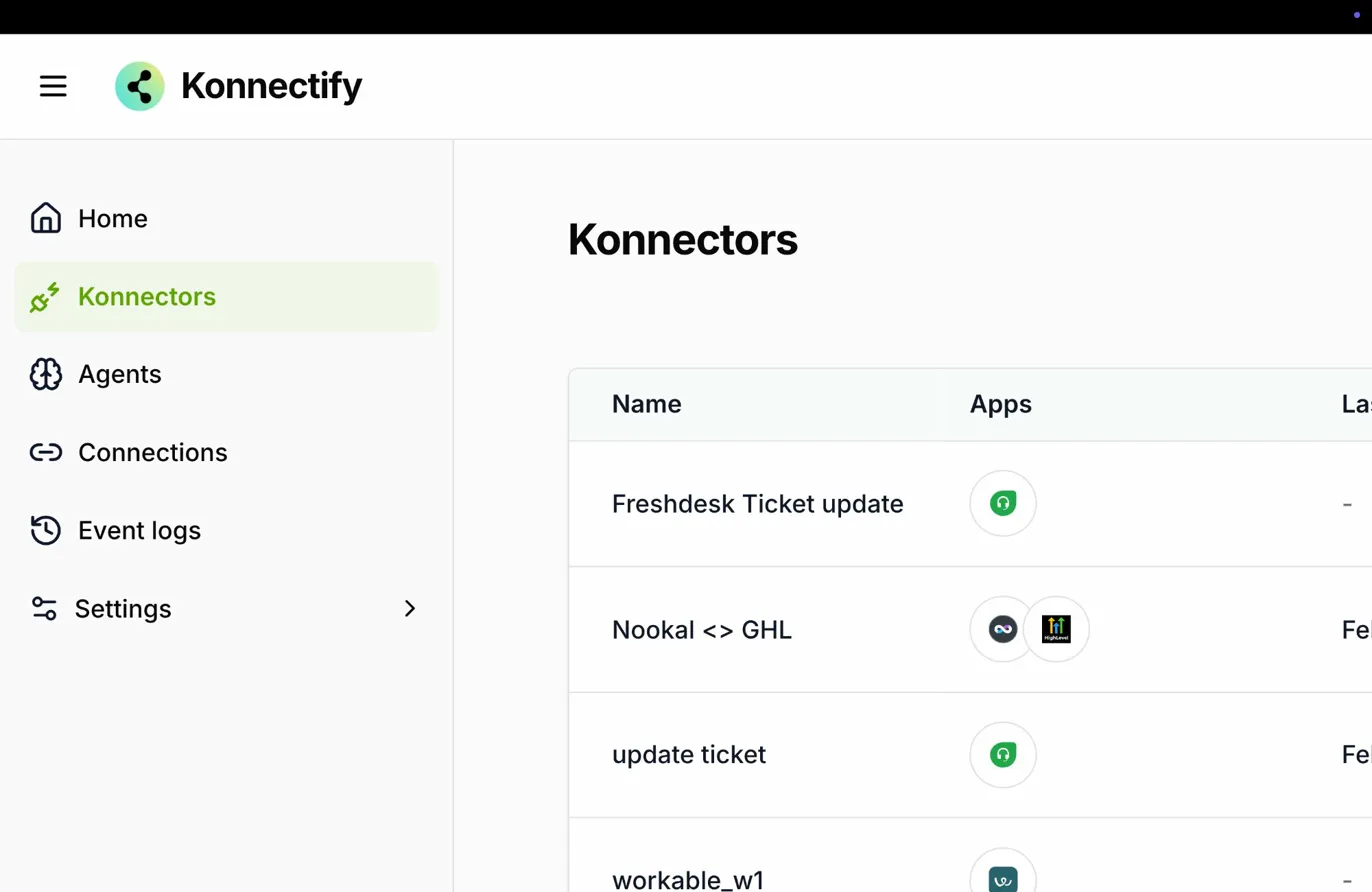
At the top of the Konnectors list, click the Search bar and type the name or keyword of the Konnector you are looking for (e.g., freshdesk). The list instantly filters to show matching results.
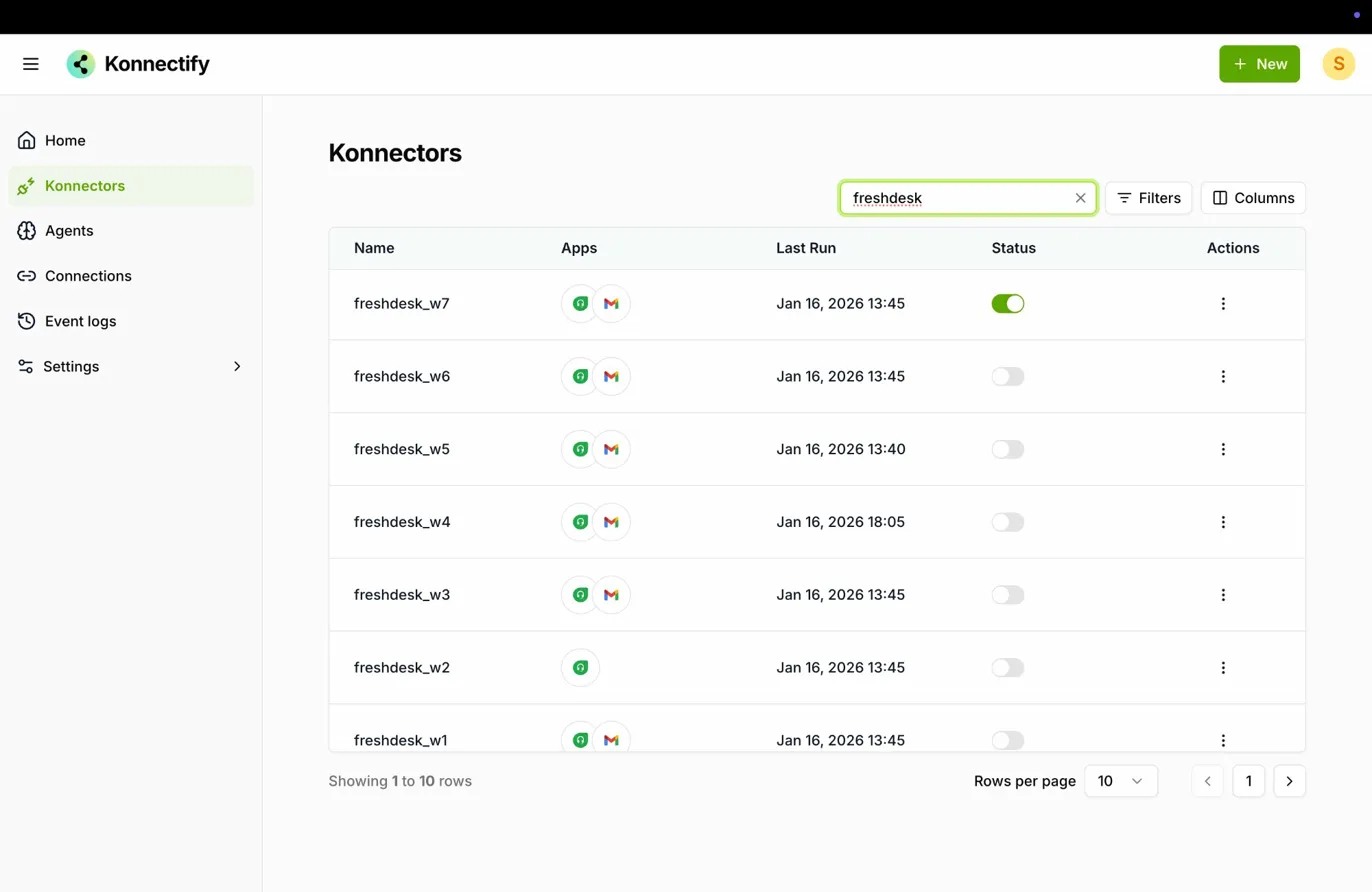
Review the filtered results. Each row shows the following to help you confirm you've found the right one:
| Column | Shows |
| Name | The Konnector's title |
| Apps | The apps involved in the automation |
| Last Run | When the Konnector last executed |
| Status | Whether the Konnector is active or inactive |
Once you find the Konnector you need, click on it to open and view its details.
Was this article helpful?
That’s Great!
Thank you for your feedback
Sorry! We couldn't be helpful
Thank you for your feedback
Feedback sent
We appreciate your effort and will try to fix the article