
How to Create a Konnector in Konnectify
How to Create a Konnector
A complete guide to building an automated workflow from start to finish covering trigger setup, action configuration, field mapping, and activation.
What You'll Need
- An active Konnectify account — Sign up at konnectify.co/sign-up if you haven't already
- Access credentials for the apps you want to connect — API keys, OAuth tokens, or login credentials
- An understanding of the workflow you want to automate — Know what event should trigger the automation and what action should follow
Understanding Konnectors
A Konnector is an automated workflow that links your applications together. Each Konnector consists of:
| Component | Description |
| Trigger | The event that starts your automation (e.g., "New ticket created") |
| Optional Conditions | Filters, paths, code blocks, or repeaters to control data flow |
| Action | What happens when the trigger fires (e.g., "Create contact" or "Send email") |
| Field Mapping | How data flows from the trigger to the action |
Step-by-step Guide
- Log in to your Konnectify account
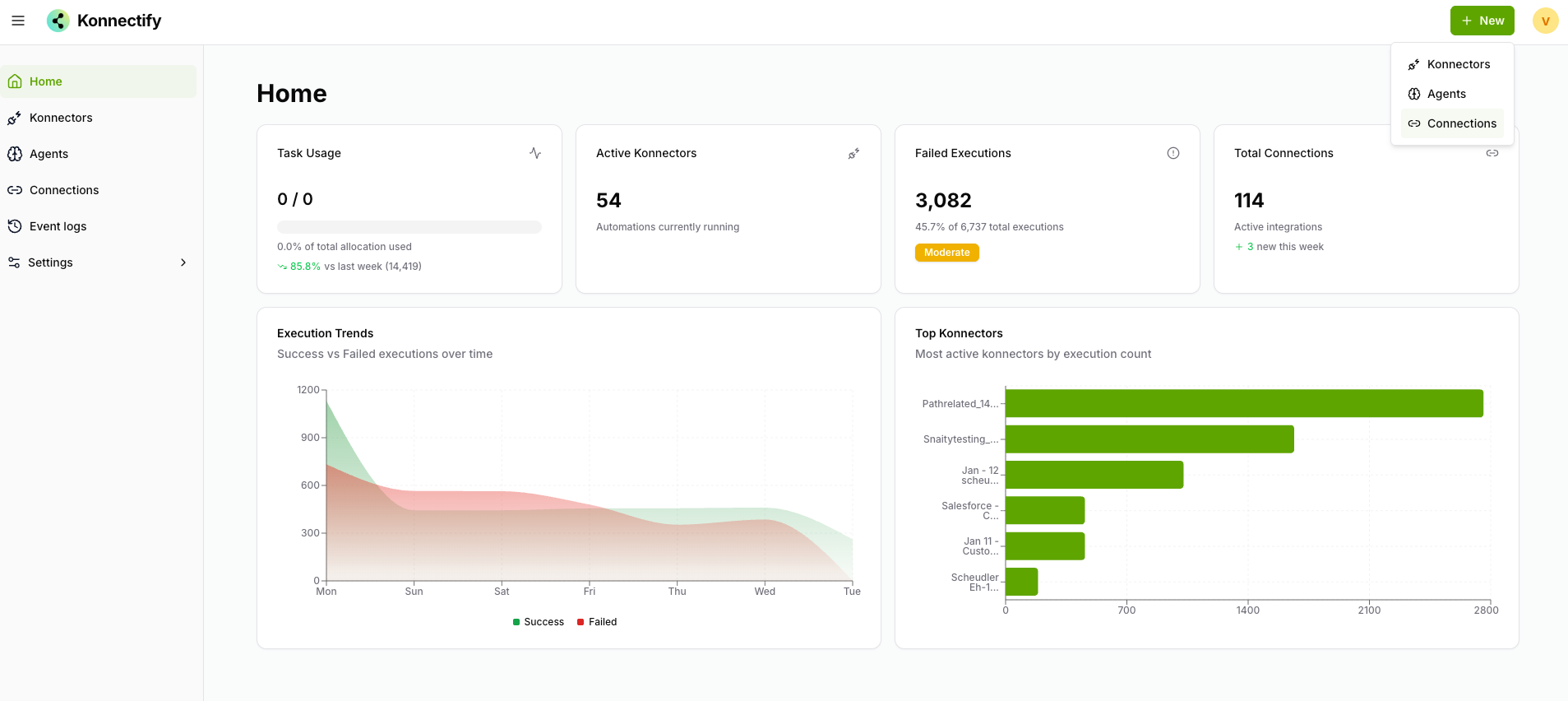
- Click the New button in the top navigation
- Select Konnector from the dropdown menu
- The Konnector creation interface opens with the trigger selection screen
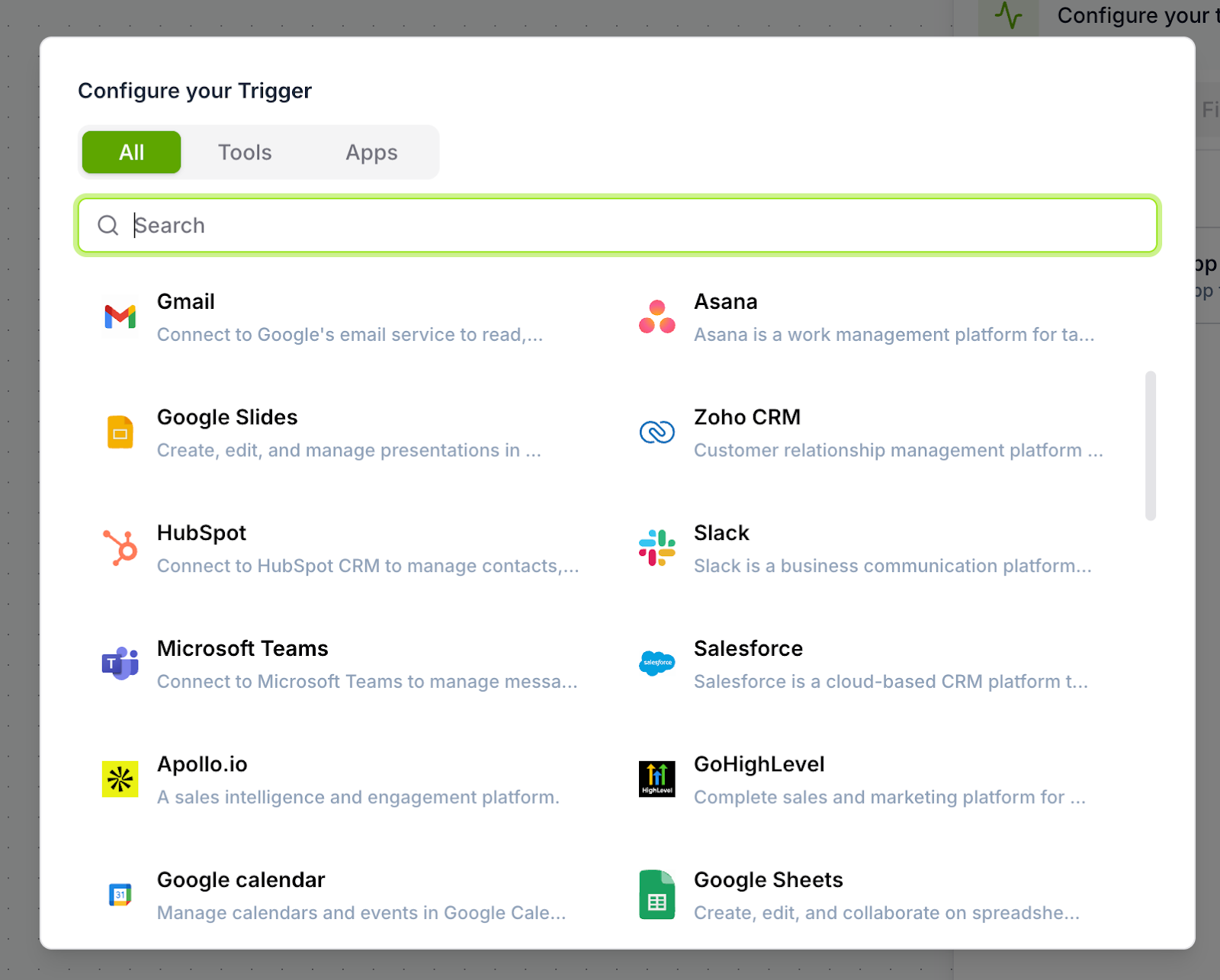
The trigger is the event that starts your workflow. In the "Configure your Trigger" modal, browse or search for your app:
| Tab | Shows |
| Apps | Connected third-party applications |
| Tools | Built-in Konnectify tools (Catch Hooks, Scheduler, etc.) |
| All | Everything available |
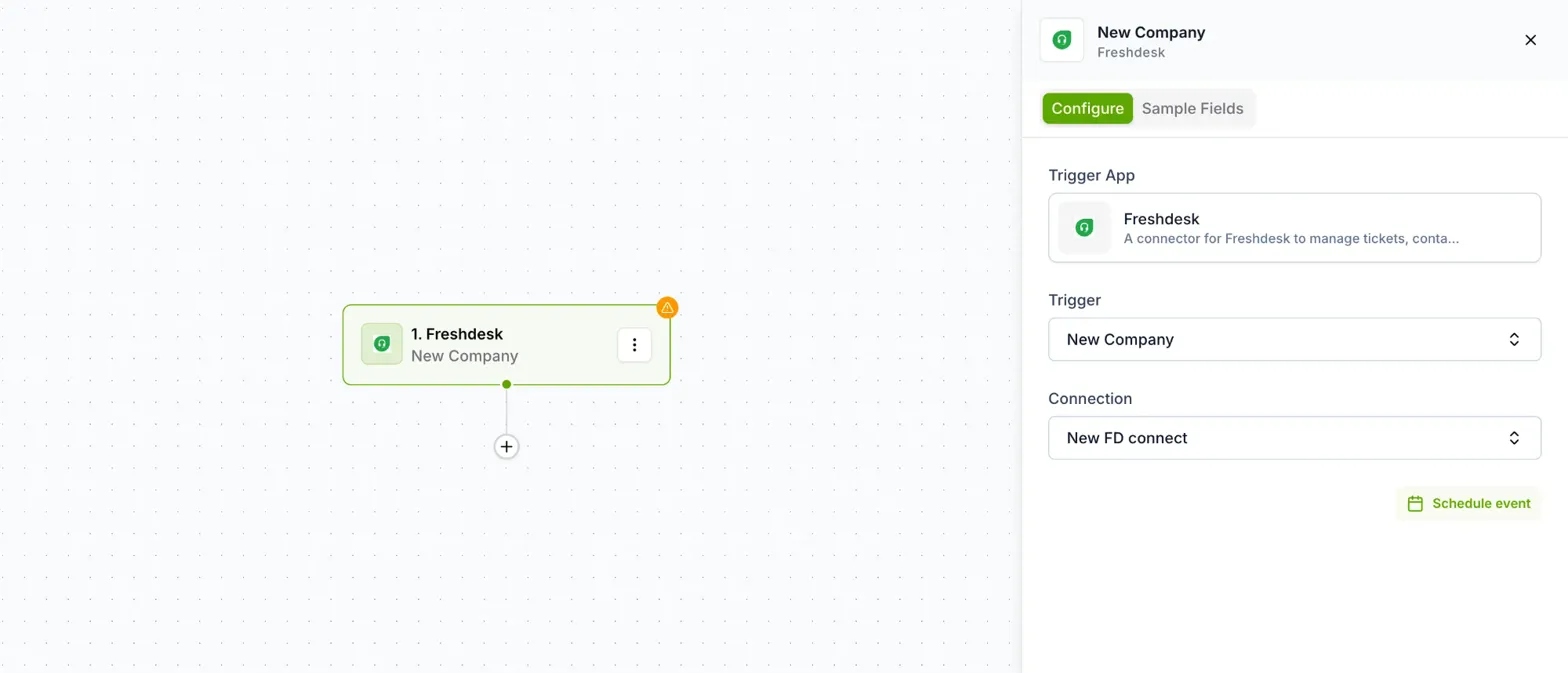
After selecting your trigger app, specify which event starts the workflow. In the configuration panel, open the Trigger dropdown and choose an event:
- New Company — Fires when a new company is created
- New Ticket — Fires when a new support ticket is created
- New Email — Fires when a new email is added
- Updated Company / Updated Contact — Fires when records change
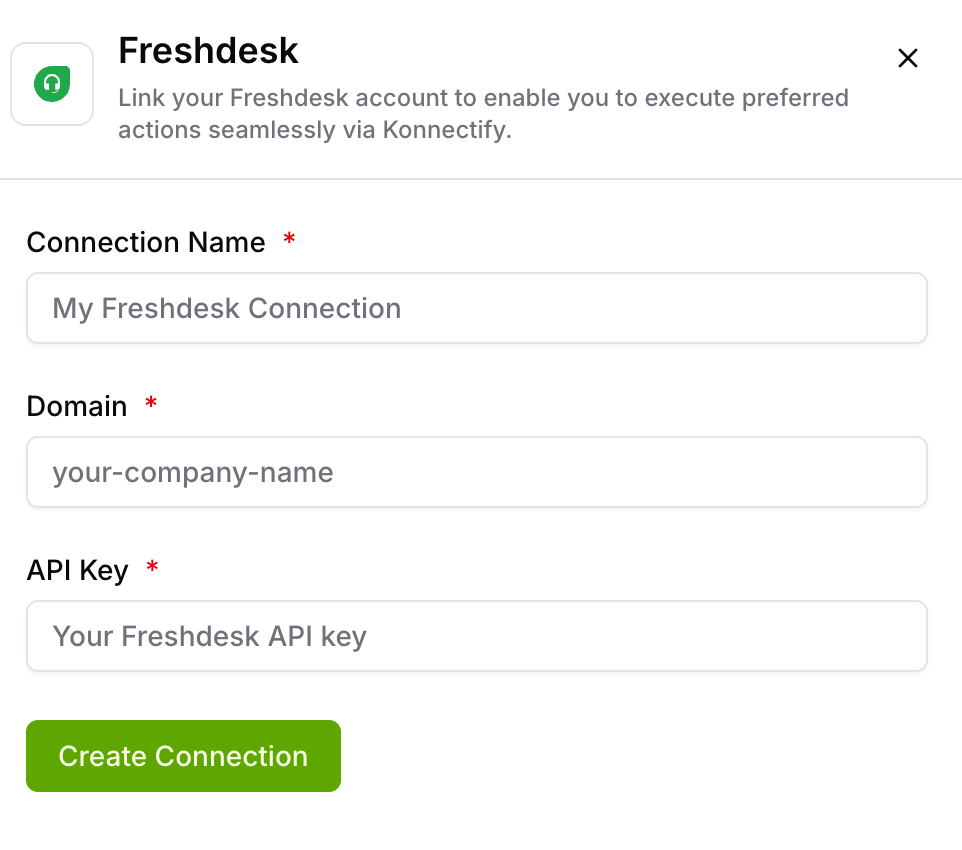
Under Connection in the panel, click "Choose connection" then + Add new connection.
- Connection Name — A descriptive label
- Domain — Your company domain
- API Key — Paste your key
- Click the authentication button
- You'll be redirected to the app's login page
- Grant Konnectify access, then return
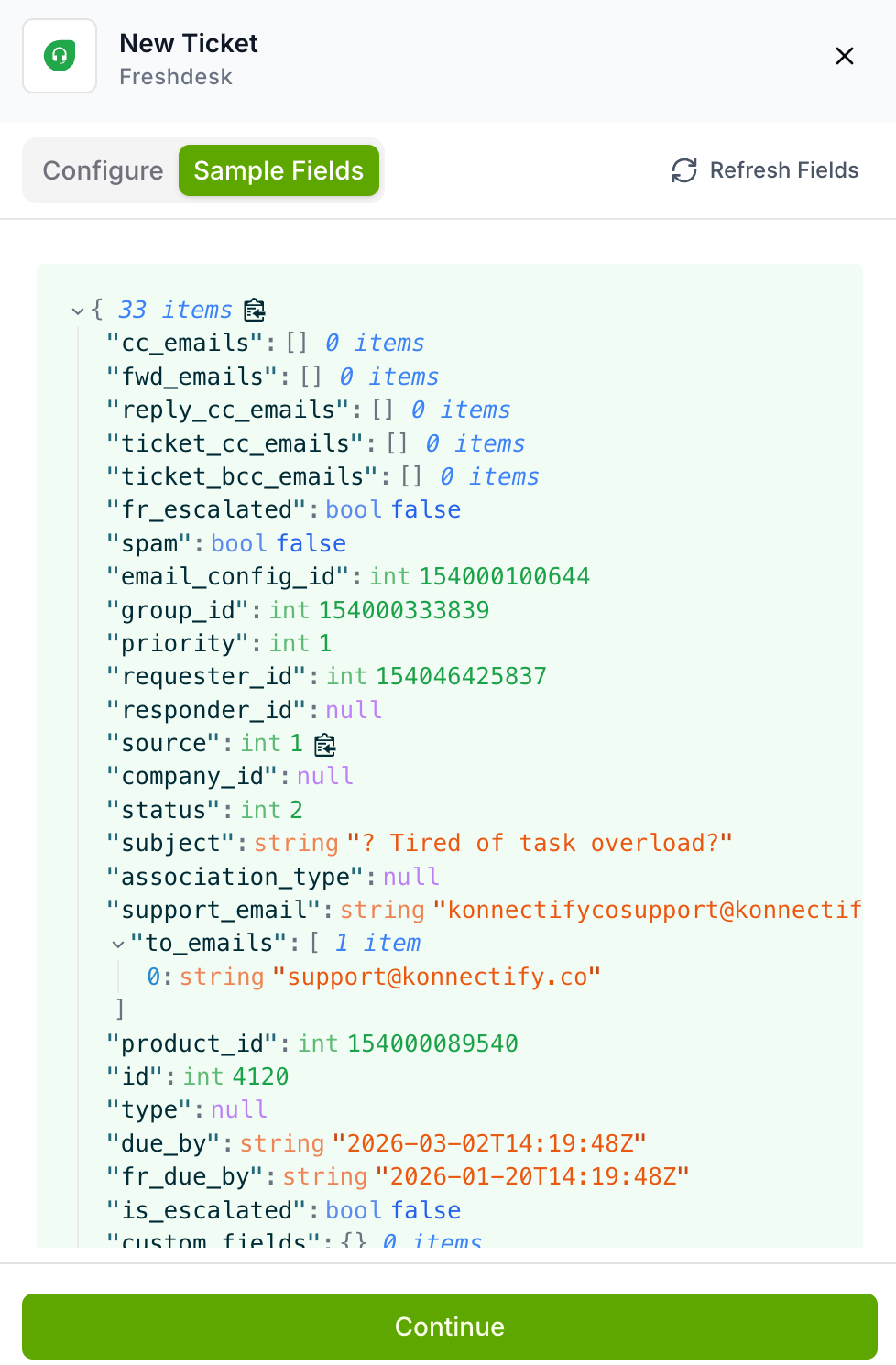
After authentication, Konnectify fetches sample data from your trigger app. Click the Sample Fields tab to see the available data — field names, data types, and example values.
- Field names (e.g.,
id,name,email,created_at) - Data types (string, integer, null, array, object)
- Example values from actual data
Click Refresh Fields to reload the latest field structure, then click Continue to proceed.
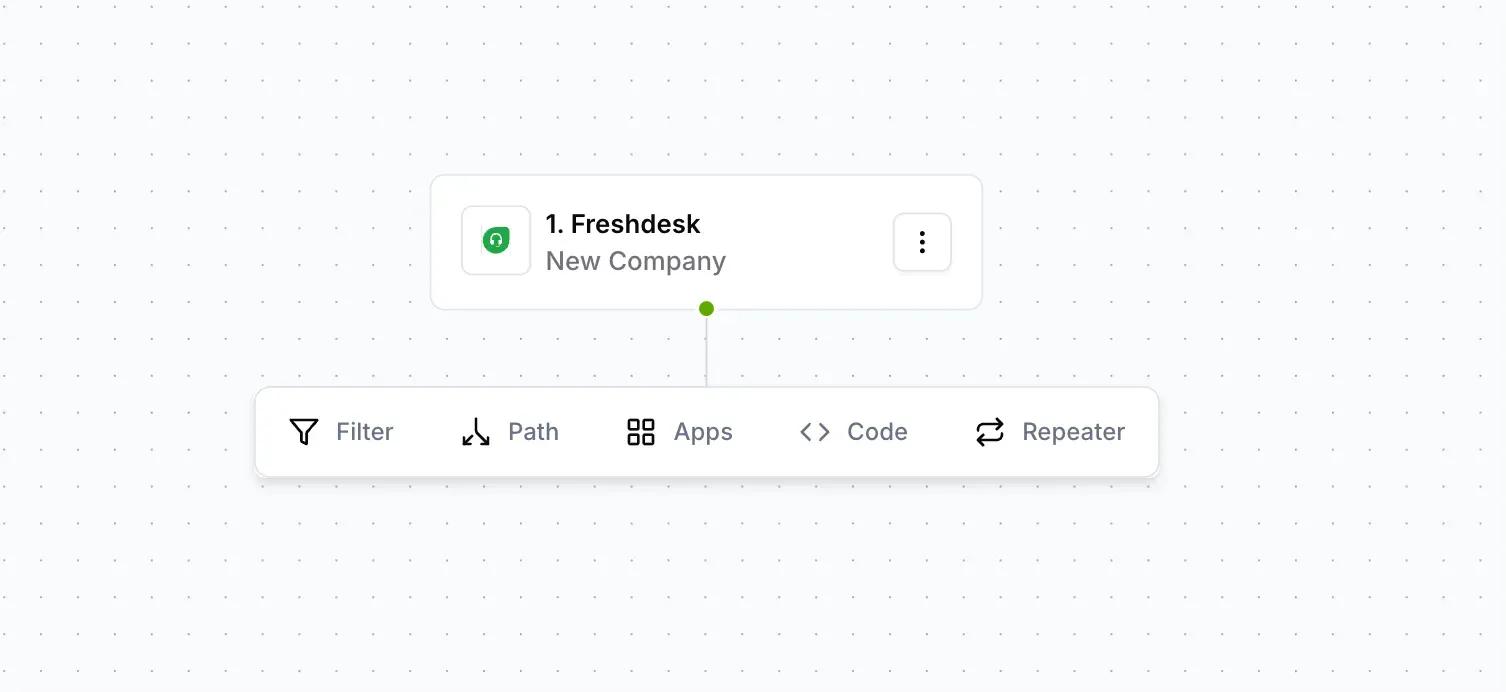
Click the + button below your trigger node to add conditional logic, or skip directly to adding an action.
| Node | When to use |
| Filter | Only process high-priority tickets or leads above a certain value |
| Path | Route data to different destinations based on criteria |
| Code | Transform data formats or perform custom calculations |
| Repeater | Process multiple items from an array |
Actions define what happens when the trigger fires. Click + and select Apps, then find and click your action app (e.g., Freshsales). Under Event, choose what to perform:
- Create Contact — Add a new contact
- Create Company — Add a new company or account
- Update Record — Modify existing data
- Send Email — Send an email notification
- Create Ticket — Generate a support ticket
Then authenticate the action app under Connection — select an existing connection or create a new one following the same process as Step 4.
Field mapping connects the dots between your trigger and action. Click the Field Mapping tab. Required fields are marked with *. For each field, click the input and choose:
- Insert fields from trigger data — Select dynamic data from your trigger
- Enter text manually — Type a static value
- Combine both — Mix static text with dynamic fields
{{First Name}} {{Last Name}}.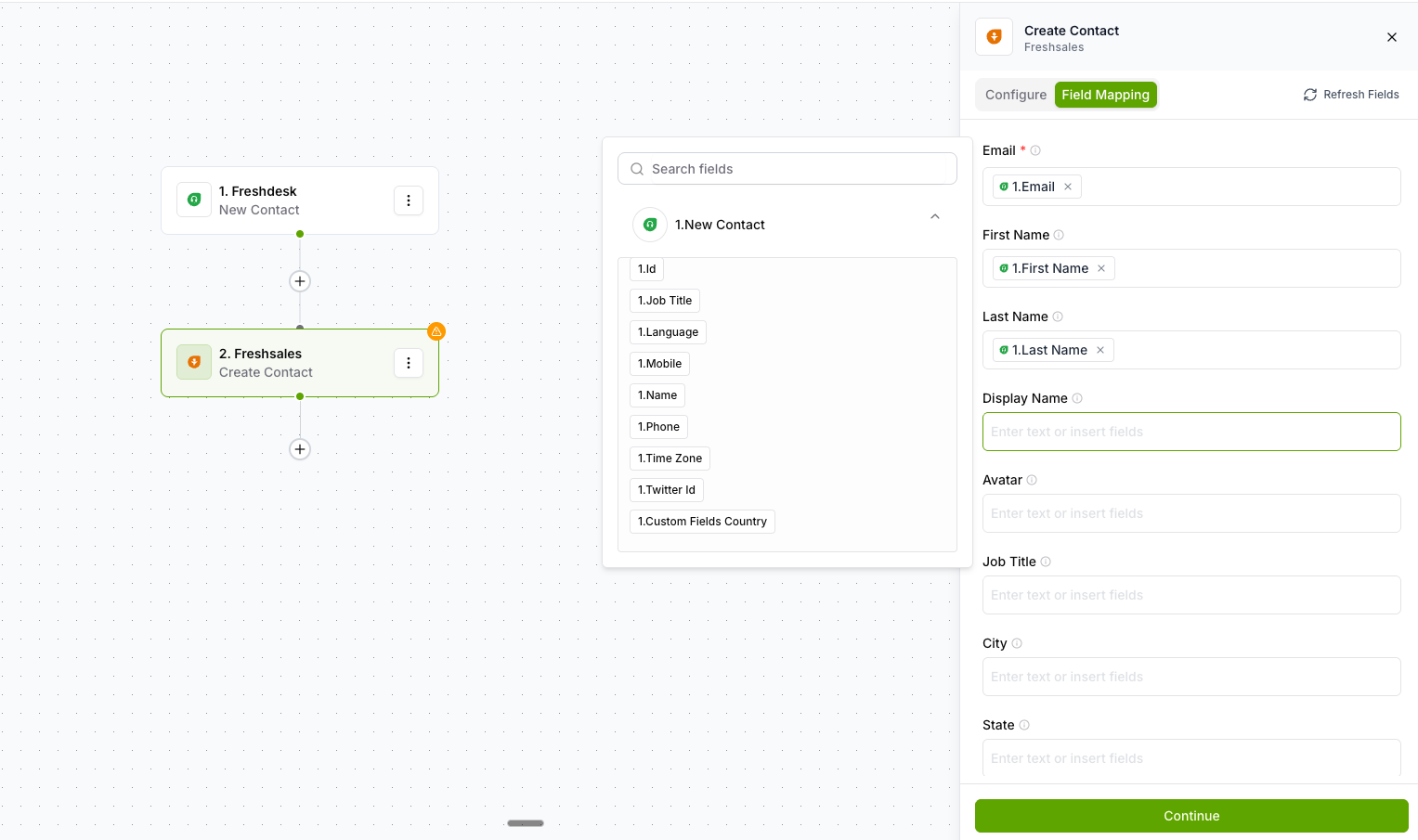
- Click the Save button in the top-right corner
- A modal appears asking for a Konnector Name
- Enter a descriptive name, then click Continue

After saving, your konnector is Inactive by default — it won't run until you activate it.
- You'll be taken to the konnector details page
- Locate the Active / Inactive toggle in the top-right corner
- Click to switch to Active
- A confirmation appears: "Konnector activated!"
What Happens After Activation?
- Automatic monitoring begins for your trigger
- Real-time execution when the trigger fires
- Actions run automatically
- All activity is logged in event logs
To view execution history: go to the Event logs page → click your konnector name → review the execution log showing when it ran, whether it succeeded, what data was processed, and any errors.
Next Steps
Now that you've created your first Konnector, explore these advanced features to build more powerful workflows:
| Feature | What it does |
| Paths | Create branching logic with multiple outcomes |
| Filters | Add conditional filtering to your workflows |
| Code Block | Write custom JavaScript for advanced transformations |
| Repeater | Process arrays and bulk data efficiently |
| Scheduler | Run konnectors on a time-based schedule |
Was this article helpful?
That’s Great!
Thank you for your feedback
Sorry! We couldn't be helpful
Thank you for your feedback
Feedback sent
We appreciate your effort and will try to fix the article