
Clone a Konnector
Clone a Konnector
Create a copy of an existing konnector — either as an exact duplicate with all connections and field mappings intact, or as a clean template with just the workflow structure.
What is Cloning?
Cloning lets you duplicate an existing konnector without rebuilding it from scratch. It's useful when you want to reuse a workflow for a similar use case, test changes without affecting a live konnector, or share a workflow structure across different accounts or environments.
There are two clone options. Choosing the right one depends on how much of the original konnector you want to carry over.
How to Clone a Konnector
In the left navigation, click Konnectors under the Workflows section. You'll see a list of all your konnectors.
Find the konnector you want to clone. Click the three dots ( ⋮ ) in the Actions column on the right side of that row.
A dropdown appears with options: Edit, Clone, Add to Folder, and Delete. Click Clone.
A dialog box appears: "Clone Konnector — [Konnector Name]". You'll see three buttons:
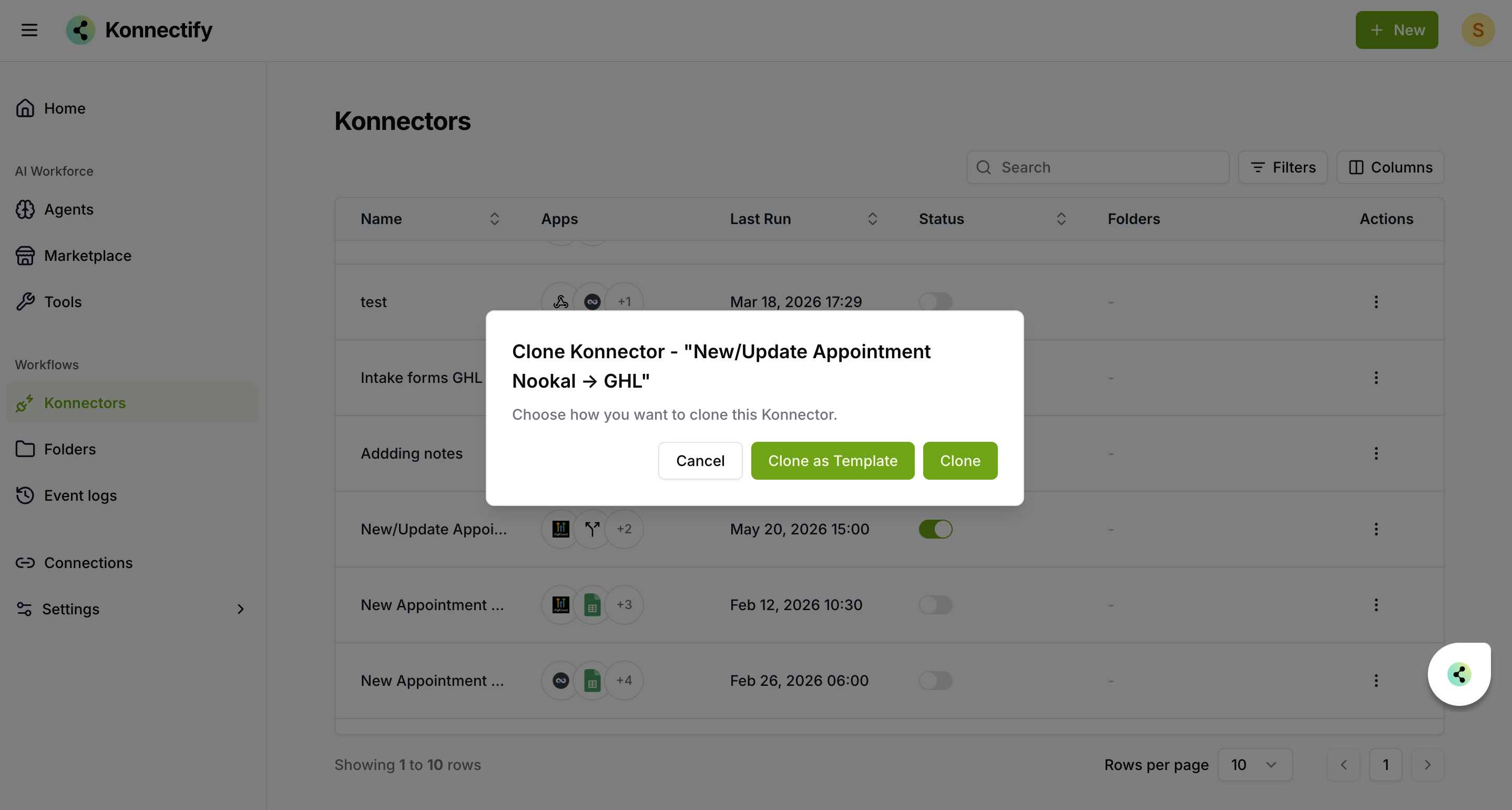
- Cancel — Closes the dialog. No changes are made.
- Clone as Template — Creates a copy with app actions and workflow structure only. Connections and field mappings are left blank for you to configure.
- Clone — Creates an exact copy with all connections and field mappings carried over.
The cloned konnector appears in your Konnectors list. It will be named Copy of [Original Name]. Click on it to open and make any changes needed.
When to Use Each Option
| Scenario | Use Clone | Use Clone as Template |
| Same apps, same accounts, slightly different logic | ✅ Yes | Not needed |
| Testing changes without affecting the live konnector | ✅ Yes | Either works |
| Sharing a workflow pattern without sharing credentials | ❌ Avoid — copies connections | ✅ Yes |
| Starting a new konnector from an existing structure | Either works | ✅ Cleaner start |
Things to Know
| Item | Detail |
| Cloned konnector name | Named Copy of [Original Name] by default. Rename it by opening the konnector. |
| Status after cloning | The cloned konnector is inactive by default — it will not run until you activate it. |
| Original konnector | Cloning does not affect or modify the original konnector in any way. |
| Folders | The clone is not automatically placed in the same folder as the original. Add it to a folder manually if needed. |
| Clone as Template — connections | All connection fields will be blank. You must reconnect each app before activating. |
| Clone as Template — field mappings | All field mappings are cleared. You'll need to remap fields in each action step. |
| Event logs | The cloned konnector starts with no event log history. Logs are independent from the original. |
Frequently Asked Questions
Will cloning affect my original konnector? +
Can I clone a konnector that is currently active? +
What is the difference between Clone and Clone as Template? +
Clone is an exact copy — it includes all app actions, connections, and field mappings. Use it when you want a ready-to-run duplicate for the same apps and accounts.
Clone as Template copies only the app actions and workflow structure. Connections and field mappings are left blank so you can set them up fresh. Use it when reusing a workflow pattern for a different account or environment.
Can I rename the cloned konnector? +
Does the cloned konnector appear in the same folder? +
I cloned as template — what do I need to configure before activating? +
Before activating a konnector cloned as a template, you need to:
- Connect each app action to the correct account or credentials.
- Re-map all field mappings in every action step.
- Test the konnector to confirm everything is working as expected.
Was this article helpful?
That’s Great!
Thank you for your feedback
Sorry! We couldn't be helpful
Thank you for your feedback
Feedback sent
We appreciate your effort and will try to fix the article