Konnectify

Create your first AI Agent

AI Agents

Create your first AI Agent

Set up a trigger, define instructions, connect services, add tools, and activate your agent — by the end you will have a fully functional AI Agent automating real workflows.

9 steps Step-by-step guide Beginner friendly

Before you begin

Before creating the agent, take a moment to plan. Defining what your agent should do upfront will make every step faster and more accurate.

Think through the following before you open the builder:

What the agent should do
What input it will receive
What actions it should perform
Which event will trigger it

Example

Automatically categorize support tickets and update fields in a helpdesk system.

Steps in this guide

1
Plan your agent
2
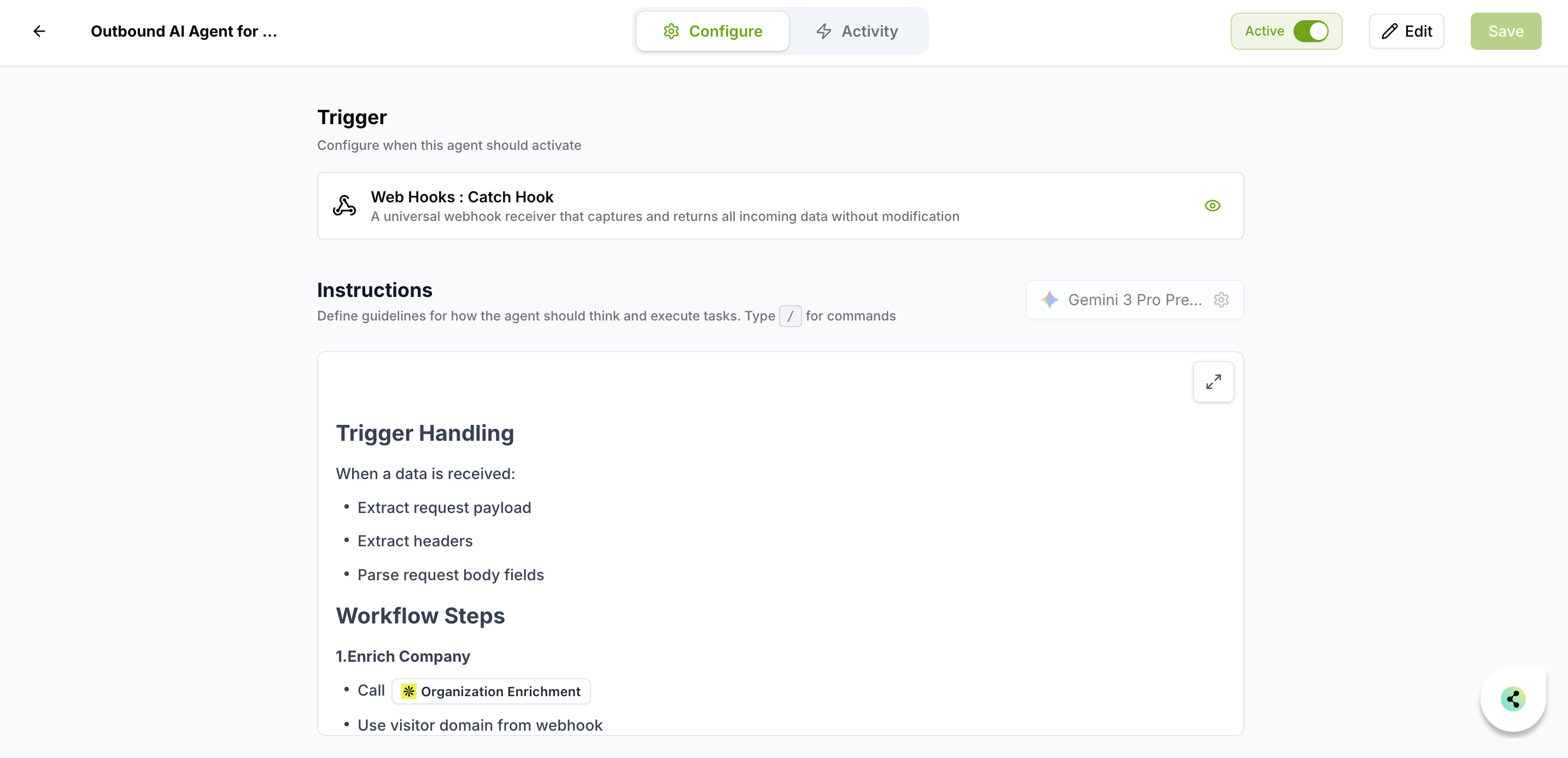
Add a trigger
3
Create connections
4
Select AI model
5
Define instructions
6
Add tools
7
Configure tool fields
8
Save & activate
9
Test your agent

Step-by-step guide

1
Plan your AI Agent Prep

Before creating the agent, clearly define what it should accomplish. A well-planned agent is faster to configure and more reliable in production.

Example

Automatically categorize support tickets and update fields in a helpdesk system.

2
Add a trigger Required

The trigger determines when the agent runs. Without a trigger, the agent will never execute.

To add a trigger

1
Click Add Trigger
2
Select a trigger source
Apps (Gmail, Freshdesk, CRM) Webhook Scheduler

Example

Freshdesk: New Ticket — fires every time a new support ticket is created.

3
Create required connections Required

Before using triggers, models, or tools, you must create connections. Connections allow the agent to interact with external systems securely.

To create a connection

1
Select the app, model provider, or tool
2
Click Create Connection
3
Provide required credentials

Authentication types

OAuth

Login-based authentication

API Key

Key-based access

Other

Varies by service

Connections required for

Trigger apps AI models Tools
4
Select an AI model Required

Choose an AI model for your agent. Ensure the required connection for the model provider is already configured. The model determines how well the agent performs.

Understanding

Interprets inputs accurately

Reasoning

Applies logic step by step

Output quality

Generates precise results

5
Define instructions Required

Instructions define what the agent should do and how it should behave. Well-written instructions directly determine the quality of the agent's output.

Clearly define the agent's role
Specify step-by-step logic
Define rules and constraints
Use / to reference and call tools directly within the instructions
Use Enhance to improve clarity and effectiveness

Example

Analyze incoming tickets, classify them into category, sub-category, and item, and update the ticket using the appropriate tools.

6
Add tools Required

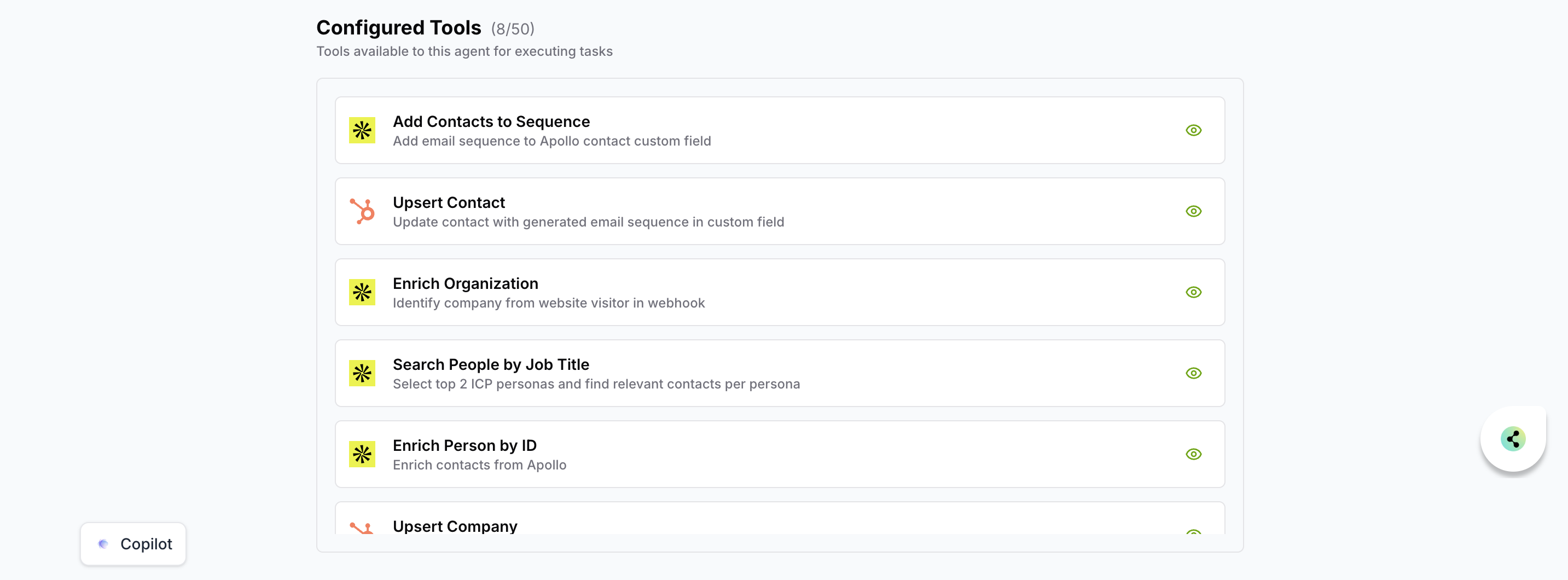
Tools allow the agent to perform actions in connected systems. You can add multiple tools depending on your workflow. Ensure connections are set up for each tool.

To add a tool

1
Click Add Tool
2
Select the app and action
3
Configure the tool
Get data from a system Update records Send emails Add labels or tags
7
Configure tool fields Required

Each tool requires field configuration to define how data is passed. Proper configuration ensures accurate and consistent execution.

Field options

Let agent select
Dynamically determined based on instructions and context
Choose a value
Set a fixed value manually
Ignore
Skip field if not required
Let agent choose from allowed fields
Restricted to predefined values — useful for category, status, priority

Examples

Ticket ID
Let agent select
Category
Let agent choose from allowed fields
Priority
Choose a value
8
Save and activate the agent Activate

After configuring all components, save and activate the agent. Only active agents will run when triggered.

1
Click Save
2
Set the agent status to Active
9
Test your AI Agent Final step

Before using the agent in production, test it with sample data to verify everything works correctly.

Trigger the agent with sample data
Verify outputs and actions
Ensure tools execute correctly
Refine instructions if needed

Tip

Use the Activity section to monitor executions and debug issues after the agent is live.

Using Copilot (Optional)

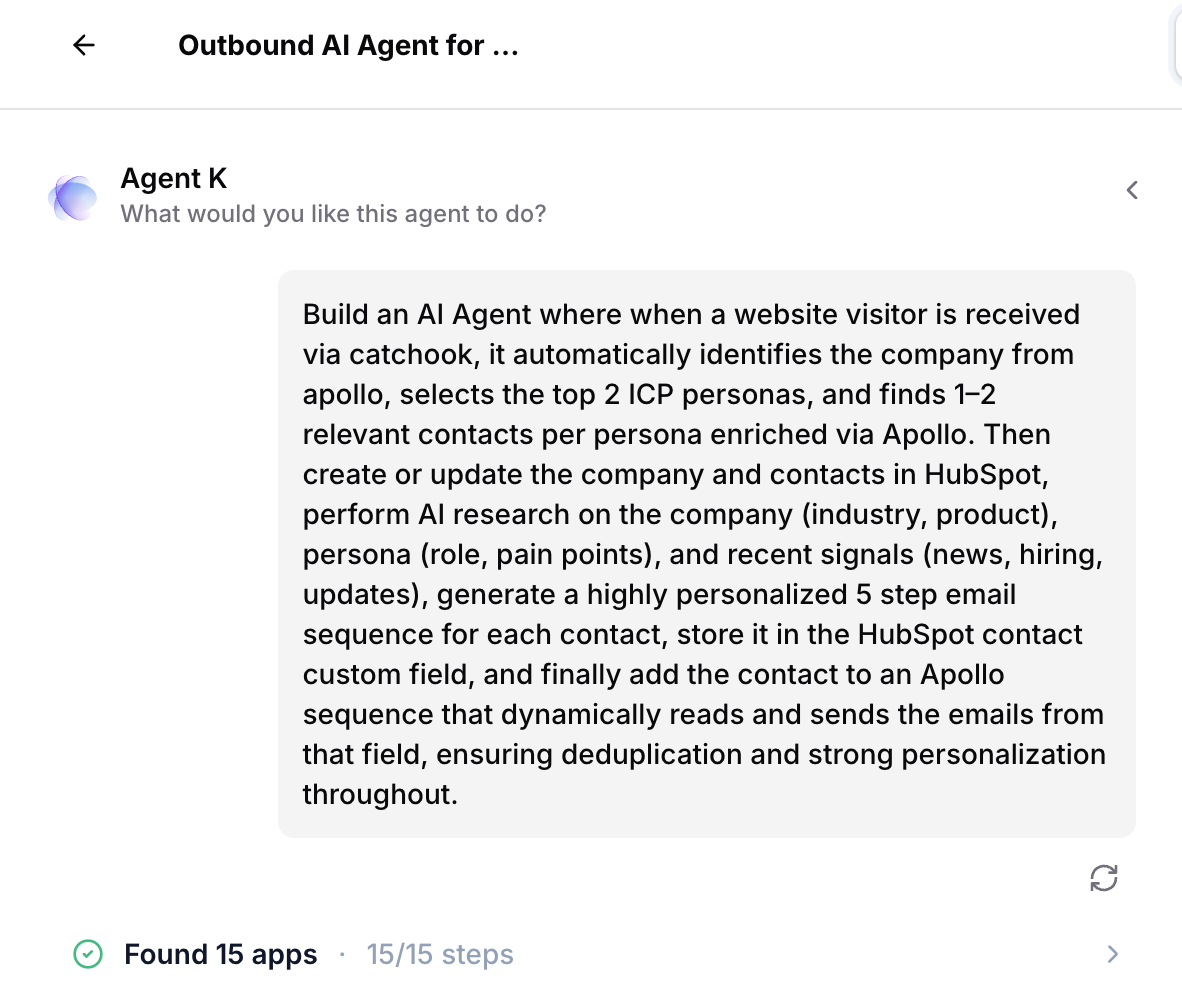
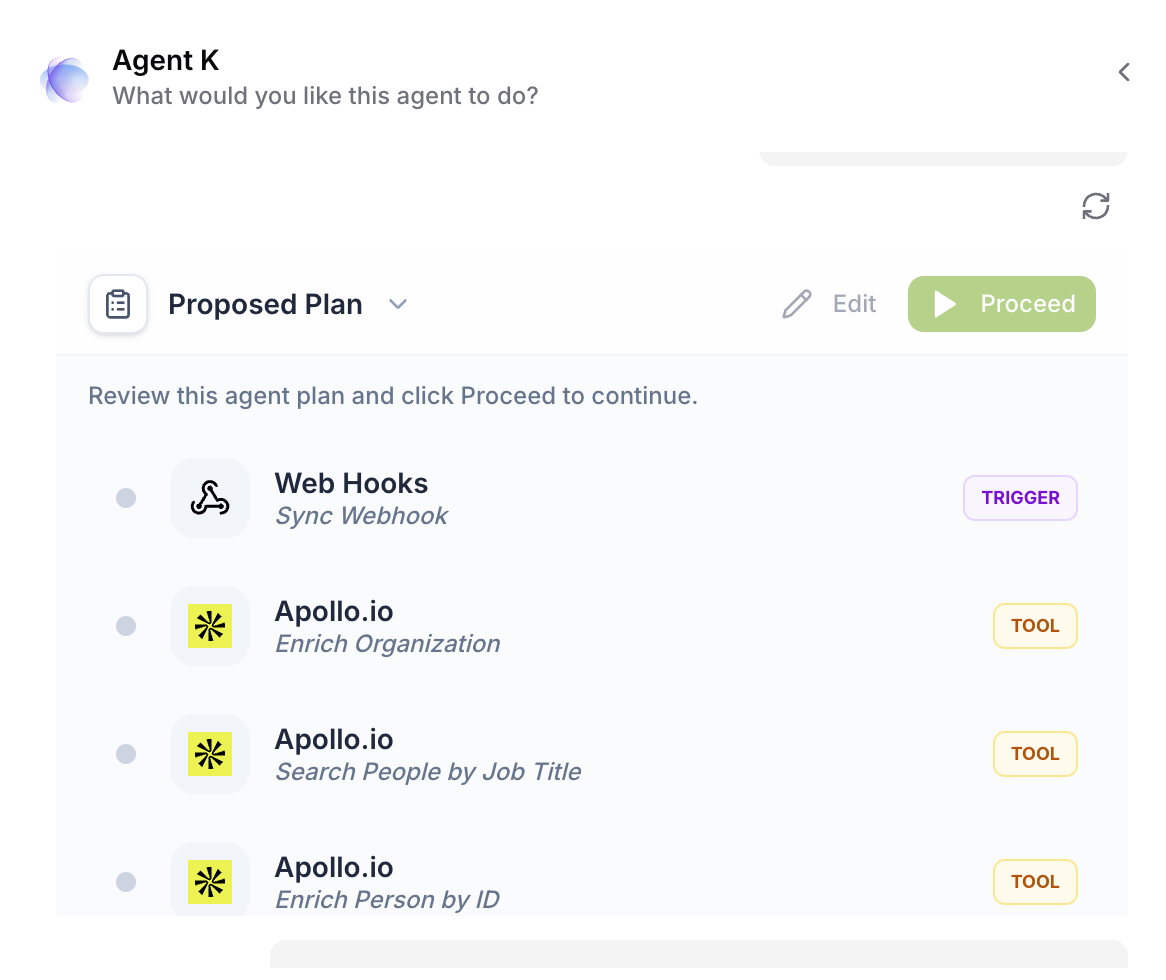
Copilot helps you build and configure agents faster. Describe your use case in plain language and let Copilot guide the setup.
Natural language setup

Describe your automation in plain words

Step-by-step guidance

Guided configuration for complex workflows

Instruction generation

Generate and refine agent instructions automatically

Faster configuration

Set up your agent more efficiently

You are ready

Your first AI Agent is set up.

Monitor runs in the Activity section and refine instructions as needed.

Get started free

Was this article helpful?

That’s Great!

Thank you for your feedback

Sorry! We couldn't be helpful

Thank you for your feedback

Let us know how can we improve this article!

Select at least one of the reasons
CAPTCHA verification is required.

Feedback sent

We appreciate your effort and will try to fix the article